
Fix Windows 11 Setup No Drives Found for SSD or NVMe
Windows 11 Setup not showing your NVMe SSD? Learn how to fix no drives found by loading Intel RST/VMD drivers, changing BIOS settings, or recreating the USB installer.
 By NexyFix Hardware and Boot DeskBoot and Hardware Education EditorPublished Jun 11, 2026Updated Jun 11, 202610 min readIntermediateUpdated recently
Intro
If Windows 11 Setup is not showing your NVMe SSD, the drive is not always broken. Windows 11 normally supports NVMe SSDs, but Setup may still show no drives when the storage controller mode, Intel RST/VMD driver, BIOS storage setting, or USB installer is getting in the way.
- You may see: We could not find any drives. To get a storage driver, click Load driver.
- You may also see: No drives were found.
- Other related messages include: A media driver your computer needs is missing, or Install driver to show hardware.
- The safest first split is simple: does BIOS see the SSD, or is the drive missing before Windows Setup even starts?
Why Windows 11 Setup Cannot Find Your NVMe SSD
When an NVMe SSD is missing during installation, the problem is often the storage controller mode rather than the NVMe drive itself. Many modern Intel laptops use Intel VMD or Intel Rapid Storage Technology. Windows Setup may need that storage controller driver before it can list the SSD.
- Common causes include a missing Intel RST driver.
- Intel VMD may be enabled in BIOS.
- RAID mode may be enabled instead of AHCI.
- The Windows installation USB may be wrong, old, or corrupted.
- The SSD may not be detected in BIOS.
- The M.2 slot may be disabled, shared, unsupported, or affected by firmware settings.
- Outdated BIOS firmware can sometimes affect storage detection.
- The fastest fix is usually loading the correct storage driver during Windows Setup when BIOS already sees the drive.
Quick Fix Summary
Use this table to match the no-drives symptom to the safest first fix. Do not delete partitions while the drive list is unclear.
| Problem | Best Fix |
|---|---|
| Windows 11 shows no drives | Load Intel RST / VMD driver |
| NVMe appears in BIOS but not Setup | Load storage controller driver |
| Intel laptop 11th-14th gen | Use Intel RST VMD driver |
| ASUS laptop no drive found | Load IRST driver or disable VMD |
| Dell laptop no drive found | Extract and load IRST driver |
| Custom PC no NVMe detected | Check BIOS, M.2 slot, and AHCI mode |
| USB installer gives driver error | Recreate the Windows 11 USB |
Step 1: Check If the NVMe SSD Appears in BIOS
Before loading drivers or changing Windows Setup, restart into BIOS/UEFI and check whether the NVMe SSD appears by model name or capacity. If BIOS does not detect the SSD, Windows Setup cannot fix it.
- Open BIOS/UEFI using the key shown by your PC maker, often F2, Del, Esc, or F12.
- Look for Storage, NVMe Configuration, SATA, M.2, Information, or Boot pages.
- If the SSD appears in BIOS but not Setup, continue with Intel RST/VMD driver steps.
- If the SSD does not appear in BIOS, stop Windows Setup and check hardware, slot, firmware, or professional repair options.
- Exit without saving if you are not sure what changed.
Step 2: Download the Correct Intel RST / VMD Driver
If BIOS sees the NVMe SSD but Windows Setup does not, download the storage controller driver for the exact laptop, desktop, or motherboard model. On newer Intel systems this is often called Intel Rapid Storage Technology, Intel RST, Intel VMD, IRST, RAID, or storage controller driver.
- Use the official manufacturer support page when possible.
- Search by exact model, service tag, serial number, or motherboard model.
- Avoid random driver packs, mirror sites, and fake driver updater tools.
- For laptops, check the Dell, HP, Lenovo, ASUS, Acer, or other maker support page.
- For custom desktops, check the motherboard support page.
Step 3: Extract the Driver to a USB Drive
Windows Setup usually needs access to extracted driver files, not only a downloaded installer file. Use another PC to extract the storage driver to a USB drive if the manufacturer package requires it.
- Use a second USB drive when possible so the Windows installer USB stays clean.
- Look for folders that contain files such as INF, SYS, and CAT.
- Keep the folder structure intact after extraction.
- If the support page gives special extraction instructions, follow those instructions for your exact model.
Step 4: Load the Driver During Windows 11 Setup
Return to Windows 11 Setup, reach the drive selection screen, and choose Load driver. Browse to the USB folder that contains the extracted Intel RST, VMD, or storage controller driver.
- Choose Load driver only after BIOS confirms the SSD exists.
- Select the extracted storage driver folder on the USB drive.
- Wait for Setup to scan the folder.
- If the correct driver loads, the NVMe SSD should appear in the drive list.
- Do not delete partitions unless you are sure you selected the correct drive.
Step 5: If No Driver Appears, Choose the Correct Folder
If Windows Setup says no signed driver was found, the package may not be extracted correctly or you may be browsing the wrong folder. Go one folder deeper or back up one level until Setup can see the driver files.
- Try folders named VMD, RST, IRST, F6, x64, or Windows 11 if they exist.
- Make sure you extracted the package instead of copying only the downloaded installer.
- Use the 64-bit driver folder for Windows 11.
- If no folder works, recheck the exact PC or motherboard model before downloading another driver.
Step 6: Disable Intel VMD in BIOS
Disabling Intel VMD can make the SSD visible during a fresh Windows installation on some systems, but it is not a casual switch. Changing VMD, RST, RAID, or AHCI can stop an existing Windows installation from booting.
- Write down the original storage setting before changing anything.
- Use this option mainly during a fresh install, not on a working existing Windows install.
- Look for Intel VMD, VMD Controller, Intel RST, RAID, or storage controller settings.
- If you disable VMD and the drive appears, continue only after confirming the target drive.
- If the PC already has Windows installed and files matter, stop before changing storage mode without a backup.
Step 7: Recreate the Windows 11 USB Installer
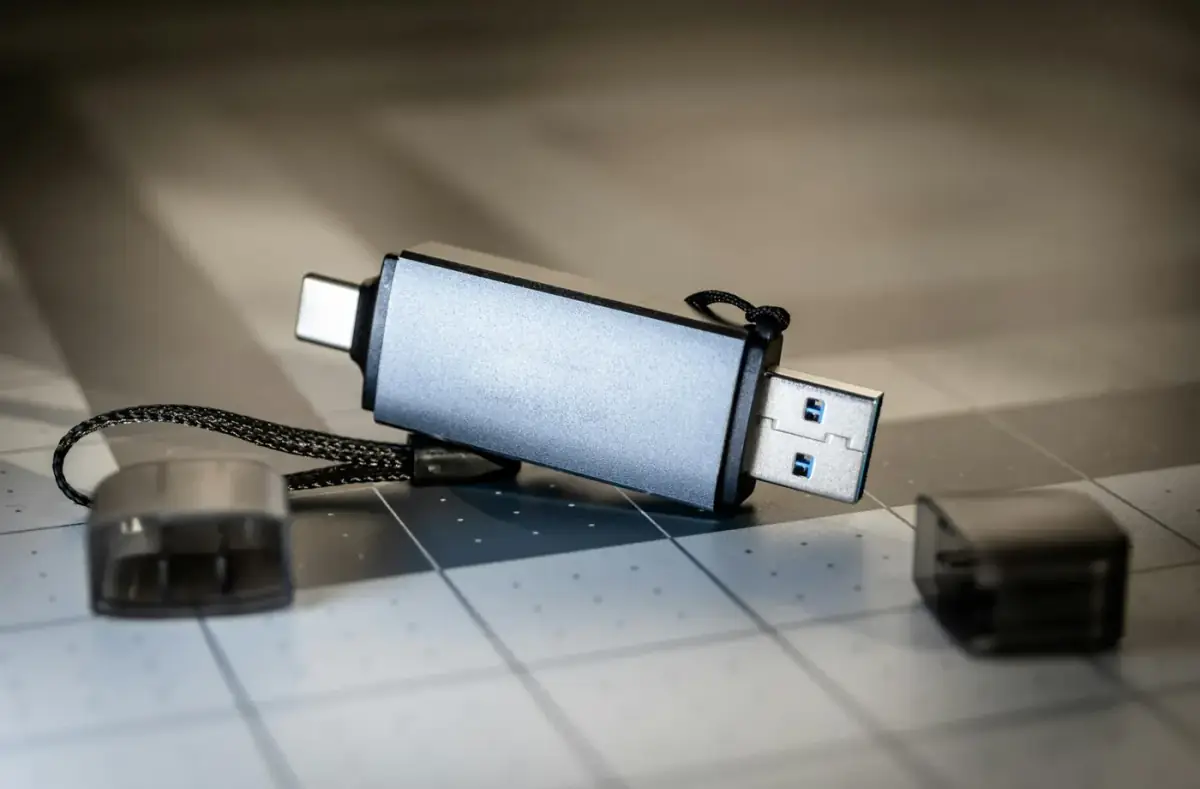
A bad or incomplete USB installer can cause storage-driver and detection errors. If the driver path does not work and BIOS sees the SSD, recreate the Windows 11 USB installer before taking riskier steps.
- Use a known-good USB drive.
- Use an official Windows 11 USB installer path.
- Avoid USB hubs during setup.
- Try a direct USB port on the laptop or motherboard.
- If the USB installer gives a media driver error, recreate it before changing partitions.
Step 8: Check BIOS Storage Settings
Use BIOS storage settings to understand the problem, not to guess. Change only one setting at a time, and write down the original value first.
| BIOS Setting | What to Check |
|---|---|
| NVMe Configuration | Make sure the SSD is detected |
| M.2 Slot | Make sure the slot is enabled |
| SATA Mode | Try AHCI for clean install |
| Intel RST | May require RST driver |
| Intel VMD | May require VMD driver |
| RAID Mode | May hide drives without driver |
| CSM / UEFI | Windows 11 should use UEFI |
| Secure Boot | Usually can stay enabled, but test if needed |
Step 9: For ASUS Laptops
On many ASUS laptops, the no-drives screen can be related to Intel VMD or IRST. Check the exact ASUS support page for your model and look for storage, chipset, Intel RST, or IRST driver downloads.
- Try loading the ASUS-provided IRST or Intel RST/VMD driver during Setup.
- If the support notes say to disable VMD for a fresh install, write down the original setting first.
- Do not use a driver from a different ASUS model just because the name looks similar.
Step 10: For Dell Laptops
Dell systems often provide storage drivers through the model support page. Use the service tag or exact model, then extract and load the Intel RST or storage controller driver during Windows Setup.
- Use Dell support for the exact laptop.
- Look for Intel Rapid Storage Technology, Intel RST, VMD, storage controller, or F6 driver wording.
- Extract the driver if Setup cannot read the downloaded installer directly.
- Avoid changing RAID/VMD modes on an existing Windows install without a backup.
Step 11: For Custom Desktop PCs
For custom desktops, check the motherboard manual and support page. The issue may be an M.2 slot, BIOS setting, AHCI/RAID mode, shared lanes, or a storage driver for the board chipset.
- Confirm the NVMe SSD is installed in a compatible M.2 slot.
- Check whether the M.2 slot shares lanes with SATA ports or PCIe slots.
- Use the motherboard support page for chipset or storage drivers.
- For SATA SSDs, check both data and power cables with the PC shut down and unplugged.
- Do not open the power supply or force storage connectors.
What If the SSD Does Not Show in BIOS?
If the SSD does not appear in BIOS, stop troubleshooting inside Windows Setup. Setup cannot install to a drive the firmware cannot detect.
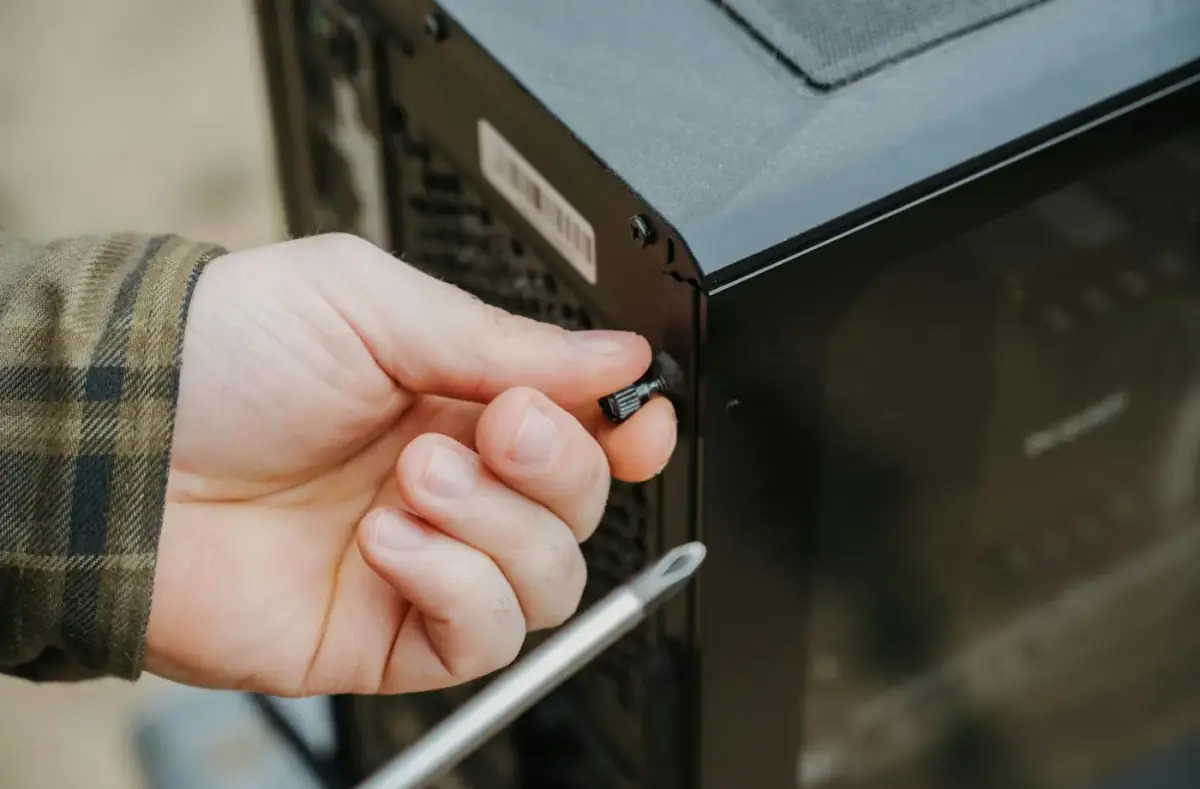
- Shut down and disconnect power before reseating an NVMe SSD.
- Check that the M.2 drive is fully seated and secured.
- For SATA drives, check data and power cables with the PC unplugged.
- Check whether the slot supports NVMe, SATA M.2, or both.
- Avoid formatting or deleting anything while the drive is missing from BIOS.
- Ask for professional help if the drive contains important data, appears intermittently, or the hardware work is outside your comfort zone.
Common Mistakes to Avoid
Most bad outcomes happen when people treat a detection problem like a partition problem. Keep the fix narrow and stop before data-loss choices.
- Do not delete partitions unless you are sure you selected the correct drive.
- Do not format a drive that may contain important files.
- Do not download random driver packs from unknown websites.
- Do not change VMD, RAID, AHCI, Secure Boot, CSM, and partition style all at once.
- Do not disable VMD on a working existing Windows install without understanding the boot risk.
- If the drive contains important data, stop before formatting or deleting partitions.
FAQ
Why does Windows 11 say no drives found?
Windows 11 says no drives found when Setup cannot detect the storage controller or SSD. This often happens on Intel systems using Intel RST, VMD, or RAID mode.
Does Windows 11 need an NVMe driver?
Windows 11 supports most NVMe SSDs by default. However, some systems need a storage controller driver, especially Intel RST or Intel VMD, before the drive appears during setup.
What driver do I need when Windows 11 cannot find my SSD?
Most newer Intel laptops need the Intel Rapid Storage Technology driver, also called Intel RST or Intel VMD driver. Download it from your computer manufacturer's official support page.
Should I disable VMD?
Disabling VMD can make the SSD visible during a fresh Windows installation. However, it can break booting on an existing Windows installation that was installed with VMD or RAID enabled.
Why is my NVMe visible in BIOS but not Windows Setup?
That usually means the hardware is detected, but Windows Setup does not have the correct storage controller driver. Load the Intel RST or VMD driver during setup.
Can a bad USB cause the no drives found error?
Yes. A corrupted or incomplete Windows installation USB can cause driver and detection errors. Recreate the Windows 11 USB if the normal fixes do not work.
Is this problem common on Intel 11th, 12th, 13th, and 14th gen laptops?
Yes. Many laptops from these generations use Intel VMD or Intel RST, and Windows Setup may need the storage driver loaded manually.
Final Fix Order
Use this order so you solve the actual cause without unnecessary data risk.
- Check whether the NVMe SSD appears in BIOS.
- If BIOS sees it, load the official Intel RST/VMD or storage controller driver.
- If the driver does not appear, browse the correct extracted folder.
- If driver loading fails, recreate the Windows 11 USB installer.
- Check BIOS storage settings only after writing down the original values.
- For a fresh install, consider VMD/AHCI guidance from the manufacturer.
- If BIOS does not see the SSD, stop Setup and check hardware detection.
Conclusion
Windows 11 normally supports NVMe SSDs, so a missing drive during Setup usually points to BIOS detection, Intel RST/VMD storage-driver handling, storage mode, or USB installer problems. Start with BIOS detection, use official drivers, avoid random driver packs, and stop before formatting if files matter.
Was this helpful?
Your feedback helps NexyFix improve future repair guides and beginner explanations.

NexyFix Hardware and Boot Desk
View author profileBoot and Hardware Education Editor
A role-based NexyFix editorial profile for storage compatibility, boot behavior, error codes, and when hardware symptoms need professional help.
Related articles
 Windows InstallationSSD or NVMe Not Detected in BIOS: Safe ChecksCheck why BIOS or UEFI cannot see an SSD or NVMe, with M.2 slot, SATA cable, storage-mode, and stop-before-formatting steps.
 Bootable USBHow to Create a Bootable Windows USB SafelyCreate a reliable Windows USB installer while avoiding modified images, weak USB drives, and accidental data loss.Bootable USBBootable USB Not Showing in Boot MenuTroubleshoot a missing boot USB with port, boot menu, UEFI mode, media creation, and firmware checks before changing storage settings.