SSD or NVMe Not Detected in BIOS: Safe Checks
Check why BIOS or UEFI cannot see an SSD or NVMe, with M.2 slot, SATA cable, storage-mode, and stop-before-formatting steps.
 By NexyFix Hardware and Boot DeskBoot and Hardware Education EditorPublished May 6, 2026Updated May 6, 20269 min readIntermediateUpdated recently
Guided repair
SSD or NVMe not detected in BIOS
Use this guide when an SSD or NVMe drive is not detected in BIOS/UEFI, a new M.2 drive does not appear, or Windows setup cannot find a drive because firmware does not see it. If BIOS already sees the drive but Windows Setup does not, use the Windows setup no-drives guide instead.
Time needed
20-60 minutes
Difficulty
Intermediate
Risk level
Medium
Applies to
What this usually means
If BIOS/UEFI cannot see the SSD or NVMe, Windows setup, NVMe driver loading, and disk commands are not the first fix. The issue is usually drive seating, slot compatibility, SATA power/data cabling, firmware settings, or a failed drive. This page is for BIOS-level detection; the setup page handles drives visible in BIOS but missing during Windows installation.
Symptoms
- Drive missing in BIOS
- Windows Setup sees no disk
- Drive appears only sometimes
- New NVMe drive not listed
Common causes
- Loose SATA cable
- Unsupported M.2 slot mode
- Drive not seated
- Disabled storage controller
- Failed drive
- UEFI storage page not checked
- Wrong setup driver when firmware does see the drive
- M.2 drive not fully seated or installed in an unsupported slot.
- SATA SSD missing power or data cable.
- M.2 SATA drive installed in an NVMe-only slot, or the reverse.
- Firmware storage mode or slot setting conflict.
- Drive failure or damage after installation, move, heat, or liquid exposure.
How to diagnose the problem
Separate the likely cause before deeper repair
- 1Check BIOS/UEFI information, storage, SATA, and NVMe pages for model or capacity.
- 2For SATA SSDs, separate data cable, power cable, and motherboard port clues.
- 3For M.2 NVMe drives, confirm the slot supports NVMe and the drive length.
- 4If the drive appears only sometimes, treat it as a reliability warning and protect data.
- 5If BIOS sees the drive but Windows Setup does not, use the storage-driver and setup guide.
- 6Confirm whether the drive is missing from BIOS/UEFI or only missing from Windows.
- 7For SATA SSDs, check both power and data cables with the PC unplugged.
- 8For M.2 drives, confirm NVMe vs SATA support and the supported M.2 length.
- 9Avoid BIOS updates unless the support page clearly matches your model and symptom.
- 10Stop before formatting, diskpart, or partition work when firmware cannot see the drive.
Visual walkthrough
Guided checks: what to inspect and what it means
These visual checks use original NexyFix diagrams and plain-language clues so you can recognize the problem without relying on misleading fake screenshots.
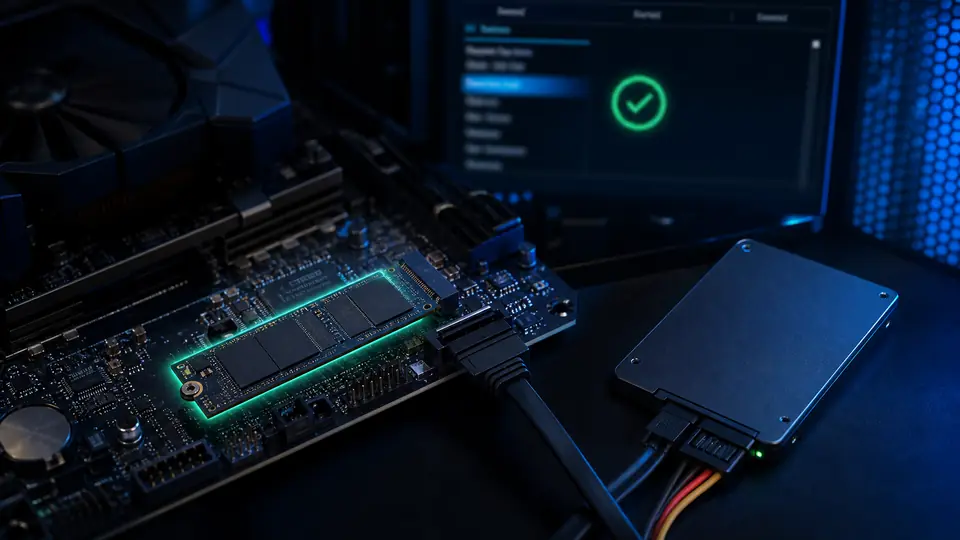
Read the firmware storage page
What this means
BIOS or UEFI detection must work before Windows can use the drive.
What to check
- Enter BIOS or UEFI
- Open Storage, NVMe, SATA, or Information
- Look for model number and capacity
- Exit without saving if unsure
What you should see
- Drive model listed
- Capacity listed
- Intermittent detection
- Or no drive listed
Safety note
If firmware cannot see the drive, do not use Windows disk commands.
Guided check
Match the slot, cable, and drive type
Match the slot, cable, and drive type
What this means
SATA SSDs, M.2 SATA drives, and M.2 NVMe drives do not all use the same ports or slots.
What to check
- Check the motherboard or laptop manual
- Confirm the M.2 slot supports the drive type
- For SATA SSDs, check data cable, power cable, and port
What you should see
- Slot supports NVMe or SATA as needed
- Cable and power path are clear
- Drive appears consistently
Safety note
Stop if the drive appears only sometimes or important data is not backed up.
Troubleshooting table
Match the symptom before choosing a fix
Use this table to separate setup, update, network, display, and hardware clues before moving into more advanced steps.
| Symptom | Possible cause | Safe first step |
|---|---|---|
| NVMe missing from BIOS | M.2 seating, unsupported slot, firmware setting, or failed drive | Power off, check slot support and seating, then retest BIOS. |
| SATA SSD missing from BIOS | Missing SATA power, loose data cable, disabled port, or failed drive | Check both power and data cables with the PC unplugged. |
| Drive appears only sometimes | Loose connection, heat, power, or failing drive | Stop risky writes and back up if it appears again. |
| Drive appears in BIOS but not Windows setup | Windows setup driver or controller mode issue | Use the Windows setup missing drive guide. |
Before you start
Prepare a safe repair session
- Back up important files before reset, reinstall, partition, firmware, or storage steps.
- Write down current BIOS storage settings.
- Power off and unplug before touching drives.
- Do not format or initialize drives that may contain files.
- Keep the motherboard or laptop manual open for slot and storage mode wording.
Before paying for repair
Check the simple proof points first
- Check whether BIOS lists the drive by model or capacity.
- Try a known-good SATA data cable and port if using a SATA SSD.
- Confirm the M.2 slot supports the drive type and length.
- Check whether the drive disappears intermittently before trusting it with data.
- Use the Windows setup missing-drive guide if BIOS sees the drive.
Quick path
Try the safest checks first
Step 1
Confirm whether BIOS sees the drive
Windows cannot safely install to or repair a drive the firmware cannot detect.
Exact path to follow
- 1Enter BIOS/UEFI.
- 2Open storage, NVMe, SATA, or information pages.
- 3Look for the exact drive model.
- 4Exit without saving if you changed nothing.
Expected result
You know whether this is firmware detection or Windows setup visibility.
If it worked
Use Windows setup or Disk Management checks next.
If it did not work
Continue with safe cable, slot, and compatibility checks.
Does BIOS/UEFI list the SSD or NVMe drive?
Yes
Use the Windows setup missing-drive guide.
No
Treat it as hardware detection, cable, slot, or drive-health troubleshooting.
Step 2
Check simple connection and slot clues
SATA drives need cable and power; NVMe drives need the correct M.2 slot and seating.
Exact path to follow
- 1Power off and unplug.
- 2For SATA, check data and power cable seating.
- 3For NVMe, confirm the slot supports the drive type and length.
- 4Reseat only if comfortable and with the correct screw.
Expected result
Loose seating or wrong-slot clues are found safely.
If it worked
Re-enter BIOS and confirm detection.
If it did not work
Check compatibility and stop points.
Did the quick path fix the problem?
Yes
Stop here and write down what worked.
No
Continue with the detailed steps below.
Detailed steps
Move one step at a time
Step 3
Separate BIOS detection from Windows visibility
A drive visible in BIOS but missing in Windows Setup is a different problem from a drive missing in firmware.
Exact path to follow
- 1If BIOS sees the drive, leave hardware alone.
- 2Use the Windows setup missing-drive guide.
- 3Load official storage drivers only when appropriate.
- 4Do not delete partitions while guessing.
Expected result
You follow the correct branch instead of replacing a detected drive.
If it worked
Continue setup safely.
If it did not work
Return to firmware and hardware clues.
Step 4
Check disappearing-drive pattern
A drive that appears only sometimes can point to cable, port, heat, slot, or drive failure.
Exact path to follow
- 1Note whether detection changes after restart.
- 2Try another SATA port or cable if available and safe.
- 3Check for heat or physical damage.
- 4Stop before relying on the drive for important data.
Expected result
Intermittent detection is treated as a reliability warning.
If it worked
Back up and replace the weak cable or drive path.
If it did not work
Ask for hardware diagnosis.
Advanced checks
Use only after the safe path
Step 5
Plan data-safe service or replacement
A missing drive with important files should not be repeatedly initialized, formatted, or reinstalled over.
Exact path to follow
- 1Stop if files matter and the drive is not stable.
- 2Avoid write operations.
- 3Use a qualified data recovery or technician path when data matters.
- 4Replace only after detection and backup decisions are clear.
Expected result
Data loss risk is reduced.
If it worked
Proceed with the safest recovery or replacement option.
If it did not work
Do not keep cycling a failing drive.
Stop here
Stop before data-loss storage work
Storage troubleshooting can erase files when the wrong drive or partition is changed.
- Burning smell, sparks, swollen battery, liquid damage, clicking storage, or repeated shutdowns.
- A step requires opening hardware you are not comfortable opening.
- Important data is not backed up before storage, reset, or reinstall work.
Mistakes to avoid
- Do not initialize or format a drive with files.
- Do not delete partitions to fix BIOS detection.
- Do not change storage controller mode blindly.
- Do not force M.2 hardware.
- Do not run disk commands to fix a drive missing from BIOS.
- Do not force an M.2 drive into the wrong slot or angle.
- Do not update BIOS casually without model-specific instructions and stable power.
When to ask a technician
- Drive disappears intermittently.
- Drive contains important files and is not detected.
- Slot or connector appears damaged.
- BIOS settings are unfamiliar.
Prevention tips
Reduce the chance of the same problem returning
- Confirm M.2 slot compatibility before buying or installing an SSD.
- Use motherboard or laptop manuals for shared SATA/M.2 lane notes.
- Avoid forcing an M.2 screw or bending the drive.
- Back up before firmware, partition, or reinstall work.
- Treat intermittent detection as a data-risk warning.
- Check M.2 slot compatibility before buying or installing a drive.
- Keep drive screws, standoffs, and SATA cables seated correctly.
- After installing storage, test BIOS detection before Windows setup.
Conclusion
Keep the fix safe and narrow
A drive missing from BIOS is a hardware or firmware detection problem first. Fix detection before Windows setup, and stop if the drive clicks, disappears intermittently, or contains important data without a backup.
Guided repair FAQ
Can Windows fix a drive missing from BIOS?
Usually no. If firmware cannot see the drive, start with detection, compatibility, cable, slot, or drive health.
Should I change GPT or MBR settings?
Not to fix BIOS detection. GPT/MBR matters after a drive is detected and can involve data-loss risk.
Why does BIOS see my SSD but Windows setup does not?
That usually points away from hardware detection and toward setup boot mode, storage controller drivers, VMD/RST-style mode, or installer media. Use the Windows setup missing-drive guide before changing parts.
Can a wrong M.2 slot hide an NVMe drive?
Yes. Some slots support SATA M.2, some support NVMe, and some share lanes with SATA ports. Check the motherboard or laptop manual before forcing hardware or assuming the drive failed.
When is it probably hardware?
Hardware is more likely if the drive is missing from BIOS on multiple boots, appears only sometimes, disappears after warming up, or is still missing after safe cable, port, slot, and compatibility checks.
Should I use a one-click repair tool for an SSD or NVMe not detected?
No. Start with built-in settings, official support paths, careful observation, and reversible changes. Unknown repair tools can add new problems.
What is the safest way to test the fix?
Change one thing, test the same symptom, and stop when the problem is fixed. If the next step risks data, firmware, battery, power, or storage, pause first.
Why is my NVMe not detected in BIOS?
Common reasons include incomplete seating, unsupported M.2 slot type, disabled slot behavior, firmware settings, or a failed drive. Windows setup cannot fix it until BIOS detects it.
Is M.2 SATA the same as NVMe?
No. They can look similar but use different interfaces. Some M.2 slots support only NVMe, only SATA, or specific combinations.
Should I update BIOS to detect an SSD?
Only if the official support page for your exact motherboard or laptop model points to a storage detection fix, and only with stable power. BIOS updates are not a casual first step.
Can diskpart fix an SSD missing from BIOS?
No. Diskpart works after Windows can see a drive. If BIOS cannot detect the drive, focus on seating, cables, slot support, firmware, or hardware failure.
Related guides
Windows Setup Cannot Find the Drive
Use this when firmware sees the drive but setup does not.
Storage and Partition Safety
Read before formatting or reinstalling.
GPT vs MBR and UEFI Boot
Understand boot mode and partition style.
BIOS and UEFI Setup
Understand firmware screens before changing settings.
Bootable USB Not Showing
Use this if the installer USB is the missing item.
PC Turns On But No Display
Use this if storage install caused no display.
Was this helpful?
Your feedback helps NexyFix improve future repair guides and beginner explanations.

NexyFix Hardware and Boot Desk
View author profileBoot and Hardware Education Editor
A role-based NexyFix editorial profile for storage compatibility, boot behavior, error codes, and when hardware symptoms need professional help.
Related articles
 Windows InstallationWindows 11 NVMe Driver Missing? Fix Setup No Drives FoundWindows 11 Setup not showing your NVMe SSD? Learn how to fix no drives found by loading Intel RST/VMD drivers, changing BIOS settings, or recreating the USB installer.
 BIOS UEFIGPT vs MBR and UEFI Boot Explained for BeginnersA beginner explanation of GPT, MBR, UEFI, and why boot mode matters before installing or repairing Windows.
 PC Windows FixesPC Turns On But No Display: Safe ChecksFix a PC that turns on but has no display with monitor, HDMI/DisplayPort, GPU port, RAM, debug-light, and safe stop checks.