Laptop Not Charging When Plugged In: Safe Fixes
Fix a laptop not charging when plugged in with outlet, charger, USB-C, battery, HP/Dell/Lenovo clues, and safety checks.
 By NexyFix Mobile and Laptop DeskPhone and Laptop Help EditorPublished May 30, 2026Updated May 30, 202610 min readBeginnerUpdated recentlyBeginner friendly
Guided repair
Laptop Not Charging When Plugged In: Safe Fixes
Use this guide when a laptop is plugged in but not charging, Windows says plugged in not charging, or an HP, Dell, Lenovo, or other laptop will only run from the charger. Start with the outlet, charger, port, battery message, heat, and USB-C compatibility before replacing parts.
Time needed
10-40 minutes
Difficulty
Beginner
Risk level
Medium
Applies to
What this usually means
A laptop not charging when plugged in usually means the power path is interrupted or the laptop is protecting the battery. The cause can be the wall outlet, charger, cable, USB-C charging support, charging port, battery health, heat, firmware, or a Windows battery driver state.
Symptoms
- Laptop says plugged in but not charging
- Battery percentage stays the same
- Charging only works at an angle
- Charger LED turns off
- Laptop drains while plugged in
Common causes
- Bad outlet
- Loose charger cable or adapter brick connection
- Wrong wattage charger
- USB-C hub, dock, or cable negotiation problem
- Battery protection or charge-limit mode
- Heat, swollen battery, damaged port, or battery-health fault
- Loose outlet, bad power strip, damaged charger, or exposed cable.
- USB-C cable or port that does not support charging on that laptop.
- Charging port damage, debris, or a connector that wiggles too much.
- Battery protection mode, charge limit, overheating, or battery calibration behavior.
- Windows battery driver state after sleep, update, or shutdown.
- Battery, DC jack, motherboard, or firmware issue.
How to diagnose the problem
Separate the likely cause before deeper repair
- 1Check whether the laptop shows plugged in, not charging; not plugged in; battery not detected; or charging but stuck at a percent.
- 2Test a direct wall outlet and remove docks, hubs, extension cords, and monitor charging paths.
- 3Inspect the charger cable, adapter brick, USB-C/barrel connector, and laptop port for looseness, heat, or visible damage.
- 4Test charging while powered off to separate heavy load from charger or battery problems.
- 5Watch for safety signs: swollen case, lifted trackpad, burning smell, liquid damage, or a charger LED that shuts off.
- 6Try a different wall outlet before changing laptop settings.
- 7Inspect the charger brick, cable, and connector for heat, smell, sparks, exposed wire, or swelling.
- 8Check whether Windows shows plugged in, not charging, no battery detected, or a low-wattage charger message.
- 9For USB-C laptops, confirm that the exact port and charger support charging, not just data.
- 10Let an overheated laptop cool before judging battery behavior.
- 11Use brand-specific HP, Dell, or Lenovo battery/charging messages as clues, but avoid random charger or battery tools.
Visual walkthrough
Guided checks: what to inspect and what it means
These visual checks use original NexyFix diagrams and plain-language clues so you can recognize the problem without relying on misleading fake screenshots.
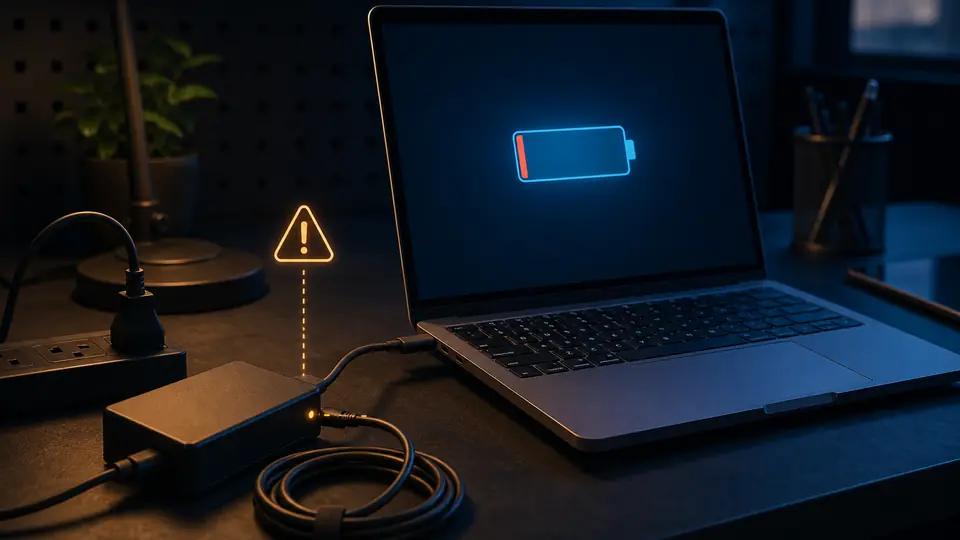
Check the power chain before blaming the battery
What this means
Outlet, adapter, cable, USB-C port, barrel port, heat, and battery state all matter.
What to check
- Try another outlet
- Check the charger light if it has one
- Inspect the port without poking inside
- Open battery or power settings
What you should see
- Charging status changes or stays the same
- Adapter is recognized or not
- Battery status is present or missing
Safety note
Stop for swelling, heat, sparks, liquid damage, or burning smell.
Guided check
Use settings to confirm charging behavior
Use settings to confirm charging behavior
What this means
Some laptops pause charging near full battery or under high heat.
What to check
- Open Settings
- Choose System
- Open Power & battery
- Check battery level and charging text
What you should see
- Plugged in
- Charging
- Not charging
- Battery missing, or health-related wording
Safety note
Do not open the laptop or battery pack unless you are trained.
Troubleshooting table
Match the symptom before choosing a fix
Use this table to separate setup, update, network, display, and hardware clues before moving into more advanced steps.
| Symptom | Possible cause | Safe first step |
|---|---|---|
| Laptop plugged in but not charging | Outlet, charger, battery protection, port, or Windows battery driver state | Try another outlet, inspect the charger, restart, and read the battery icon message. |
| HP laptop plugged in not charging | HP battery care, charger wattage, adapter detection, heat, or battery health | Check the battery message, charger rating, and heat before replacing the battery. |
| Dell laptop plugged in not charging | Adapter not recognized, low-wattage charger, loose DC jack, or battery health issue | Look for an adapter warning and test a safe compatible charger if available. |
| Lenovo laptop plugged in not charging | Conservation/charge threshold behavior, USB-C charger mismatch, or battery state | Check charging threshold behavior and USB-C compatibility before hardware repair. |
| USB-C laptop not charging | Cable, charger, or port may not support power delivery for that laptop | Use the marked charging port and a proper charger; do not assume every USB-C port charges. |
| Charger is hot, smells burned, or sparks | Unsafe charger, cable, outlet, or internal power fault | Stop using it immediately and get repair help. |
Before you start
Prepare a safe repair session
- Save open work.
- Use the charger that came with the laptop if possible.
- Do not open the laptop if the battery may be swollen.
- Change one thing at a time, then test the same symptom again.
- Save important work before battery troubleshooting in case the laptop shuts down.
- Stop immediately if the charger gets very hot, smells burned, sparks, or has exposed wire.
- Do not open a sealed battery pack or attempt electrical repair on a charger.
Before paying for repair
Check the simple proof points first
- Test another wall outlet.
- Remove docks, hubs, and extension cords.
- Inspect the cable and port for visible damage.
- Check whether the laptop charges while powered off.
- Compare the battery icon message before and after each test.
- Test a known-good outlet and remove power-strip variables.
- Check for a loose charging connector or a USB-C port that does not support charging.
- Let the laptop cool and restart once.
- Review the battery icon message and any HP, Dell, or Lenovo charging notice.
Quick path
Try the safest checks first
Step 1
Check outlet, cable, adapter, and port
Charging problems often start outside the laptop.
Exact path to follow
- 1Try a different wall outlet.
- 2Check that the adapter brick connections are firm.
- 3Inspect the cable for cuts or sharp bends.
- 4Look into the laptop port for obvious debris or damage without inserting metal tools.
Expected result
You know whether the charger path has a visible problem.
If it worked
Stop and keep using the safe charger path.
If it did not work
Test charging behavior with the laptop off.
Does the laptop show a charge light or battery increase now?
Yes
Stop and avoid further repair.
No
Continue with power-off and battery-state checks.
Step 2
Test charging while powered off
If it charges off but not while running, load, heat, or charger wattage may be involved.
Exact path to follow
- 1Shut down normally.
- 2Plug in the charger.
- 3Wait 10-15 minutes.
- 4Check charge light or percentage after startup.
Expected result
You know whether the laptop can accept charge in a low-load state.
If it worked
Check heat, power settings, and charger wattage.
If it did not work
Check USB-C/barrel-port and battery clues.
Does it charge while powered off?
Yes
Focus on heat, load, or charger wattage.
No
Treat it as charger, port, battery, or board-level risk.
Did the quick path fix the problem?
Yes
Stop here and write down what worked.
No
Continue with the detailed steps below.
Detailed steps
Move one step at a time
Step 3
Separate USB-C hub problems from laptop problems
Many USB-C charging failures are caused by hubs, monitors, docks, or low-watt adapters.
Exact path to follow
- 1Plug the charger directly into the laptop.
- 2Avoid a dock for this test.
- 3Try another USB-C charging port if the laptop has one.
- 4Use the charger wattage recommended by the laptop maker.
Expected result
You know whether the dock or port is the issue.
If it worked
Use direct charging or replace the dock/cable path.
If it did not work
Continue to battery/heat checks.
Step 4
Check battery and heat warnings
Heat and battery swelling are stop signs, not normal software fixes.
Exact path to follow
- 1Feel for unusual heat near the battery area.
- 2Look for case bulging, trackpad lift, or gaps.
- 3Stop if you smell burning or see liquid damage.
- 4Use official service if these signs appear.
Expected result
You know whether it is safe to continue.
If it worked
If no danger signs exist, continue with official support or battery health checks.
If it did not work
Stop and get professional help.
Advanced checks
Use only after the safe path
Step 5
Use official diagnostics before replacing parts
Battery and charging parts should match the exact laptop model.
Exact path to follow
- 1Check the laptop maker's support page.
- 2Run any built-in battery diagnostic if provided.
- 3Record the battery or adapter message.
- 4Use model-specific service guidance.
Expected result
You have a safer reason before replacing battery, charger, or port parts.
If it worked
Follow official service guidance.
If it did not work
Ask a technician if charger and port tests fail.
Stop here
Stop for battery or port danger signs
Charging repair can involve battery and power risks. Stop if the laptop is hot, swollen, wet, sparking, or smells burned.
- Stop for swollen battery.
- Stop for burning smell.
- Stop before forcing a loose port.
Mistakes to avoid
- Do not use a visibly damaged charger.
- Do not force a loose charging port.
- Do not open a swollen battery device.
- Do not buy a battery before testing charger and port clues.
- Do not keep using a damaged or hot charger.
- Do not force a USB-C cable into a loose or damaged port.
- Do not open or bend a battery pack.
- Do not buy parts before checking outlet, charger, port, heat, and Windows battery status.
When to ask a technician
- Swollen battery.
- Burning smell.
- Liquid damage.
- Charging port moves or sparks.
- Laptop shuts off repeatedly.
- The charger sparks, smells burned, or has exposed wire.
- The battery is swollen, the case is lifting, or the touchpad/keyboard bulges.
- The charging port is loose, cracked, or only charges at a certain angle.
- The laptop shuts off instantly when unplugged after all safe checks.
Prevention tips
Reduce the chance of the same problem returning
- Use a charger that matches the laptop wattage and connector requirements.
- Avoid bending the charging cable sharply near the plug.
- Keep USB-C ports free of debris and avoid forcing a loose connector.
- Let the laptop cool before charging if it is hot from gaming or heavy work.
- Stop using damaged chargers instead of taping or twisting them into position.
- Avoid bending the charging cable sharply near the connector.
- Keep vents clear so heat does not trigger battery protection behavior.
- Use the correct wattage and connector type for the laptop.
- Do not leave a charger cable under chair wheels or tight furniture edges.
Conclusion
Keep the fix safe and narrow
Most laptop charging problems should start with simple power-path checks: outlet, charger, cable, port, heat, and the battery message. Stop before unsafe charger use, swollen batteries, or electrical DIY repair.
Guided repair FAQ
Why does my laptop say plugged in but not charging?
It can be the outlet, charger, cable, charging port, USB-C dock, battery protection, heat, firmware, or battery health. The wording in the battery icon matters, so compare plugged in not charging, battery not detected, and not plugged in messages before replacing parts.
Should I replace the battery first?
No. Test the wall outlet, charger cable, adapter brick, direct charging without a dock, powered-off charging, and heat warnings first. A laptop battery can be fine even when the charger, USB-C path, or power setting is the real issue.
Can the wrong charger cause plugged in not charging?
Yes. A low-watt or incompatible charger may run the laptop but fail to charge the battery, especially under load. Use a charger that matches the laptop maker's wattage and connector requirements.
When is laptop charging a hardware problem?
Hardware is more likely if the port is loose, charging only works at an angle, the charger LED shuts off, the battery is not detected, or the laptop shuts down while plugged in. Stop for swelling, heat, liquid damage, sparks, or burning smell.
Is it safe to keep using a laptop that will not charge?
Only if there is no heat, swelling, burning smell, liquid damage, damaged charger, loose port, or repeated shutdown pattern. Stop for any of those signs and avoid charging a damaged battery or cable.
Why is my laptop not charging when plugged in?
The laptop may not be receiving enough safe power, the port may be loose, the battery may be in protection mode, or Windows may be showing a temporary battery-driver state. Start with outlet, charger, port, heat, and the battery icon message.
Why does Windows say plugged in but not charging?
Windows can show that message when the charger is connected but the battery is full, paused by battery protection, too hot, not receiving enough wattage, or has a driver/firmware state that needs a safe restart.
Why is my HP laptop plugged in not charging?
On HP laptops, check charger wattage, battery health messages, heat, and any charge-limit behavior. The safe first checks are the same: outlet, charger, port, cooling, restart, and battery status.
Why is my Dell laptop not charging when plugged in?
Dell laptops may warn when an adapter is not recognized or the wattage is too low. Check for that message, inspect the connector, and stop if the DC jack is loose or the charger looks damaged.
Why is my Lenovo laptop plugged in not charging?
Some Lenovo laptops can pause charging because of conservation or battery threshold behavior. Also check USB-C charging support, charger wattage, heat, and battery health before assuming the battery is bad.
Can a USB-C cable charge any laptop?
No. Some USB-C ports are data-only or need a charger that supports enough power delivery. Use the correct charging port and a compatible charger instead of forcing random cables.
When should I stop using the charger?
Stop if the charger sparks, smells burned, gets very hot, has exposed wire, or the laptop battery is swollen. Those are safety issues, not normal troubleshooting.
Related guides
Laptop Battery Not Detected
Use this related NexyFix guide for the next safest step.
Laptop USB-C Not Charging
Use this related NexyFix guide for the next safest step.
Laptop Charger Compatibility
Use this related NexyFix guide for the next safest step.
Laptop Battery Drains Fast
Use this related NexyFix guide for the next safest step.
Laptop Will Not Power On
Use this related NexyFix guide for the next safest step.
Laptop Overheating While Gaming
Use this related NexyFix guide for the next safest step.
Was this helpful?
Your feedback helps NexyFix improve future repair guides and beginner explanations.

NexyFix Mobile and Laptop Desk
View author profilePhone and Laptop Help Editor
A role-based NexyFix editorial profile for beginner-friendly phone, charging, Bluetooth, storage, and laptop maintenance explanations with safety notes first.
Related articles
 Gaming PC OptimizationLaptop Overheating While Gaming: Safe Checks FirstA laptop overheating guide that starts with airflow, surfaces, background load, fan behavior, power settings, and safe stop points.
 Laptop ProblemsKeyboard and Touchpad Not Working After SleepRestore laptop input after sleep with restart, external keyboard, driver, power, and accessibility checks before assuming hardware failure.