Windows 11 Black Screen After Login: Safe Fixes
Fix a Windows 11 black screen after login with display, Explorer, startup app, driver, Safe Mode, and file-safe recovery checks.
 By NexyFix Windows DeskWindows Repair EditorPublished May 30, 2026Updated May 30, 202610 min readBeginnerUpdated recentlyBeginner friendly
Guided repair
Windows 11 Black Screen After Login: Safe Fixes
Use this guide when Windows 11 lets you sign in but then shows a black screen, a black screen with cursor, or a desktop that never loads.
Time needed
15-50 minutes
Difficulty
Beginner
Risk level
Medium
Applies to
What this usually means
A black screen after login usually means Windows started but the desktop shell, display driver, startup app, or monitor output did not load correctly. It is different from no signal before login, which can point more toward display cable, GPU, or hardware startup.
Symptoms
- Sign-in works but desktop stays black
- Cursor appears on a black screen
- Ctrl+Alt+Delete works
- Problem began after update, driver, or startup app
Common causes
- Explorer shell crash
- Display driver issue
- Wrong display output or external monitor handoff
- Startup app conflict
- User profile or startup state problem
- Recent Windows Update or GPU driver change
- Explorer or the desktop shell did not load.
- Display driver problem after an update.
- External monitor, dock, or wrong display output.
- Startup app conflict after login.
- Corrupted user session or system files.
How to diagnose the problem
Separate the likely cause before deeper repair
- 1Check whether the black screen appears before login or only after login; after-login problems usually point to Explorer, profile, display driver, or startup apps.
- 2Check whether a cursor appears and whether Ctrl+Alt+Delete opens the security screen.
- 3Use Windows + Ctrl + Shift + B to reset the graphics driver if the keyboard responds.
- 4Try Windows + P or disconnect external monitors to rule out wrong display output.
- 5If Safe Mode works, focus on recent startup apps, GPU drivers, and update timing before reset.
- 6Check whether Ctrl+Alt+Delete opens the security screen.
- 7Check whether the cursor appears and whether the monitor says no signal.
- 8Disconnect docks and external monitors for one safe test.
- 9Use Safe Mode if the problem began after a driver, app, or update.
- 10Stop if the display is black before login or the PC never reaches Windows.
Visual walkthrough
Guided checks: what to inspect and what it means
These visual checks use original NexyFix diagrams and plain-language clues so you can recognize the problem without relying on misleading fake screenshots.
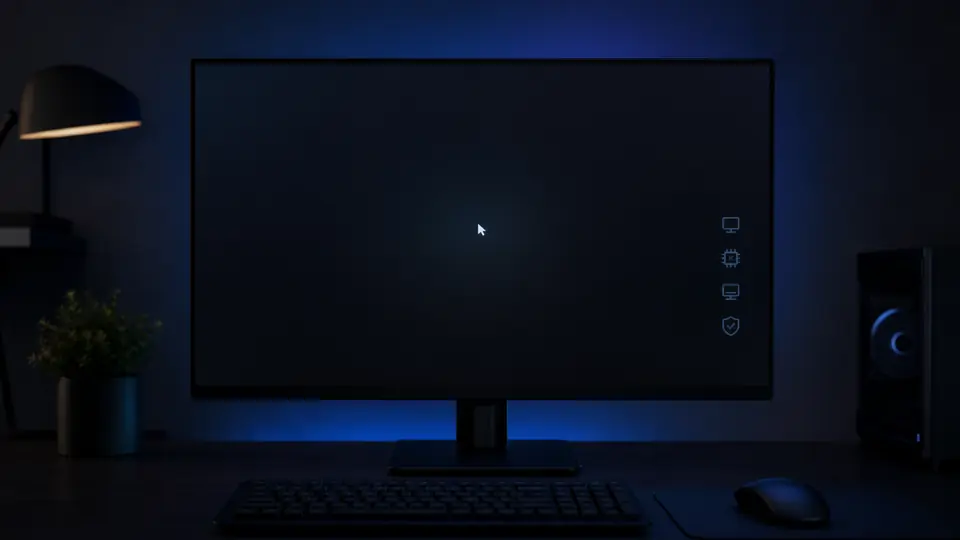
Check whether Windows is alive behind the black screen
What this means
Ctrl+Alt+Delete or Task Manager response separates a desktop-session problem from deeper display or boot failure.
What to check
- Press Ctrl+Alt+Delete
- Open Task Manager if available
- Run explorer.exe only when the guide reaches that step
What you should see
- Security screen appears
- Task Manager opens
- Desktop returns or Explorer remains failed
Safety note
Do not reinstall Windows just because the desktop shell did not load once.
Guided check
Remove external display confusion
Remove external display confusion
What this means
A dock, adapter, projector, or second monitor can receive the desktop while the main screen stays black.
What to check
- Disconnect docks and extra displays
- Use one known-good monitor or laptop panel
- Restart once after simplifying displays
What you should see
- One active display path
- No hidden desktop on another output
- A clearer driver or session clue
Safety note
This is separate from a PC that shows no signal before login.
Guided check
Open the safe recovery path
Open the safe recovery path
What this means
Recovery screens are where Startup Repair, Safe Mode, uninstall update, and restore options live.
What to check
- Open Settings
- Choose System
- Open Recovery
- Use Advanced startup only when the guide asks for recovery
What you should see
- Recovery options
- Restart now for advanced startup
- No request to erase files yet
Safety note
Do not choose reset, erase, or reinstall until backups and stop warnings are clear.
Troubleshooting table
Match the symptom before choosing a fix
Use this table to separate setup, update, network, display, and hardware clues before moving into more advanced steps.
| Symptom | Possible cause | Safe first step |
|---|---|---|
| Black screen with cursor after login | Explorer, startup app, or display driver issue | Try Ctrl+Alt+Delete and restart Explorer if possible. |
| Ctrl+Alt+Delete works | Windows is running but desktop shell may be stuck | Open Task Manager and try starting Explorer. |
| Safe Mode works | Driver or startup app conflict is likely | Disable recent startup apps or roll back the recent driver. |
| Monitor says no signal before login | Display cable, input, GPU, or hardware startup issue | Use the PC no-display guide instead. |
Before you start
Prepare a safe repair session
- Back up important files before reset, reinstall, partition, firmware, or storage steps.
- Do not reset Windows as the first step.
- Write down whether a cursor or Ctrl+Alt+Delete works.
- Change one thing at a time, then test the same symptom again.
Before paying for repair
Check the simple proof points first
- Try brightness and display output keys.
- Connect or disconnect an external monitor.
- Check whether Ctrl+Alt+Delete opens.
- Try Safe Mode before reset.
- Write down whether the problem started after Windows Update, a GPU driver update, or a new startup app.
Quick path
Try the safest checks first
Step 1
Check display output and graphics refresh
The desktop may be on another display or the graphics driver may need a reset.
Exact path to follow
- 1Press brightness up.
- 2Press Windows + P and wait.
- 3Try Windows + Ctrl + Shift + B.
- 4Disconnect external monitors for one test.
Expected result
The display returns or you know it is not a simple output state.
If it worked
Stop and update display drivers only from official sources.
If it did not work
Try Task Manager and Explorer.
Did the desktop appear after display checks?
Yes
Stop and monitor for repeat symptoms.
No
Try Ctrl+Alt+Delete and Explorer.
Step 2
Restart Explorer if Task Manager opens
Explorer loads the desktop, taskbar, and file shell.
Exact path to follow
- 1Press Ctrl + Alt + Delete.
- 2Open Task Manager.
- 3Choose Run new task.
- 4Type explorer.exe.
- 5Press Enter.
Expected result
The desktop and taskbar may return.
If it worked
Disable recent startup apps and restart normally.
If it did not work
Use Safe Mode.
Did Explorer bring the desktop back?
Yes
Check startup apps and recent changes.
No
Use Safe Mode.
Did the quick path fix the problem?
Yes
Stop here and write down what worked.
No
Continue with the detailed steps below.
Detailed steps
Move one step at a time
Step 3
Use Safe Mode for startup app or driver clues
Safe Mode loads fewer drivers and startup items, which can reveal whether Windows itself can still open.
Exact path to follow
- 1Open recovery or Advanced startup.
- 2Choose Startup Settings.
- 3Start Safe Mode.
- 4Remove the recent startup app or roll back the recent display driver if timing matches.
Expected result
Windows starts in a simpler mode.
If it worked
Undo only the recent matching change.
If it did not work
Use recovery or technician help before reset.
Step 4
Separate external display from Windows session problems
A laptop or desktop can look broken if Windows is sending the desktop to another display or a bad cable path.
Exact path to follow
- 1Disconnect docks, adapters, and extra monitors for one test.
- 2Try Windows + P and wait between choices.
- 3Try one known-good monitor or cable if available.
- 4If the sign-in screen is visible but the desktop goes black after login, focus on Explorer, startup apps, and display driver timing.
Expected result
Wrong display output and cable-path issues are ruled in or out.
If it worked
Keep the stable display path and review the recent monitor/dock change.
If it did not work
Continue with startup app and driver recovery.
Step 5
Review recent startup apps and display driver changes
Black screen after login often starts after a new startup app, overlay, GPU driver, or Windows Update changes the desktop session.
Exact path to follow
- 1In Safe Mode, open Startup Apps or Task Manager.
- 2Disable only the recent suspicious startup item.
- 3If timing matches a GPU driver update, use the driver rollback guide.
- 4Restart normally and test once.
Expected result
The desktop loads normally or the recent change is ruled out.
If it worked
Keep the changed app or driver disabled until you know the cause.
If it did not work
Use recovery guidance before reset.
Stop here
Stop before reset or registry hacks
A black screen after login often has reversible display, Explorer, startup, or driver causes. Do not reset or edit registry blindly.
- Stop before registry scripts.
- Stop before reset without backup.
- Stop if the screen is physically damaged.
Mistakes to avoid
- Do not reset before trying Safe Mode.
- Do not install display drivers from random sites.
- Do not change registry shell values from search-result scripts.
- Do not reset Windows before testing Explorer, display output, and Safe Mode.
- Do not install random display driver repair tools.
- Do not assume a black screen after login is the same as a dead monitor.
When to ask a technician
- No display before login too.
- GPU artifacts or repeated black screens after driver rollback.
- Laptop screen is physically damaged.
- Important files are not backed up before reset.
Prevention tips
Reduce the chance of the same problem returning
- Create a restore point or backup before major driver changes.
- Install GPU drivers from official sources and avoid driver updater tools.
- Keep a second display cable or external monitor available for display-path tests.
- After a black-screen recovery, review startup apps and remove only the recent suspicious change.
- Back up files before any reset, reinstall, or profile migration step.
- Create a restore point before major driver changes when available.
- Keep GPU drivers from trusted sources.
- After changing monitors or docks, test one display at a time.
Conclusion
Keep the fix safe and narrow
If Windows reaches login, focus on Explorer, display output, driver rollback, startup apps, and Safe Mode. If the screen is blank before login or the monitor says no signal, switch to display and hardware checks.
Guided repair FAQ
Why is my Windows 11 screen black after login?
Windows may reach your account but fail to show the desktop because Explorer did not load, the display output changed, the graphics driver stalled, or a startup app blocked the session. A cursor or working Ctrl+Alt+Delete screen is a useful clue.
Can I fix black screen without losing files?
Often yes. Try display output checks, Windows + Ctrl + Shift + B, Ctrl+Alt+Delete, Explorer restart, Safe Mode, startup app removal, and display driver rollback before reset or reinstall.
What if Ctrl+Alt+Delete does nothing?
If Ctrl+Alt+Delete does not open, treat it as a deeper startup, display, or driver problem. Use recovery/startup repair guidance and avoid repeated forced restarts.
Is black screen after login the same as no signal?
No. No signal often means the monitor is not receiving video from the PC. Black screen after login usually means Windows produced a display signal but the desktop session failed to appear.
Can Explorer cause a black screen after login?
Yes. Explorer loads the desktop, taskbar, and file shell. If Ctrl+Alt+Delete works and Task Manager opens, running explorer.exe can bring the desktop back and point to a startup/session issue.
Can an external monitor or dock cause this?
Yes. Windows may send the desktop to a disconnected display, dock, adapter, or wrong output. Test with docks and extra monitors disconnected before reset or driver reinstall.
When might a black screen be hardware?
Hardware becomes more likely if the display is black before login too, another monitor and cable fail, you see GPU artifacts, the laptop screen is physically damaged, or the PC repeatedly power cycles.
Why does Windows 11 show a black screen after login?
Windows may be running, but Explorer, the display driver, a startup app, or the selected display output may fail after sign-in.
Is black screen with cursor a hardware problem?
Not always. A cursor usually means the display still works and Windows is partly running. Hardware becomes more likely if there is no signal, repeated shutdown, artifacting, or the issue happens before login.
Can Safe Mode help with black screen after login?
Yes. If Safe Mode works, a driver, startup app, or update conflict is more likely than a completely failed display.
Should I reinstall Windows for a black screen after login?
Not first. Try display output, Explorer, Safe Mode, driver rollback, startup apps, and system file checks before reset or reinstall.
Related guides
Windows 11 Not Booting
Use this related NexyFix guide for the next safest step.
Windows Recovery Settings
Use this related NexyFix guide for the next safest step.
GPU Driver Update and Rollback
Use this related NexyFix guide for the next safest step.
Windows 11 Automatic Repair Loop
Use this related NexyFix guide for the next safest step.
PC Turns On But No Display
Use this related NexyFix guide for the next safest step.
Driver Rollback Decision Guide
Use this related NexyFix guide for the next safest step.
Windows Update Stuck or Failing
Use this if the issue followed an update.
Was this helpful?
Your feedback helps NexyFix improve future repair guides and beginner explanations.

NexyFix Windows Desk
View author profileWindows Repair Editor
A role-based NexyFix editorial profile for practical Windows repair and install guides with a focus on safe, reversible troubleshooting.
Related articles
 PC Windows FixesWindows 11 Not Booting: Safe Startup Repair ChecklistA beginner-safe startup checklist for a Windows 11 PC that powers on but cannot reach the desktop.
 Driver ProblemsGPU Driver Update and Rollback Guide for FPS DropsUpdate or roll back GPU drivers safely when FPS drops, stutter, crashes, or display problems start after a graphics change.
 Windows FixesWindows 11 Automatic Repair Loop: Safe Recovery StepsFix a Windows 11 Preparing Automatic Repair loop with USB checks, Startup Repair, Safe Mode, restore, update removal, and backup warnings.