PC Turns On But No Display: Safe Checks
Fix a PC that turns on but has no display with monitor, HDMI/DisplayPort, GPU port, RAM, debug-light, and safe stop checks.
 By NexyFix Hardware and Boot DeskBoot and Hardware Education EditorPublished May 30, 2026Updated May 30, 202611 min readBeginnerUpdated recentlyBeginner friendly
Guided repair
PC Turns On But No Display: Safe Checks
Use this guide when a desktop PC or gaming PC powers on, fans spin, lights turn on, or the keyboard stays dark, but there is no display on the monitor. Start with monitor, cable, input, and GPU-port checks before reseating parts.
Time needed
15-45 minutes
Difficulty
Beginner
Risk level
Medium
Applies to
What this usually means
PC turns on but no display means the system has power, but it may not be reaching a successful POST or video output. The cause can be as simple as the wrong monitor input or as serious as RAM, GPU, motherboard, monitor, cable, or power delivery issues.
Symptoms
- PC fans and lights turn on but the monitor says no signal
- Keyboard lights may not respond
- Motherboard VGA, DRAM, CPU, or BOOT light stays on
- Problem began after moving the PC, adding RAM, or reseating a GPU
Common causes
- Wrong monitor input
- HDMI or DisplayPort cable problem
- Display plugged into motherboard instead of GPU
- Loose or unstable RAM
- Loose graphics card or GPU power cable
- Motherboard debug light, boot mode, or PSU power clue
- Monitor input, HDMI, or DisplayPort cable issue.
- Monitor plugged into motherboard instead of the graphics card.
- RAM not seated fully after moving or upgrading the PC.
- GPU not seated or GPU power cable loose.
- Motherboard debug light showing DRAM, VGA, CPU, or BOOT.
- New PC build missing a power cable, standoff check, display output, or compatible RAM setup.
- PC turns on but no display or power to keyboard because POST fails before USB devices initialize.
- Intermittent no display caused by a loose cable, RAM seating, GPU seating, heat, or power instability.
- Power supply or motherboard problem.
How to diagnose the problem
Separate the likely cause before deeper repair
- 1Prove the monitor works by checking power, input, brightness, and another device if available.
- 2Prove the cable and port path by testing another HDMI/DisplayPort cable or another GPU output.
- 3Check whether the keyboard Num Lock responds; no response can mean the PC is not reaching normal boot.
- 4Read motherboard debug LEDs or beep codes before reseating parts.
- 5If this started after a RAM, GPU, SSD, or case move, inspect only that changed area first.
- 6Follow the early flow: PC powers on, monitor signal, correct GPU or motherboard output, debug light or beep clue, then safe RAM/GPU reseat only with power unplugged.
- 7Prove the monitor and cable before opening the PC.
- 8Check whether the display cable is plugged into the GPU on systems with a dedicated graphics card.
- 9If the PC turns on but there is no display or keyboard, treat it as a POST clue and check debug lights or beeps.
- 10For a new PC build, recheck CPU power, motherboard power, GPU power, RAM slots, monitor output, and standoffs with the power unplugged.
- 11Look for motherboard debug lights or beep clues.
- 12Reseat RAM or GPU only with the PC shut down and unplugged.
- 13Stop before opening the power supply or working near burning smell, sparks, or repeated power cycling.
Visual walkthrough
Guided checks: what to inspect and what it means
These visual checks use original NexyFix diagrams and plain-language clues so you can recognize the problem without relying on misleading fake screenshots.
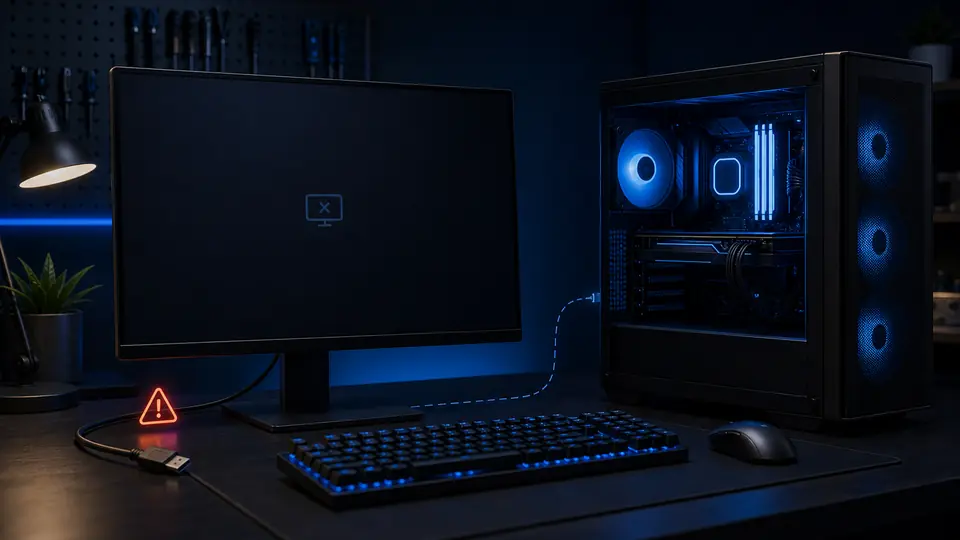
Confirm the display path before opening the PC
What this means
A powered desktop with no picture can be a monitor, input, cable, GPU output, RAM, or GPU seating issue.
What to check
- Check monitor power and input
- Try one known-good HDMI or DisplayPort cable
- Use the graphics card output if a GPU is installed
- Power off and unplug before any internal check
What you should see
- Monitor input matches the cable
- Cable is seated at both ends
- GPU output is used on gaming desktops
- No burning smell, sparks, or repeated power cycling
Safety note
Stop before opening the power supply or touching internal parts while the PC is plugged in.
Guided check
Use motherboard clues only after simple display checks
Use motherboard clues only after simple display checks
What this means
Debug LEDs, RAM seating, and GPU power clues help narrow the issue after cable and monitor checks are ruled out.
What to check
- Look for CPU, DRAM, VGA, or BOOT debug lights
- Write down the lit label
- Reseat RAM only if comfortable and unplugged
- Check GPU power cable seating without forcing connectors
What you should see
- A specific debug light or no debug light
- RAM and GPU seated evenly
- A safer next guide if the clue points to hardware
Safety note
Do not swap many parts at once. Change one thing, then test.
Troubleshooting table
Match the symptom before choosing a fix
Use this table to separate setup, update, network, display, and hardware clues before moving into more advanced steps.
| Symptom | Possible cause | Safe first step |
|---|---|---|
| PC powers on but the monitor gets no signal | The PC may not be outputting video, or the monitor/input/cable path is wrong | Use the flow: monitor power, input, cable, GPU output, debug lights, then safe reseating. |
| Fans spin but monitor says no signal | Wrong input, bad cable, wrong display port, or no video output | Test monitor input and connect to the GPU port if a GPU is installed. |
| PC turns on but no display or power to keyboard | POST may be failing before USB devices initialize | Check debug lights or beeps, then reseat RAM safely with power unplugged. |
| New PC turns on but no display | Missing CPU/GPU power, RAM seating, BIOS support, or build wiring issue | Power off, unplug, and recheck motherboard power, CPU power, GPU power, RAM, and display output. |
| PC turns on but no display sometimes | Loose cable, loose RAM/GPU, heat, monitor input, or unstable power | Start with cable/input tests, then inspect seating only after unplugging power. |
| PC turns on but no display or beeps | Motherboard is reporting a POST fault | Look up the beep pattern or debug LED in the motherboard manual. |
| DRAM debug light is on | RAM seating, slot, or memory compatibility issue | Power off, unplug, and reseat one RAM stick using the manual. |
| VGA debug light is on | GPU seating, GPU power, or display output issue | Check GPU power cables and seating with the PC unplugged. |
| Burning smell, sparks, or repeated power cycling | Possible power or hardware fault | Stop and do not open the PSU. |
Before you start
Prepare a safe repair session
- Turn the monitor on and note the exact message.
- Shut down and unplug the PC before touching internal parts.
- Take a photo before moving cables or parts.
- Change one thing at a time, then test the same symptom again.
Before paying for repair
Check the simple proof points first
- Test a different cable or monitor if available.
- Try the GPU display ports before motherboard ports.
- Check motherboard debug LEDs or beep codes.
- Reseat only RAM/GPU you are comfortable touching.
- Write down whether the issue began after a RAM, GPU, SSD, or monitor change.
Quick path
Try the safest checks first
Step 1
Prove the monitor and cable path first
Many no-display cases are a simple input, cable, or wrong-port problem.
Exact path to follow
- 1Turn the monitor on.
- 2Choose the correct HDMI or DisplayPort input.
- 3Try another cable if available.
- 4If the PC has a dedicated GPU, plug the monitor into the GPU ports.
Expected result
You know whether the display path is the issue.
If it worked
Stop here and avoid opening the PC.
If it did not work
Move to power-off hardware clues.
Did the monitor show the PC after cable, input, or port changes?
Yes
Stop. The fix was the display path.
No
Check RAM, GPU, and motherboard clues with the PC unplugged.
Step 2
Read debug lights before touching parts
A DRAM, VGA, CPU, or BOOT light can point to the part to check next.
Exact path to follow
- 1Look for motherboard debug lights or beep codes.
- 2Write down the label that stays on.
- 3Do not change BIOS settings without display.
- 4Use the motherboard manual if available.
Expected result
You have a clue instead of guessing.
If it worked
Use the matching RAM, GPU, or boot guide.
If it did not work
Continue with cautious seating checks.
Is a DRAM or VGA light stuck on?
Yes
Check RAM or GPU seating first.
No
Continue with cable, PSU, and technician stop signs.
Did the quick path fix the problem?
Yes
Stop here and write down what worked.
No
Continue with the detailed steps below.
Detailed steps
Move one step at a time
Step 3
Reseat RAM only with power disconnected
Loose RAM is a common no-display cause, especially after moving or upgrading a desktop.
Exact path to follow
- 1Shut down.
- 2Switch the PSU off and unplug power.
- 3Press the power button once to discharge.
- 4Reseat one RAM stick in the recommended slot.
- 5Reconnect power and test.
Expected result
The PC either reaches display or shows a clearer debug light.
If it worked
Stop and add other RAM sticks one at a time.
If it did not work
Try GPU seating only if you are comfortable.
Step 4
Check GPU seating and power clues
A graphics card can shift in transit or have a loose power connector.
Exact path to follow
- 1Unplug the PC.
- 2Check that the GPU is fully seated.
- 3Check GPU power cables if present.
- 4Try a different GPU output port.
- 5Test again.
Expected result
You know whether the GPU connection was the cause.
If it worked
Stop and watch for repeat symptoms.
If it did not work
Stop if the PC power cycles or smells hot.
Advanced checks
Use only after the safe path
Step 5
Stop before PSU or motherboard-level repair
Power-supply and motherboard diagnosis can become unsafe or expensive quickly.
Exact path to follow
- 1Record debug lights.
- 2Record what cables/monitor/RAM/GPU checks were tested.
- 3Do not open the PSU.
- 4Ask a technician if the PC repeatedly cycles or smells hot.
Expected result
You avoid unsafe power work.
If it worked
Bring the notes to a repair shop or experienced builder.
If it did not work
Do not continue powered testing.
Stop here
Stop before unsafe hardware work
A no-display PC can involve RAM, GPU, motherboard, or PSU clues. Stay outside power-supply internals and stop if the PC acts unsafe.
- Stop for burning smell or sparks.
- Stop before opening a PSU.
- Stop before buying parts without a clear clue.
Mistakes to avoid
- Do not open the power supply.
- Do not reseat parts while plugged in.
- Do not buy a GPU before testing cable, monitor, RAM, and debug clues.
- Do not use random driver updater, cleaner, optimizer, ISO, or repair tools from search results.
- Do not reseat hardware while the PC is plugged in.
- Do not change BIOS settings when you cannot see the screen.
- Do not keep restarting over and over if the PC clicks, shuts off instantly, smells burned, or shows sparks.
- Do not replace parts before testing monitor, cable, input, GPU output, RAM seating, and debug lights.
When to ask a technician
- Burning smell, sparks, or melted plastic.
- Repeated power cycling.
- Bent pins or damaged slots.
- You are uncomfortable reseating internal parts.
Prevention tips
Reduce the chance of the same problem returning
- Move desktop PCs by the case, not by connected cables.
- After RAM or GPU upgrades, test one change at a time before closing the case.
- Keep a known-good HDMI or DisplayPort cable for display troubleshooting.
- Clean dust gently and avoid bumping RAM, GPU, or front-panel cables.
- Write down debug-light behavior before buying replacement parts.
- After moving a PC, check display cables and GPU seating before assuming failure.
- Install RAM and GPU with even pressure and support the card properly.
- Keep a simple note of motherboard debug lights for future troubleshooting.
- After a RAM or GPU upgrade, boot once with the simplest working configuration before adding extras.
Conclusion
Keep the fix safe and narrow
Start outside the PC with monitor, input, cable, and GPU output. Move inside only after power is unplugged and only for simple RAM/GPU seating checks you are comfortable doing.
Guided repair FAQ
Why does my PC turn on but show no display?
The PC may be powering fans and lights without reaching a usable video signal. Start with monitor input, HDMI/DisplayPort cable, the correct GPU port, keyboard response, RAM seating, GPU seating, and motherboard debug lights before assuming a part is dead.
Can bad RAM cause no display?
Yes. Loose, mismatched, or unstable RAM can stop the system before it outputs video. If the DRAM debug light stays on, test one stick in the recommended slot with the PC unplugged and avoid changing several parts at once.
Should I use the motherboard HDMI port or the graphics card port?
If the PC has a dedicated graphics card, try the ports on the graphics card first. Motherboard display ports may not work if the CPU has no integrated graphics or if firmware is configured for the dedicated GPU.
When is no display probably hardware?
Hardware becomes more likely when another monitor and cable fail, debug lights point to RAM/GPU/CPU, the PC repeatedly power cycles, or the issue started after a hardware change. Stop for burning smell, sparks, or anything involving the power supply.
Should I pay for repair right away?
Not before checking the cable, monitor input, GPU port, and debug lights. If reseating RAM or GPU feels uncomfortable, or if power symptoms appear, bring your notes to a technician instead of guessing with new parts.
Why do my PC fans spin but there is no display?
Fans can spin even when the PC has not completed POST or started video output. Check monitor input, cable, GPU port, RAM seating, GPU power, and motherboard debug lights.
Why does my PC turn on but no display or power to keyboard?
If the keyboard stays off too, the PC may not be completing POST before USB devices initialize. Check debug lights or beep codes, then safely reseat RAM with the power unplugged before moving to GPU or motherboard checks.
What should I check on a new PC build that turns on but has no display?
Recheck the display cable is in the graphics card, CPU power is connected, GPU power is connected, RAM is in the recommended slots, and the monitor input is correct. Shut down, switch off the PSU, and unplug power before touching parts.
Why does my PC turn on but no display sometimes?
Intermittent no display can come from a loose HDMI/DisplayPort cable, loose RAM or GPU seating, heat, monitor input switching, or unstable power. Start with external cable and monitor checks before opening the case.
What is POST?
POST is the basic startup check a PC performs before booting. If RAM, GPU, CPU, or motherboard checks fail, the PC may power on without showing display.
Can HDMI or DisplayPort cause no signal?
Yes. A loose cable, wrong monitor input, bad cable, or plugging into the wrong port can cause no signal even when the PC is working.
Should I open the power supply to check it?
No. Power supplies can be dangerous even when unplugged. Stop and get qualified help if you suspect PSU failure.
Related guides
RAM Problem Symptoms
Use this related NexyFix guide for the next safest step.
GPU Not Detected
Use this related NexyFix guide for the next safest step.
Motherboard Debug Lights
Use this related NexyFix guide for the next safest step.
PSU Warning Signs
Use this related NexyFix guide for the next safest step.
Windows 11 Black Screen After Login
Use this related NexyFix guide for the next safest step.
Windows 11 Not Booting
Use this related NexyFix guide for the next safest step.
Gaming PC FPS Calculator
Use this after the PC displays normally and gaming performance is the concern.
Was this helpful?
Your feedback helps NexyFix improve future repair guides and beginner explanations.

NexyFix Hardware and Boot Desk
View author profileBoot and Hardware Education Editor
A role-based NexyFix editorial profile for storage compatibility, boot behavior, error codes, and when hardware symptoms need professional help.
Related articles
 PC Windows FixesRAM Problem Symptoms on a Desktop PCRecognize memory-related boot loops, blue screens, freezes, and debug lights before reseating or replacing RAM.
 PC Windows FixesPower Supply Warning Signs Beginners Should Not IgnoreLearn the power-supply symptoms that should make you stop testing and ask for qualified help.
 PC Windows FixesWindows 11 Black Screen After Login: Safe FixesFix a Windows 11 black screen after login with display, Explorer, startup app, driver, Safe Mode, and file-safe recovery checks.