Bootable USB Not Showing in Boot Menu
Troubleshoot a missing boot USB with port, boot menu, UEFI mode, media creation, and firmware checks before changing storage settings.
 By NexyFix Hardware and Boot DeskBoot and Hardware Education EditorPublished Apr 24, 2026Updated Apr 30, 20269 min readIntermediateUpdated recently
Guided repair
Bootable USB does not appear in the boot menu
Use this guide when a Windows USB installer, recovery USB, or bootable USB does not show in the boot menu or BIOS/UEFI, even if the same USB shows up as normal storage in Windows.
Time needed
15-40 minutes
Difficulty
Beginner
Risk level
Medium
Applies to
What this usually means
A bootable USB not showing usually means the PC either does not detect the USB during firmware startup or detects it as storage but not as bootable media. The cause can be the USB creation method, direct port, UEFI vs Legacy mode, FAT32 vs NTFS limitations, Secure Boot policy, or a corrupted installer.
Symptoms
- USB lights up but no boot option appears
- Only the internal SSD appears
- USB appears without a UEFI label
- PC skips straight to Windows
Common causes
- Wrong boot-menu key
- USB hub or dock
- Installer not created correctly
- USB drive problem
- Firmware boot settings
- Legacy vs UEFI mismatch
- USB was not created as a bootable installer.
- UEFI mode and USB format do not match.
- USB port, hub, dock, or adapter is not available early in boot.
- Secure Boot or firmware settings block the media.
- The installer is corrupted or incomplete.
- The boot menu key or firmware boot page is being used incorrectly.
How to diagnose the problem
Separate the likely cause before deeper repair
- 1Use the one-time boot menu before changing permanent boot order.
- 2Try a direct USB port instead of a hub, dock, monitor, or adapter.
- 3Check whether the USB appears as a UEFI entry or only as a generic storage device.
- 4Test whether the same USB appears in another PC's boot menu without installing anything.
- 5Keep internal drive partitions untouched because the missing boot option is a USB/firmware issue.
- 6Decide whether the USB is not detected at all or is detected in Windows but missing as a boot option.
- 7Try the one-time boot menu, not only the BIOS boot order page.
- 8Use a direct motherboard or laptop USB port instead of a hub or dock.
- 9Check whether the USB appears on another PC boot menu.
- 10Recreate the installer with a trusted Windows creation flow if it never appears.
- 11Do not change GPT/MBR or erase disks just because the USB is missing.
Visual walkthrough
Guided checks: what to inspect and what it means
These visual checks use original NexyFix diagrams and plain-language clues so you can recognize the problem without relying on misleading fake screenshots.
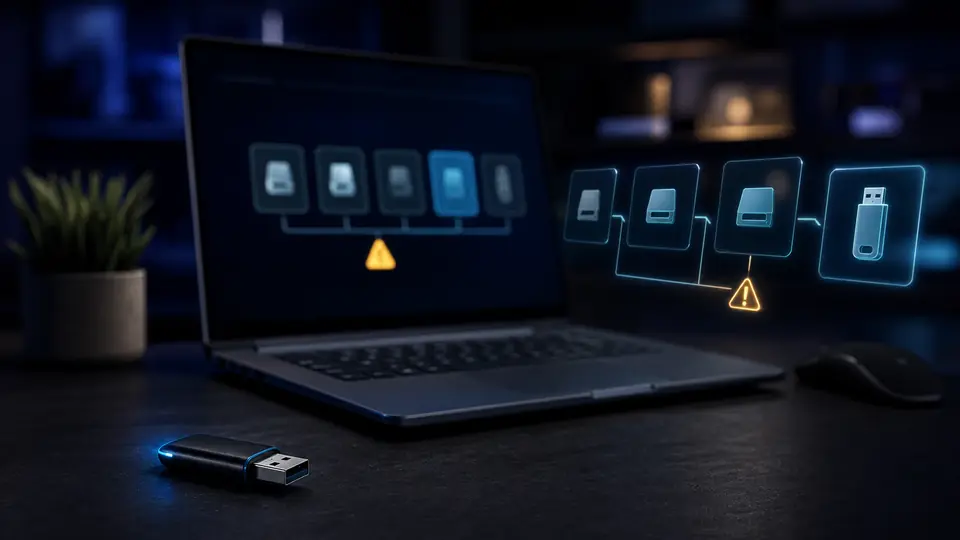
Use the one-time boot menu first
What this means
The one-time boot menu is safer than changing permanent boot order while troubleshooting.
What to check
- Shut down
- Plug the USB directly into the PC
- Press the model boot-menu key at power on
- Look for a UEFI USB entry
What you should see
- A UEFI-labeled USB option
- Internal SSD still listed
- Or no USB option yet
Safety note
A missing USB option is a USB/firmware problem, not a reason to delete partitions.
Guided check
Confirm direct port and installer media
Confirm direct port and installer media
What this means
Firmware may ignore hubs, docks, monitor ports, and poorly created installer media.
What to check
- Move the USB to a direct laptop port or rear desktop port
- Avoid hubs and docks
- Recreate the installer with a trusted Windows creation flow if needed
What you should see
- USB appears in boot menu
- UEFI entry becomes available
- Or the same USB fails on another PC
Safety note
Do not disable Secure Boot or TPM as the first fix.
Troubleshooting table
Match the symptom before choosing a fix
Use this table to separate setup, update, network, display, and hardware clues before moving into more advanced steps.
| Symptom | Possible cause | Safe first step |
|---|---|---|
| USB not detected at all in BIOS/UEFI | Firmware may not initialize that port, hub, dock, adapter, or USB drive early in startup | Try a direct laptop port or rear motherboard port before changing firmware settings. |
| USB works in Windows but not boot menu | It may not be bootable or firmware cannot boot it in current mode | Use the one-time boot menu and recreate the installer if needed. |
| USB is listed as storage but not as a boot option | The files may be copied but the boot structure is missing or wrong | Recreate the Windows USB with a trusted creation flow. |
| Only non-UEFI USB entry appears | Firmware mode or media format mismatch | Prefer the UEFI USB entry for modern Windows installs. |
| USB appears on another PC only | Port, firmware, or boot setting issue on this PC | Try a direct port and review UEFI USB boot settings. |
| Setup starts but cannot find drive | USB is working; storage detection is the next issue | Use the Windows setup missing drive guide. |
Before you start
Prepare a safe repair session
- Leave internal drive partitions alone.
- Use the one-time boot menu before changing boot order.
- Try a direct USB port.
- Do not disable Secure Boot or TPM as the first fix.
Before paying for repair
Check the simple proof points first
- Try a direct USB port and the one-time boot menu.
- Recreate the installer with a trusted Windows creation flow.
- Test the USB on another PC's boot menu if possible.
- Check UEFI USB boot settings before firmware updates.
- Read Secure Boot, TPM, and GPT/MBR basics before changing firmware security settings.
Quick path
Try the safest checks first
Step 1
Use the one-time boot menu
Changing permanent boot order is usually unnecessary and can create confusion later.
Exact path to follow
- 1Shut down.
- 2Plug the USB directly into the PC.
- 3Power on and press the model boot-menu key repeatedly.
- 4Look for a UEFI USB entry.
Expected result
The USB appears as a boot choice or you confirm it is missing.
If it worked
Choose the UEFI USB entry.
If it did not work
Try another port and recreate the installer if needed.
Does the USB appear in the boot menu?
Yes
Choose it, preferably the UEFI entry.
No
Try another direct port, then check the installer media.
Step 2
Try another direct USB port
Some PCs boot only from certain ports during firmware startup.
Exact path to follow
- 1Avoid USB hubs, docks, monitors, and adapters.
- 2Try a rear motherboard port on desktops.
- 3Try a different side port on laptops.
- 4Restart into the boot menu again.
Expected result
The USB appears from a more reliable port.
If it worked
Use that port for setup.
If it did not work
Recreate the installer on a known-good USB.
Did changing ports make the USB appear?
Yes
Use that port and continue.
No
Recreate the installer on a known-good USB.
Did the quick path fix the problem?
Yes
Stop here and write down what worked.
No
Continue with the detailed steps below.
Detailed steps
Move one step at a time
Step 3
Recreate the installer with a trusted method
A USB can contain Windows files but still not be bootable.
Exact path to follow
- 1Use a known-good USB drive.
- 2Create the installer again using a trusted Windows creation flow.
- 3Wait for the tool to finish.
- 4Test the boot menu before setup.
Expected result
A fresh installer appears as a boot choice.
If it worked
Continue setup carefully.
If it did not work
Check firmware boot mode and device visibility.
Step 4
Check boot mode without weakening security blindly
UEFI, legacy support, Secure Boot, and TPM are separate ideas. Changing all at once makes troubleshooting harder.
Exact path to follow
- 1Enter BIOS or UEFI.
- 2Check whether USB boot is enabled.
- 3Check whether UEFI boot is available.
- 4Do not clear TPM.
- 5Do not disable Secure Boot unless a trusted installer source specifically requires it.
Expected result
USB boot is allowed without unnecessary security changes.
If it worked
Retry the boot menu.
If it did not work
Use another USB drive or ask for model-specific boot help.
Step 5
Confirm the USB works on another PC if possible
Testing separates a bad USB from a firmware setting on the target PC.
Exact path to follow
- 1Plug the USB into another PC.
- 2Open its boot menu without installing.
- 3Confirm the USB appears.
- 4Exit without changing that PC.
Expected result
You know whether the USB itself is bootable.
If it worked
Focus on the original PC boot settings or ports.
If it did not work
Recreate the USB or replace it.
Advanced checks
Use only after the safe path
Step 6
Review firmware updates only for known USB boot bugs
Firmware updates are rarely the first fix, but some older systems have boot-device compatibility updates.
Exact path to follow
- 1Check the PC or motherboard maker support notes.
- 2Confirm exact model.
- 3Read the change notes.
- 4Do not update firmware unless notes match your issue and the system is stable.
Expected result
You avoid unnecessary firmware risk.
If it worked
Follow maker instructions and retry.
If it did not work
Use another USB or get model-specific support.
Stop here
Stop before changing internal storage
A missing USB boot entry is not a reason to format or delete internal drives.
- Stop if the USB cannot be identified.
- Stop before clearing TPM.
- Stop before firmware updates unless you have exact model instructions.
Mistakes to avoid
- Do not delete internal drive partitions.
- Do not change several BIOS settings at once.
- Do not clear TPM.
- Do not assume any USB with files is bootable.
- Do not format the internal drive to make a USB appear.
- Do not disable Secure Boot blindly without understanding why.
- Do not use unknown ISO tools or modified installers from random sites.
When to ask a technician
- No boot devices appear at all.
- The PC cannot detect any USB port.
- Firmware settings are locked by an organization.
- The system powers off during boot attempts.
Prevention tips
Reduce the chance of the same problem returning
- Create install media with a trusted Windows creation flow.
- Label installer USB drives so they are not confused with storage drives.
- Keep the installer plugged directly into the PC during boot.
- Write down firmware settings before changing boot mode.
- Avoid changing Secure Boot, TPM, storage mode, and boot order in the same attempt.
- Label known-good installer USB drives and test them before an emergency.
- Keep a current Windows installer made from a trusted source.
- Use direct USB ports for boot testing.
Conclusion
Keep the fix safe and narrow
Fix the USB boot problem before touching the internal drive. If the installer does not appear, focus on the USB media, port, and UEFI settings, not partitions or disk commands.
Guided repair FAQ
Why does the USB show in Windows but not the boot menu?
Normal file storage and bootability are different. The boot structure, port, firmware mode, or USB media can still be wrong.
Should I disable Secure Boot?
Not as a first step. Try a trusted installer, UEFI boot entry, direct USB port, and recreated media first.
Should I change GPT or MBR because the USB is missing?
No. GPT/MBR is about disk partition style after setup sees a drive. A missing USB boot entry should be handled through boot menu, USB media, UEFI, and firmware checks first.
Can a USB hub or dock stop booting?
Yes. Firmware may ignore hubs, docks, monitors, and adapters during startup. Plug the installer directly into a laptop port or rear motherboard port before changing firmware settings.
When should I recreate the Windows USB?
Recreate it when the USB stores files but never appears as a UEFI boot option, another PC cannot see it in the boot menu, or setup fails before reaching the drive selection screen.
Why avoid random repair or driver updater tools?
They make it hard to know what changed. Use built-in Windows tools, official support pages, and one reversible change at a time.
What should I write down before the next step?
Write down the exact symptom, error, device name, driver version, storage clue, or firmware setting involved. The topic-specific stop box above handles the risk limits.
Why is my bootable USB not showing in the boot menu?
The USB may not be bootable, may be plugged into a port that firmware does not initialize early, or may not match the PC's UEFI/Legacy boot expectations.
Should a Windows USB be FAT32 or NTFS?
UEFI systems often boot most reliably from FAT32, but Windows installer files can complicate this. A trusted Windows creation flow handles the format better than guessing manually.
Should I turn off Secure Boot?
Not as a first step. Use trusted Windows installer media and UEFI boot first. Change Secure Boot only when you understand the reason and can re-enable it.
Does GPT vs MBR affect a USB missing from the boot menu?
Usually no. GPT/MBR matters after setup sees a target disk. A missing USB should be handled through media, port, boot menu, and firmware checks first.
Related guides
Format a USB Drive Correctly for UEFI Installers
Rebuild the USB safely.
How to Install Windows 11 From USB Safely
Continue once the USB boots.
Secure Boot and TPM Explained
Understand security settings before changing them.
GPT vs MBR and UEFI Boot Explained
Understand boot mode and partition style.
Windows Setup Cannot Find the Drive
Use this if the USB boots but setup cannot see the SSD/NVMe.
How to Create a Bootable Windows USB Safely
Recreate the installer media safely before firmware changes.
Windows 11 Installation Stuck at 46%
Use this if setup freezes after booting.
BIOS and UEFI Setup for Installing Windows
Review firmware settings safely.
SSD/NVMe Not Detected in BIOS
Use this if firmware cannot see the drive.
Was this helpful?
Your feedback helps NexyFix improve future repair guides and beginner explanations.

NexyFix Hardware and Boot Desk
View author profileBoot and Hardware Education Editor
A role-based NexyFix editorial profile for storage compatibility, boot behavior, error codes, and when hardware symptoms need professional help.
Related articles
Bootable USBHow to Create a Bootable Windows USB SafelyCreate a reliable Windows USB installer while avoiding modified images, weak USB drives, and accidental data loss. Windows InstallationHow to Install Windows 11 From USB SafelyInstall Windows 11 from a USB installer with clear backup, boot menu, drive selection, and stop-point guidance.