Power Supply Warning Signs Beginners Should Not Ignore
Learn the power-supply symptoms that should make you stop testing and ask for qualified help.
 By NexyFix Hardware and Boot DeskBoot and Hardware Education EditorPublished May 6, 2026Updated May 6, 20269 min readBeginnerUpdated recentlyBeginner friendly
Guided repair
Power supply warning signs beginners should not ignore
Use this as a safety guide for desktop power symptoms. It explains which signs are normal observation clues and which signs mean stop instead of trying another fix.
Time needed
10-20 minutes
Difficulty
Beginner
Risk level
High
Applies to
Symptoms
- Burning or hot plastic smell
- Buzzing, popping, or sparks
- Repeated clicking with no startup
- Shutdowns under load
- Power cable or PSU area feels hot
Common causes
- Failing PSU
- Bad wall power
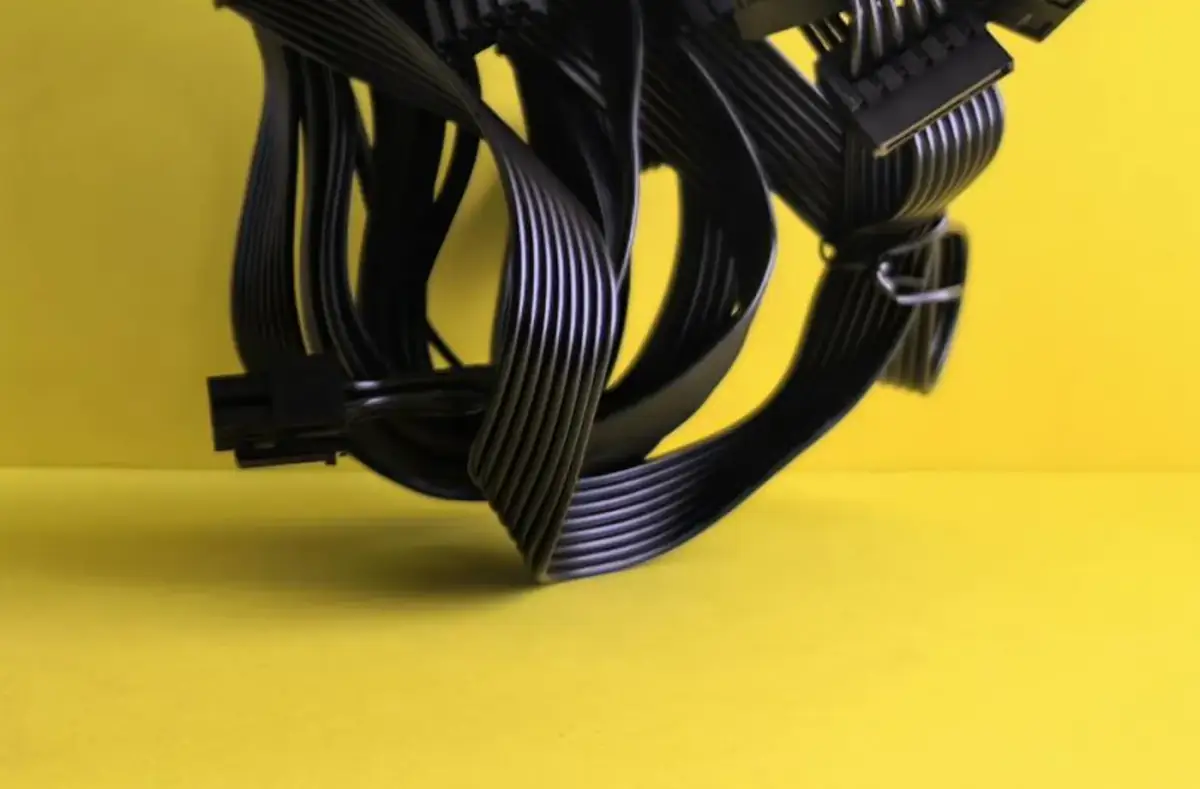
- Incorrect modular cables
- Overloaded or damaged cable
- Internal short
- Dust and heat
Before you start
Prepare a safe repair session
- Unplug the PC if smell, sparks, or buzzing appear.
- Do not open the PSU.
- Do not swap modular cables between power supplies.
- Keep people and flammable material away from suspect power hardware.
Quick path
Try the safest checks first
Step 1
Identify immediate stop signs
Some power symptoms are not troubleshooting puzzles; they are safety warnings.
Exact path to follow
- 1Look and smell from outside the PC only.
- 2Listen for repeated buzzing or popping.
- 3Check whether the power cable or PSU area is hot.
- 4Unplug if any danger sign appears.
Expected result
Unsafe power symptoms are not ignored.
If it worked
Leave it unplugged and get qualified help.
If it did not work
Continue with outlet and cable checks only.
Is there smell, sparks, buzzing, heat, or repeated hard shutdown?
Yes
Unplug and stop.
No
Continue with safer external power checks.
Step 2
Rule out obvious external power issues
A bad strip or loose cable can mimic PSU trouble without requiring internal work.
Exact path to follow
- 1Test a known-good outlet.
- 2Seat the power cable firmly.
- 3Avoid overloaded strips for one test.
- 4Use a known-good cable if available.
Expected result
External power is checked without opening hardware.
If it worked
Replace the bad external power path.
If it did not work
Treat persistent symptoms as possible hardware service.
Did the quick path fix the problem?
Yes
Stop here and write down what worked.
No
Continue with the detailed steps below.
Detailed steps
Move one step at a time
Step 3
Review modular cable risk
Modular PSU cables are not always interchangeable even when they fit.
Exact path to follow
- 1Use only cables that came with that exact PSU or are confirmed for that exact model.
- 2Do not borrow cables from another PSU.
- 3Stop after a GPU or PSU upgrade if the cable history is unclear.
- 4Ask the PSU maker or a technician before powering on.
Expected result
Cable mismatch risk is avoided.
If it worked
Use only verified cables.
If it did not work
Do not power the PC with unknown modular cables.
Step 4
Decide between observation and service
The safest beginner choice is often to stop once power hardware is the likely area.
Exact path to follow
- 1Write down the symptom pattern.
- 2Note load, outlet, cable, and smell clues.
- 3Do not keep trying high-load games.
- 4Take the notes to qualified repair or an experienced builder.
Expected result
You have a clear handoff instead of unsafe experiments.
If it worked
Use the notes for diagnosis.
If it did not work
Leave the PC unplugged if symptoms are severe.
Advanced checks
Use only after the safe path
Step 5
Replace or test power hardware only with the right skills
Power hardware diagnosis needs safe equipment, matching cables, and experience.
Exact path to follow
- 1Do not open the PSU.
- 2Do not run paperclip tests unless trained.
- 3Do not reuse suspect cables.
- 4Let a qualified person test or replace the PSU.
Expected result
Electrical risk stays controlled.
If it worked
Proceed through qualified service.
If it did not work
Keep the system unplugged.
Stop here
Stop for power danger signs
Power supply faults can be unsafe. NexyFix keeps this guide outside the PSU housing.
- Burning smell, sparks, swollen battery, liquid damage, clicking storage, or repeated shutdowns.
- A step requires opening hardware you are not comfortable opening.
- Important data is not backed up before storage, reset, or reinstall work.
Mistakes to avoid
- Opening the PSU.
- Mixing modular cables.
- Ignoring smell or sparks.
- Stress testing a system that hard shuts down.
When to ask a technician
- Any smell, sparks, buzzing, or hot power cable.
- Repeated shutdowns under light load.
- Unknown modular cables were used.
- The PC is valuable or contains important data.
Guided repair FAQ
Is a single click from a PSU normal?
Some systems make a relay click. Repeated clicking with no startup, smell, heat, or shutdowns is different and should be treated carefully.
Why are modular PSU cables risky?
The PC-side connectors may look similar while the PSU-side wiring differs. Wrong cables can damage parts.
Should I use a one-click repair tool for PSU warning signs?
No. Start with built-in settings, official support paths, careful observation, and reversible changes. Unknown repair tools can add new problems.
What is the safest way to test the fix?
Change one thing, test the same symptom, and stop when the problem is fixed. If the next step risks data, firmware, battery, power, or storage, pause first.
Related guides
Was this helpful?
Your feedback helps NexyFix improve future repair guides and beginner explanations.

NexyFix Hardware and Boot Desk
View author profileBoot and Hardware Education Editor
A role-based NexyFix editorial profile for storage compatibility, boot behavior, error codes, and when hardware symptoms need professional help.
Related articles
PC Windows FixesPC Will Not Turn On: Safe First ChecksA beginner-safe desktop power checklist for no lights, no fans, no response, or a PC that only clicks once.PC Windows FixesDesktop PC Randomly Shuts Down: Safe ChecklistSeparate heat, power, wall outlet, driver, and storage clues before assuming a major desktop part has failed. PC Windows FixesPC Turns On But No Display: Safe ChecksFix a PC that turns on but has no display with monitor, HDMI/DisplayPort, GPU port, RAM, debug-light, and safe stop checks.