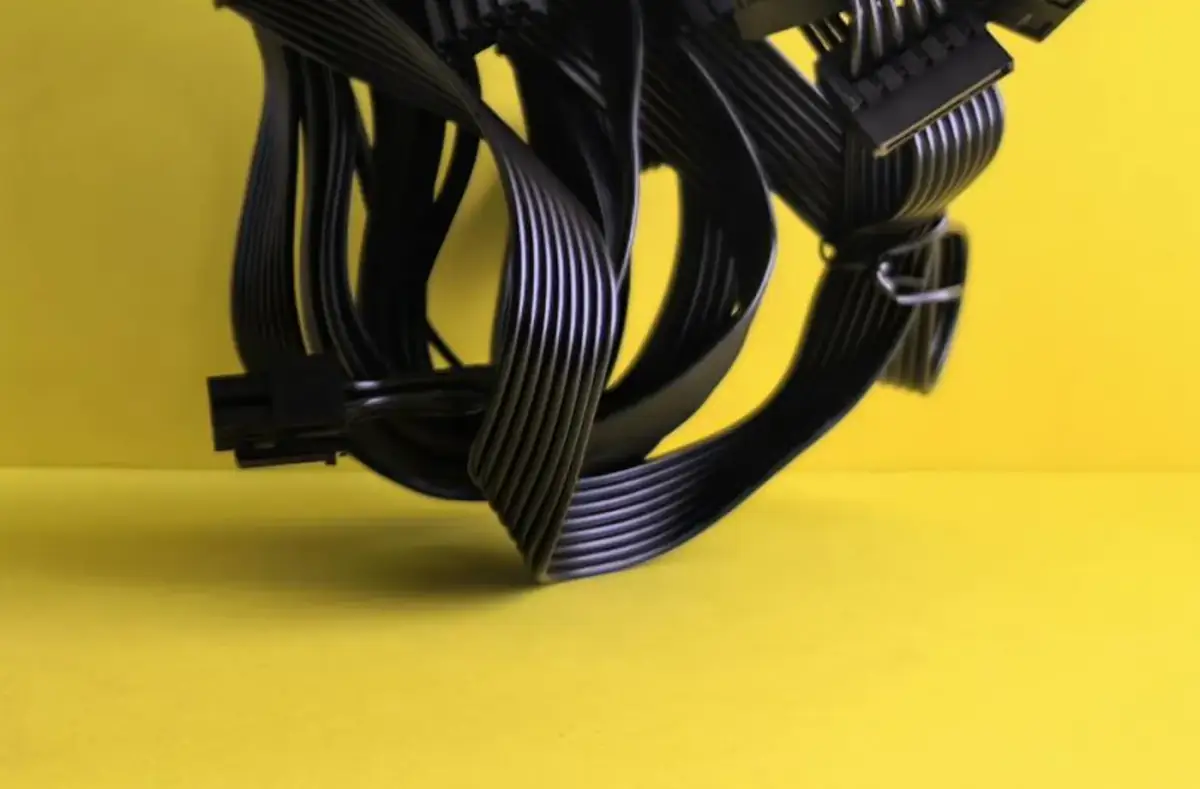
Desktop PC Randomly Shuts Down: Safe Checklist
Separate heat, power, wall outlet, driver, and storage clues before assuming a major desktop part has failed.
 By NexyFix Hardware and Boot DeskBoot and Hardware Education EditorPublished May 6, 2026Updated May 6, 20269 min readIntermediateUpdated recently
Guided repair
Desktop PC randomly shuts down
Use this when a desktop loses power, restarts, or shuts down without warning. The safe path separates heat, wall power, load, drivers, and storage clues before assuming a part is dead.
Time needed
20-60 minutes plus observation
Difficulty
Intermediate
Risk level
Medium
Applies to
Symptoms
- Instant power loss
- Restarts during games
- Fans get loud before shutdown
- Shutdowns began after hardware or driver changes
Common causes
- Overheating
- Weak wall power or power strip
- Power supply instability
- GPU or CPU load
- Driver crash
- Storage or RAM instability
Before you start
Prepare a safe repair session
- Save open work before load testing.
- Place the PC in open airflow.
- Change one thing at a time, then test the same symptom before moving on.
- Do not open power supplies, swollen batteries, or hardware that shows heat, liquid damage, sparks, or burning smell.
Quick path
Try the safest checks first
Step 1
Separate idle shutdowns from load shutdowns
A PC that shuts down only under load points toward heat, GPU, CPU, or power delivery.
Exact path to follow
- 1Use the PC lightly for 10-15 minutes.
- 2Then test the normal activity that triggers shutdown.
- 3Write down whether it happens at idle or only under load.
- 4Do not repeat a test that causes hard shutdowns.
Expected result
The shutdown pattern is clear.
If it worked
Use the pattern to choose heat or power checks.
If it did not work
Check power path and recent changes.
Does the PC shut down only under load?
Yes
Check temperatures, airflow, GPU power, and PSU warning signs.
No
Check outlet, power cable, recent drivers, sleep settings, and storage clues.
Step 2
Check airflow and heat symptoms
Thermal protection can shut a PC down suddenly to protect hardware.
Exact path to follow
- 1Make sure vents are not blocked.
- 2Confirm case fans spin under load.
- 3Look for heavy dust without poking inside powered hardware.
- 4Reduce game or render load for one test.
Expected result
Heat-related shutdowns improve or become clearer.
If it worked
Keep the safer airflow setup and plan cleaning if needed.
If it did not work
Check wall power and power-supply warning signs.
Did the quick path fix the problem?
Yes
Stop here and write down what worked.
No
Continue with the detailed steps below.
Detailed steps
Move one step at a time
Step 3
Remove weak power-strip variables
A failing power strip or overloaded outlet can mimic PC hardware failure.
Exact path to follow
- 1Shut down normally.
- 2Plug the PC directly into a known-good outlet.
- 3Avoid sharing the test outlet with high-load appliances.
- 4Test the same normal workload once.
Expected result
The power path is simpler and easier to judge.
If it worked
Replace the suspect power strip or outlet setup.
If it did not work
Check recent driver and hardware changes.
Step 4
Review recent changes before replacing parts
Shutdowns after a new GPU driver, RAM change, storage move, or new game can have a specific cause.
Exact path to follow
- 1List recent driver, Windows, game, and hardware changes.
- 2Undo one clear recent change if safe.
- 3Return overclock or memory profile settings to normal if you know how.
- 4Test again.
Expected result
A recent reversible change is ruled in or out.
If it worked
Keep the stable setting and avoid stacking changes.
If it did not work
Use hardware stop points and technician help if power loss repeats.
Advanced checks
Use only after the safe path
Step 5
Stop and document suspected power hardware
Repeated sudden power loss can damage data and should not be forced through endless testing.
Exact path to follow
- 1Record load pattern, temperatures if known, outlet test result, and recent changes.
- 2Stop load testing if shutdown repeats.
- 3Do not open the PSU.
- 4Ask a technician or experienced builder to test power hardware.
Expected result
Risky repeated shutdown testing stops.
If it worked
Use the notes for repair.
If it did not work
Do not continue load testing on suspect power hardware.
Stop here
Stop repeated shutdown testing
Hard power loss can risk files and hardware. Do not force a bad pattern.
- Burning smell, sparks, swollen battery, liquid damage, clicking storage, or repeated shutdowns.
- A step requires opening hardware you are not comfortable opening.
- Important data is not backed up before storage, reset, or reinstall work.
Mistakes to avoid
- Do not ignore burning smell or buzzing.
- Do not keep stress testing a PC that hard shuts down.
- Do not mix PSU cables.
- Do not replace parts before checking heat, power path, and recent changes.
When to ask a technician
- Shutdowns repeat under light use.
- Burning smell, buzzing, or sparks appear.
- The PC shuts down during every GPU/CPU load.
- You suspect PSU, motherboard, or electrical issues.
Guided repair FAQ
Can a driver cause shutdowns?
Drivers can cause crashes and restarts, but instant power loss under load often deserves heat and power checks too.
Why does it shut off only while gaming?
Games load the GPU, CPU, cooling, and power supply together, so weak power or thermal problems often appear there first.
Should I use a one-click repair tool for random shutdowns?
No. Start with built-in settings, official support paths, careful observation, and reversible changes. Unknown repair tools can add new problems.
What is the safest way to test the fix?
Change one thing, test the same symptom, and stop when the problem is fixed. If the next step risks data, firmware, battery, power, or storage, pause first.
Related guides
Was this helpful?
Your feedback helps NexyFix improve future repair guides and beginner explanations.

NexyFix Hardware and Boot Desk
View author profileBoot and Hardware Education Editor
A role-based NexyFix editorial profile for storage compatibility, boot behavior, error codes, and when hardware symptoms need professional help.
Related articles
 Gaming PC OptimizationCheck GPU Temperatures While GamingA safe beginner guide to GPU temperature symptoms, airflow checks, fan behavior, dust, and when heat becomes a stop point.PC Windows FixesPower Supply Warning Signs Beginners Should Not IgnoreLearn the power-supply symptoms that should make you stop testing and ask for qualified help.
 Game CrashesStop Random Game Crashes After a Driver UpdateRecover from game crashes after a GPU driver update with official rollback, clean reinstall habits, overlay tests, and temperature checks.