Laptop will not power on
Check charger, outlet, power button behavior, battery clues, and when to stop for smell, heat, or liquid damage.
On-page checklistChecklist above
Laptop black screen but power light is on
Check brightness, external display, sleep state, recent updates, and display hardware warning signs.
On-page checklistChecklist above
Laptop not charging or charges only sometimes
Check outlet, charger, cable angle, USB-C path, port safety, battery state, and when to stop before replacing the battery.
Laptop battery drains fast
Check battery health clues, brightness, startup apps, background sync, sleep behavior, and heat.
On-page checklistChecklist above
Laptop overheating while gaming
Reduce thermal load with safe settings, airflow, cleaning basics, and stop points before hardware work.
Laptop fan loud after startup
Check startup apps, updates, dust, fan curve behavior, malware clues, and when a fan may be failing.
On-page checklistChecklist above
Keyboard and touchpad not working after sleep
Try restart, settings, drivers, function keys, power management, and external device tests.
Laptop screen problems
Separate brightness, display mode, driver timing, cable hinge clues, external monitor behavior, and panel hardware signs.
On-page checklistChecklist above
Laptop hinge safety checklist
Know when hinge stiffness, cracking plastic, or screen wobble should stop normal use before more damage occurs.
On-page checklistChecklist above
How to choose a compatible SSD for your laptop
Check form factor, interface, capacity support, service manual notes, and backup needs before buying or opening.
On-page checklistChecklist above
SSD upgrade compatibility checklist for laptops
Confirm replaceable storage, drive type, screw access, warranty concerns, and reinstall or clone plans.
On-page checklistChecklist above
When an SSD upgrade may help a slow PC
Decide whether storage is the bottleneck or whether heat, memory, malware, or updates are the real cause.
On-page checklistChecklist above
Laptop RAM upgrade safety basics
Check soldered memory, slot access, matched capacity, static safety, and when to avoid opening the device.
On-page checklistChecklist above
Laptop WiFi card troubleshooting
Separate driver, antenna, airplane mode, BIOS toggle, and hardware card symptoms before replacing parts.
On-page checklistChecklist above
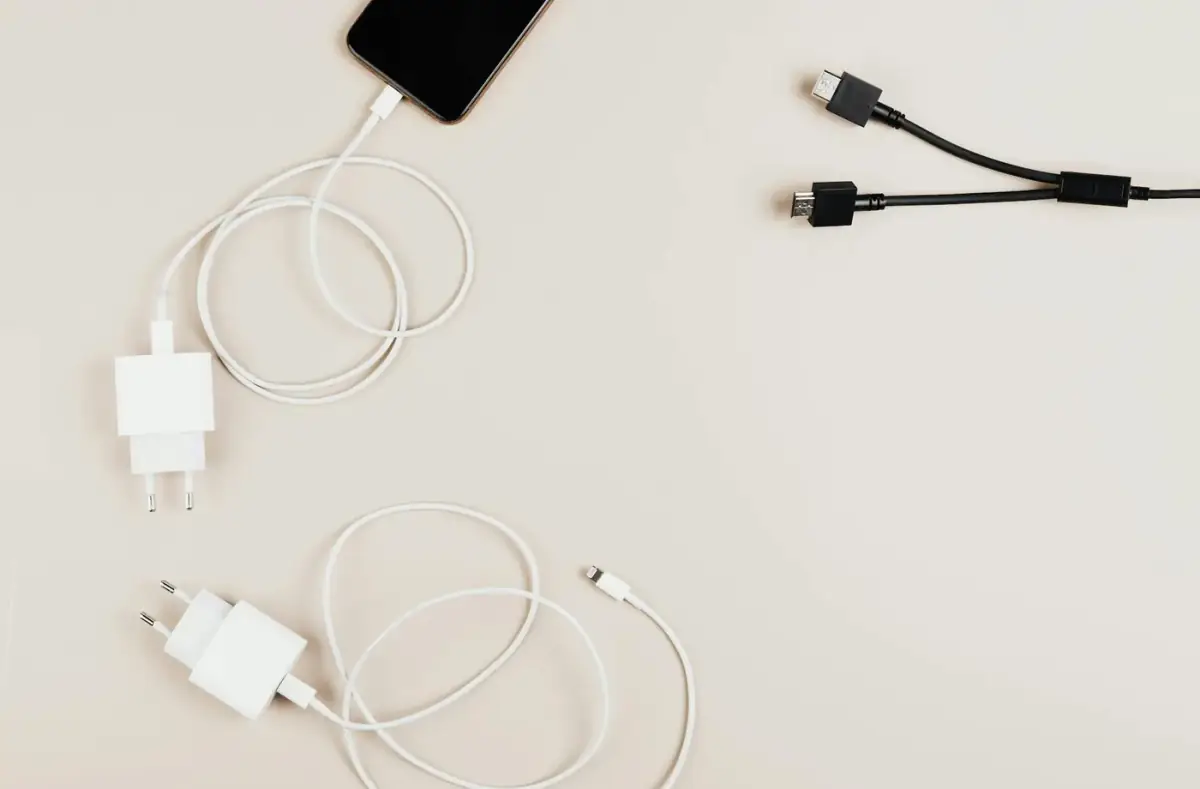
Charger compatibility for laptops
Understand voltage, wattage, connector fit, USB-C charging limits, and unsafe charger warning signs.
On-page checklistChecklist above
Laptop sleep problems
Fix wake issues, battery drain during sleep, lid behavior, connected devices, and driver power state clues.
On-page checklistChecklist above
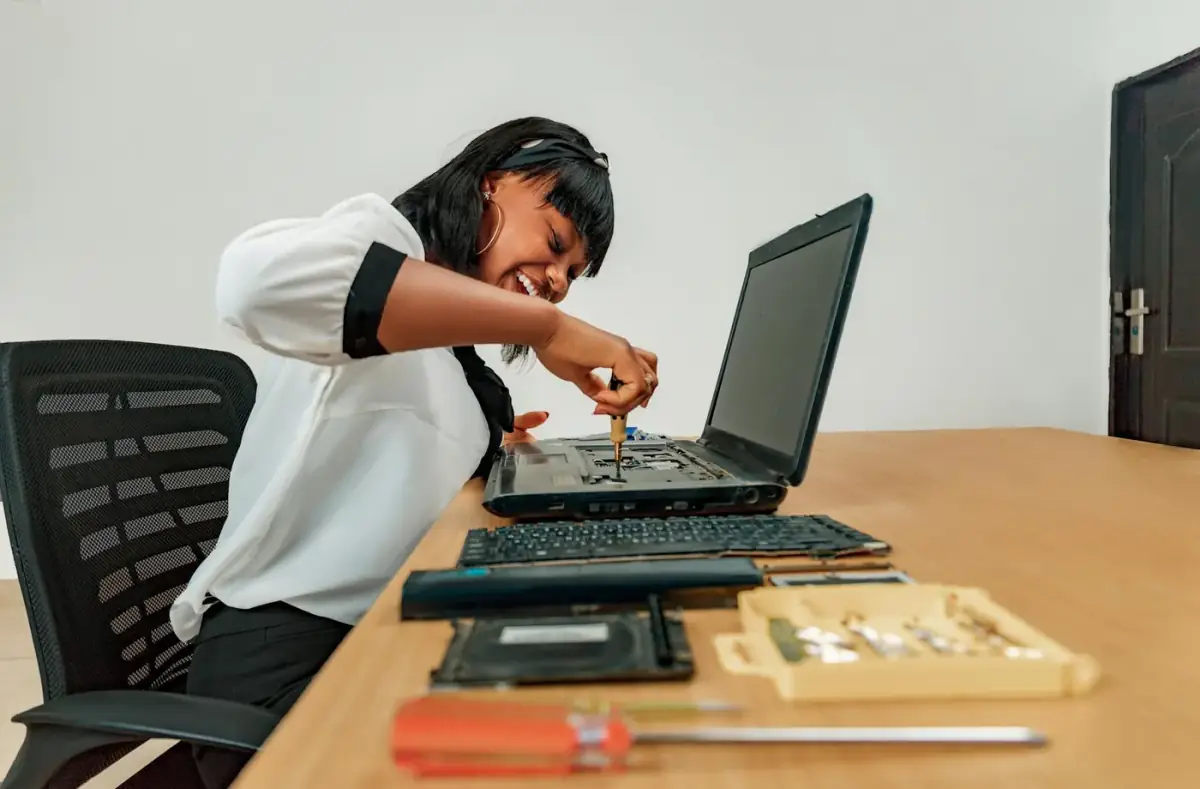
Laptop repair tool safety for beginners
Use the right screwdriver, avoid battery puncture, track screws, and stop before fragile cable damage.
On-page checklistChecklist above
Laptop repair tool safety checklist
A quick checklist for tools, lighting, screw sorting, battery safety, and model-specific service notes.
On-page checklistChecklist above
Laptop repair kit safety checklist
Know which tools are reasonable for basic checks and which repairs should wait for a technician.
On-page checklistChecklist above
Slow laptop before reinstalling Windows
Check startup apps, storage space, heat, Windows Update, RAM pressure, and drive health clues.
On-page checklistChecklist above
Laptop WiFi missing after Windows install
Use official network drivers and temporary internet options when a fresh Windows install lacks WiFi.
Install Windows on a laptop with missing storage drivers
Handle setup drive detection problems with official storage drivers and model-specific support notes.
On-page checklistChecklist above
Laptop stuck on manufacturer logo
Check external devices, startup repair, storage detection, BIOS boot order, and hardware warning signs.
On-page checklistChecklist above
Laptop battery not detected
Check Windows battery status, charger behavior, firmware notices, and stop points for swollen batteries.
On-page checklistChecklist above
Laptop gets hot while charging
Separate normal warmth, blocked vents, charger mismatch, battery symptoms, and unsafe heat warnings.
On-page checklistChecklist above
Laptop USB-C port not charging
Check charger wattage, cable rating, port support, debris, BIOS settings, and damaged port symptoms.
On-page checklistChecklist above
External monitor not working with a laptop
Check display mode, cable, adapter limits, GPU driver, refresh rate, and monitor input.
On-page checklistChecklist above
Laptop webcam or microphone not working
Review privacy settings, function keys, app permissions, drivers, and hardware privacy shutters.
On-page checklistChecklist above
Laptop storage making clicking sounds
Stop repeated boot attempts, back up if possible, and avoid software fixes when physical storage may be failing.
On-page checklistChecklist above
When laptop repair needs a technician
Stop for swollen batteries, liquid damage, burning smell, cracked hinge mounts, damaged ports, or power faults.
On-page checklistChecklist above
 Laptop