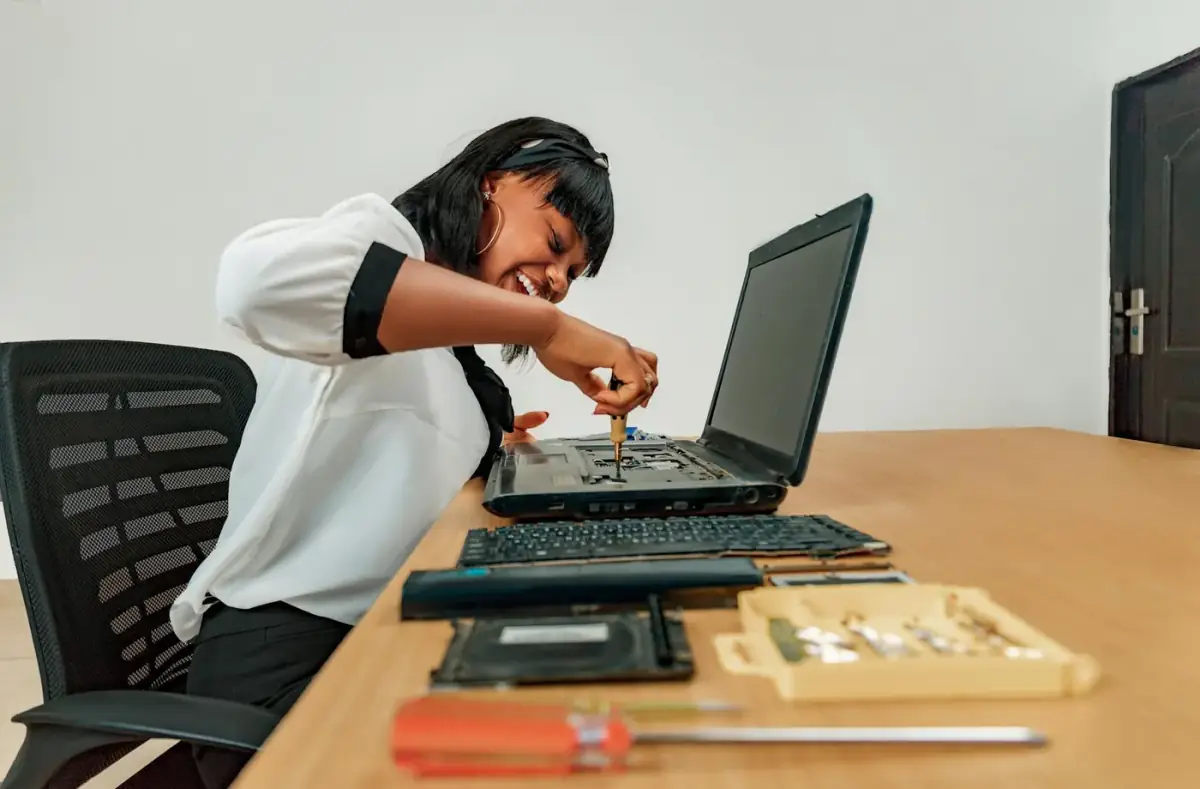
Laptop Fan Loud After Startup: What to Check
Separate normal startup fan bursts from background load, blocked vents, heat, updates, dust, and hardware warning signs.
 By NexyFix Mobile and Laptop DeskPhone and Laptop Help EditorPublished Apr 13, 2026Updated May 5, 20267 min readBeginnerUpdated recentlyBeginner friendly
Guided repair
Laptop fan is loud after startup
Use this when the fan races after boot, stays loud at idle, or ramps up before you open apps. Start with normal update behavior, startup load, airflow, and heat clues before opening the laptop.
Time needed
15-35 minutes
Difficulty
Beginner
Risk level
Medium
Applies to
Symptoms
- Fan runs hard right after sign-in
- Laptop feels hot at idle
- Battery drains quickly
- Task Manager shows high CPU
- Fan quiets after several minutes
Common causes
- Startup apps
- Windows update activity
- Blocked vents
- Dust buildup
- Background sync
- Unwanted apps
- Thermal paste or fan wear
Before you start
Prepare a safe repair session
- Use the laptop on a hard flat surface.
- Do not block vents.
- Do not spray liquid into vents.
- Let updates finish if they are active.
Quick path
Try the safest checks first
Step 1
Wait five minutes and check startup load
Short fan bursts after sign-in can be normal while updates, indexing, or sync tasks settle.
Exact path to follow
- 1Sign in.
- 2Wait five minutes on the desktop.
- 3Open Task Manager.
- 4Sort by CPU.
- 5Write down the top process if usage stays high.
Expected result
You know whether fan noise is tied to startup CPU load.
If it worked
Stop if the fan calms down and CPU returns to normal.
If it did not work
Disable unnecessary startup apps and check airflow.
Does the fan calm down after startup tasks settle?
Yes
Stop. Short startup fan noise may be normal.
No
Continue with startup apps and airflow checks.
Step 2
Move the laptop to a cooler hard surface
Soft surfaces block intake vents and make fans work harder.
Exact path to follow
- 1Place the laptop on a desk or stand.
- 2Remove blankets, beds, and couch surfaces.
- 3Check that vents are open.
- 4Retest fan noise at idle.
Expected result
Airflow improves and fan speed drops if ventilation was the cause.
If it worked
Keep using a hard surface or stand.
If it did not work
Continue to background and dust checks.
Did the quick path fix the problem?
Yes
Stop here and write down what worked.
No
Continue with the detailed steps below.
Detailed steps
Move one step at a time
Step 3
Reduce nonessential startup apps
Launchers, updaters, chat apps, and cloud tools can start together and spike CPU.
Exact path to follow
- 1Open Startup Apps.
- 2Turn off apps you do not need immediately after sign-in.
- 3Restart.
- 4Test fan noise for ten minutes.
Expected result
Startup CPU load and fan noise are lower.
If it worked
Stop and keep only needed startup apps.
If it did not work
Check updates, scans, and unwanted apps.
Step 4
Check update, antivirus, and sync activity
Legitimate background tasks can make a laptop loud temporarily.
Exact path to follow
- 1Open Windows Update.
- 2Check if updates are downloading or installing.
- 3Let security scans finish if active.
- 4Pause heavy cloud sync only if you understand the impact.
Expected result
You know whether a temporary background task explains the fan.
If it worked
Let the task finish, then restart.
If it did not work
Continue to dust and service signs.
Step 5
Look for dust or fan wear signs
Dust, blocked vents, or failing fans make laptops loud even at normal load.
Exact path to follow
- 1Power off.
- 2Inspect vents with a light.
- 3Listen for grinding or rattling.
- 4Do not open the laptop unless model service steps are clear.
Expected result
Dust or mechanical fan symptoms are identified.
If it worked
Use safe cleaning or professional service.
If it did not work
Check temperatures during normal use.
Advanced checks
Use only after the safe path
Step 6
Service cooling only after software and airflow checks
Thermal paste, fan replacement, and internal cleaning can help, but they are hardware service tasks.
Exact path to follow
- 1Check warranty status.
- 2Find model-specific service instructions.
- 3Back up files before repair.
- 4Ask a technician if the laptop is thin, glued, or battery access is risky.
Expected result
Cooling service is planned safely instead of improvised.
If it worked
Service or clean according to the model guide.
If it did not work
Use warranty or technician help.
Stop here
Stop for heat, battery, or fan damage signs
Loud fan noise can be normal under load, but hardware symptoms deserve caution.
- Stop if the laptop shuts down from heat.
- Stop if the battery area bulges.
- Stop if the fan grinds or scrapes.
Mistakes to avoid
- Do not block vents on soft surfaces.
- Do not install booster or optimizer tools.
- Do not use high-pressure air that overspins fans.
- Do not ignore grinding fan noises.
When to ask a technician
- Grinding or rattling fan.
- Overheating shutdowns.
- Swollen battery or case bulge.
- Fan remains loud at idle after startup load and airflow checks.
Guided repair FAQ
Is loud fan noise right after startup normal?
It can be normal for a few minutes during updates, indexing, or startup apps. Constant loud fan at idle needs more checks.
Should I use an optimizer app?
No. Use Task Manager, Startup Apps, Windows Update, and airflow checks before any third-party utility.
Why avoid random repair or driver updater tools?
They make it hard to know what changed. Use built-in Windows tools, official support pages, and one reversible change at a time.
What should I write down before the next step?
Write down the exact symptom, error, device name, driver version, storage clue, or firmware setting involved. The topic-specific stop box above handles the risk limits.
Related guides
Was this helpful?
Your feedback helps NexyFix improve future repair guides and beginner explanations.

NexyFix Mobile and Laptop Desk
View author profilePhone and Laptop Help Editor
A role-based NexyFix editorial profile for beginner-friendly phone, charging, Bluetooth, storage, and laptop maintenance explanations with safety notes first.
Related articles
 Laptop ProblemsLaptop Not Charging When Plugged In: Safe FixesFix a laptop not charging when plugged in with outlet, charger, USB-C, battery, HP/Dell/Lenovo clues, and safety checks.
 Laptop ProblemsKeyboard and Touchpad Not Working After SleepRestore laptop input after sleep with restart, external keyboard, driver, power, and accessibility checks before assuming hardware failure.