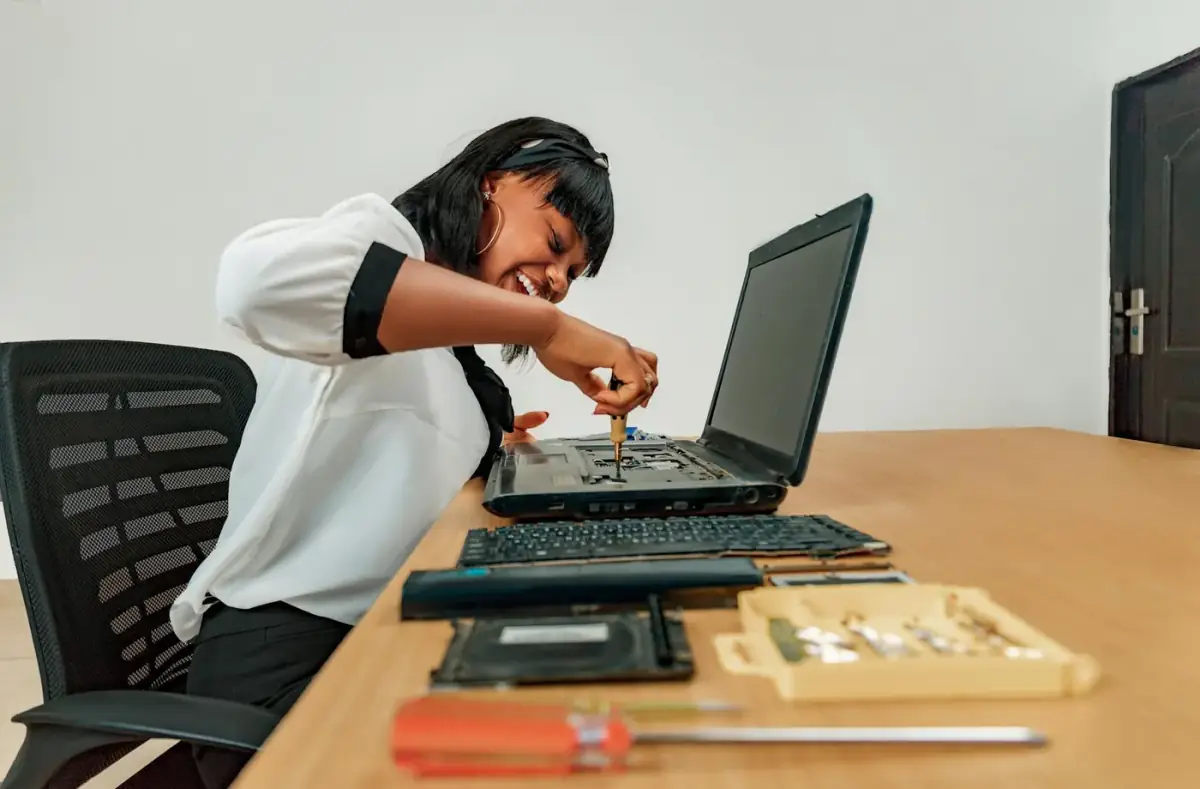
Laptop Overheating While Gaming: Safe Checks First
A laptop overheating guide that starts with airflow, surfaces, background load, fan behavior, power settings, and safe stop points.
 By NexyFix Hardware and Boot DeskBoot and Hardware Education EditorPublished Apr 8, 2026Updated Apr 14, 202611 min readBeginnerUpdated recentlyBeginner friendly
Guided repair
Laptop overheats or slows down while gaming
Use this when a gaming laptop gets very hot, fans become loud, FPS drops after a few minutes, or the system shuts down under load. Start with airflow and load reduction before hardware work.
Time needed
15-45 minutes
Difficulty
Beginner
Risk level
Medium
Applies to
Symptoms
- Fans loud during games
- FPS drops after heat builds
- Laptop surface is very hot
- Shutdown during games
- Keyboard area becomes uncomfortable
Common causes
- Blocked vents
- Soft surface
- Dust
- High graphics load
- Background apps
- Aging thermal system
- Battery or charging heat
Before you start
Prepare a safe repair session
- Move the laptop to a hard flat surface.
- Plug in the correct charger.
- Stop if battery swelling, smell, liquid, or extreme heat appears.
- Change one thing at a time, then test before moving to the next step.
Quick path
Try the safest checks first
Step 1
Fix airflow first
Blocked vents can create heat quickly, especially on beds, blankets, laps, or dusty desks.
Exact path to follow
- 1Place the laptop on a hard flat surface.
- 2Make sure intake and exhaust vents are not blocked.
- 3Remove stickers or objects covering vents.
- 4Retest the same game scene.
Expected result
Temperatures and fan noise improve or the symptom stays the same.
If it worked
Keep the airflow setup and stop.
If it did not work
Reduce load and check fan behavior.
Did airflow changes reduce heat or FPS drops?
Yes
Stop here and keep the setup.
No
Lower load and inspect vents safely.
Step 2
Reduce game load for one test
Lower settings reduce heat and help confirm thermal throttling.
Exact path to follow
- 1Cap FPS to a reasonable target.
- 2Lower shadows and reflections.
- 3Turn off ray tracing.
- 4Close background apps.
Expected result
The laptop runs cooler or maintains steadier FPS.
If it worked
Save a cooler settings profile.
If it did not work
Check dust, fan behavior, and power settings.
Did the quick path fix the problem?
Yes
Stop here and write down what worked.
No
Continue with the detailed steps below.
Detailed steps
Move one step at a time
Step 3
Clean vents safely without opening the laptop
Dust can block airflow, but aggressive cleaning can damage fans.
Exact path to follow
- 1Power off and unplug the laptop.
- 2Inspect vents with light.
- 3Use gentle exterior cleaning and short air bursts if appropriate.
- 4Do not spin fans aggressively.
Expected result
Airflow improves without opening the device.
If it worked
Retest the game on a hard surface.
If it did not work
Check fan behavior and manufacturer thermal tools.
Step 4
Check power and performance modes
Some laptops run differently on battery, quiet mode, balanced mode, or performance mode.
Exact path to follow
- 1Use the correct charger.
- 2Open Windows Game Mode if needed.
- 3Check the laptop maker's thermal or performance app if already installed.
- 4Avoid extreme modes until heat is under control.
Expected result
Performance mode matches the cooling ability.
If it worked
Use the stable mode.
If it did not work
Watch for hardware warning signs.
Step 5
Check for hardware warning signs
Heat can be normal under gaming load, but shutdowns, swelling, smell, or liquid damage are not normal repair paths.
Exact path to follow
- 1Look for swelling around the touchpad or bottom cover.
- 2Smell for burning or chemical odor.
- 3Notice repeated shutdowns.
- 4Stop if the laptop is too hot to touch safely.
Expected result
You know whether to continue software checks or stop.
If it worked
Continue with safer settings.
If it did not work
Ask a technician.
Advanced checks
Use only after the safe path
Step 6
Consider service only after safe checks
Thermal paste, fan replacement, and internal cleaning are hardware work and vary by model.
Exact path to follow
- 1Check warranty status.
- 2Find the official service manual if available.
- 3Use a technician for battery or fan work if unsure.
- 4Back up files before service.
Expected result
You avoid turning a heat issue into hardware damage.
If it worked
Schedule service or continue safe use.
If it did not work
Stop and get professional help.
Stop here
Stop if heat looks unsafe
A hot laptop can become a battery, board, or data-risk problem.
- Stop if the battery is swollen.
- Stop if there is burning smell.
- Stop if the laptop shuts down repeatedly.
Mistakes to avoid
- Do not block vents.
- Do not run extreme performance mode during overheating.
- Do not open the laptop without model-specific instructions.
When to ask a technician
- Battery swelling, smell, or liquid damage.
- Repeated thermal shutdowns.
- Fan grinding, scraping, or not spinning.
Guided repair FAQ
Is a loud fan always bad?
No. Loud fans can be normal under load, but sudden grinding, scraping, or shutdowns need attention.
Should I update BIOS for overheating?
Do not update BIOS casually. Use official model guidance and only when it clearly applies.
Why does NexyFix avoid one-click repair tools here?
They usually hide what changed. This guide keeps each repair step visible, reversible, and tied to the symptom you actually see.
What note should I keep while testing?
Write down the exact error, device name, setting, cable, update, or hardware clue that changed the symptom. That note helps choose the next narrow guide.
Related guides
Was this helpful?
Your feedback helps NexyFix improve future repair guides and beginner explanations.

NexyFix Hardware and Boot Desk
View author profileBoot and Hardware Education Editor
A role-based NexyFix editorial profile for storage compatibility, boot behavior, error codes, and when hardware symptoms need professional help.
Related articles
 Gaming PC OptimizationFix High CPU Usage While GamingFind CPU load causes in games by checking shaders, launchers, overlays, background tasks, thermals, and settings one change at a time.Gaming PC OptimizationDisable Windows 11 VBS for Gaming? What to Check FirstBefore disabling Windows 11 VBS for gaming, check FPS, drivers, thermals, refresh rate, Game Mode, and security tradeoffs.
 Gaming PC OptimizationGTA 6 PC Requirements: Expected Specs and FPS GuideGTA 6 PC requirements are not official yet. See expected minimum and recommended specs, FPS targets, GPU advice, RAM, SSD, and upgrade tips.