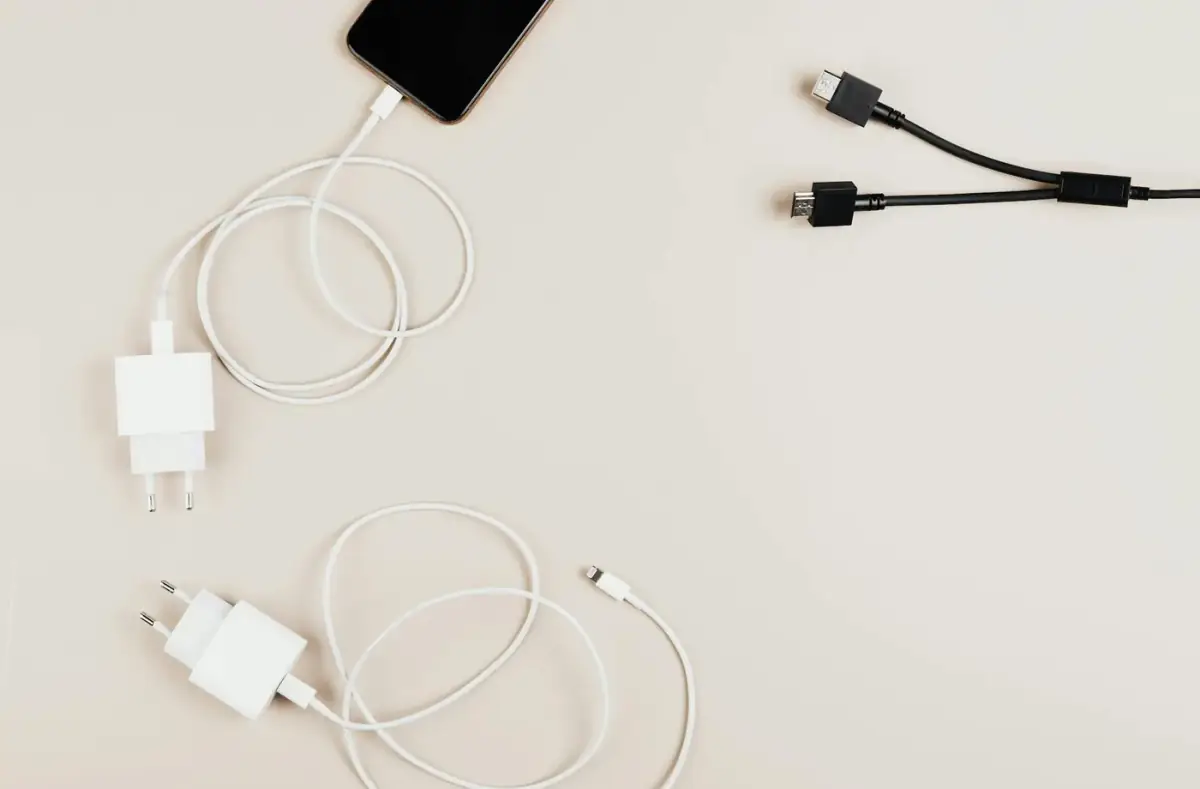
Laptop Battery Drains Fast: Safe Power, Heat, and Sleep Checks
Fix fast laptop battery drain by checking brightness, power mode, startup apps, sleep behavior, heat, battery health clues, and charging issues.
 By NexyFix Mobile and Laptop DeskPhone and Laptop Help EditorPublished May 6, 2026Updated May 6, 20269 min readBeginnerUpdated recentlyBeginner friendly
Guided repair
Laptop battery drains fast
Use this when a laptop loses charge quickly, drains in sleep, runs warm, or changed battery behavior after updates. Start with safe settings and heat checks before battery replacement ideas.
Time needed
20-60 minutes plus observation
Difficulty
Beginner
Risk level
Low
Applies to
Symptoms
- Battery drops quickly
- Laptop warms while idle
- Battery drains while sleeping
- Fan runs often on battery
Common causes
- High brightness
- Startup apps
- Background sync
- Poor sleep behavior
- Weak signal
- Heat
- Aging battery
Before you start
Prepare a safe repair session
- Plug in for longer checks.
- Save open work.
- Stop for swelling, heat, smell, or liquid damage.
- Change one thing at a time, then test the same symptom before moving on.
Quick path
Try the safest checks first
Step 1
Check brightness, power mode, and startup load
Display brightness and startup apps can drain battery without hardware failure.
Exact path to follow
- 1Lower brightness for one test.
- 2Use a balanced or recommended power mode.
- 3Open Startup Apps settings.
- 4Disable only apps you recognize and do not need at startup.
Expected result
Common battery drains are reduced.
If it worked
Keep the lighter startup and display setup.
If it did not work
Check heat and sleep behavior.
Did battery drain improve after reducing screen and startup load?
Yes
Stop and keep the stable profile.
No
Move to heat, sleep, and background checks.
Step 2
Check heat and fan behavior
Heat and constant fan activity mean the laptop is doing work or struggling with cooling.
Exact path to follow
- 1Use the laptop on a hard surface.
- 2Close heavy apps.
- 3Wait 10 minutes at idle.
- 4Listen for fan behavior and check warmth.
Expected result
Idle heat becomes clearer.
If it worked
Use the loud fan or slow PC guide.
If it did not work
Check sleep and battery health clues.
Did the quick path fix the problem?
Yes
Stop here and write down what worked.
No
Continue with the detailed steps below.
Detailed steps
Move one step at a time
Step 3
Check sleep drain separately
A laptop can lose battery while sleeping because devices, updates, or background tasks keep waking it.
Exact path to follow
- 1Charge to a known percentage.
- 2Put the laptop to sleep for one hour.
- 3Wake it and note the percentage drop.
- 4Disconnect unnecessary USB devices for the next test.
Expected result
Sleep drain is measured instead of guessed.
If it worked
Adjust sleep and connected-device habits.
If it did not work
Check background apps and updates.
Step 4
Review battery usage by app
One app, sync service, browser tab, or launcher can dominate battery use.
Exact path to follow
- 1Open Windows battery usage settings if available.
- 2Check top apps by battery use.
- 3Update or close the obvious heavy app.
- 4Test for one charge cycle.
Expected result
A specific app or background task is identified.
If it worked
Keep the app controlled.
If it did not work
Consider battery age or hardware support.
Advanced checks
Use only after the safe path
Step 5
Decide whether battery service is likely
Aging batteries lose capacity, but replacement decisions should follow safe checks and stop signs.
Exact path to follow
- 1Compare battery life after safe settings.
- 2Look for swelling, shutdowns, or heat.
- 3Check official model support for battery health guidance.
- 4Use qualified service for internal battery replacement.
Expected result
Battery replacement is considered safely.
If it worked
Use official service path if needed.
If it did not work
Continue monitoring with safe settings.
Stop here
Stop for battery safety signs
Battery drain is usually software or heat, but physical battery symptoms need service.
- Burning smell, sparks, swollen battery, liquid damage, clicking storage, or repeated shutdowns.
- A step requires opening hardware you are not comfortable opening.
- Important data is not backed up before storage, reset, or reinstall work.
Mistakes to avoid
- Do not install battery saver utilities from unknown sources.
- Do not ignore swelling.
- Do not open glued or internal batteries casually.
- Do not blame battery before checking heat and startup load.
When to ask a technician
- Battery is swollen.
- Laptop heats while off or charging.
- Random shutdowns on battery.
- Battery replacement requires opening the device.
Guided repair FAQ
Can Windows updates drain battery temporarily?
Yes. Updates, indexing, and app updates can use more power for a while. Persistent heat or drain needs checks.
Should I replace the battery first?
Not first. Check brightness, startup apps, background load, sleep drain, heat, and age clues first.
Should I use a one-click repair tool for laptop battery drain?
No. Start with built-in settings, official support paths, careful observation, and reversible changes. Unknown repair tools can add new problems.
What is the safest way to test the fix?
Change one thing, test the same symptom, and stop when the problem is fixed. If the next step risks data, firmware, battery, power, or storage, pause first.
Related guides
Was this helpful?
Your feedback helps NexyFix improve future repair guides and beginner explanations.

NexyFix Mobile and Laptop Desk
View author profilePhone and Laptop Help Editor
A role-based NexyFix editorial profile for beginner-friendly phone, charging, Bluetooth, storage, and laptop maintenance explanations with safety notes first.
Related articles
Laptop ProblemsLaptop Not Charging When Plugged In: Safe FixesFix a laptop not charging when plugged in with outlet, charger, USB-C, battery, HP/Dell/Lenovo clues, and safety checks. Laptop ProblemsKeyboard and Touchpad Not Working After SleepRestore laptop input after sleep with restart, external keyboard, driver, power, and accessibility checks before assuming hardware failure.