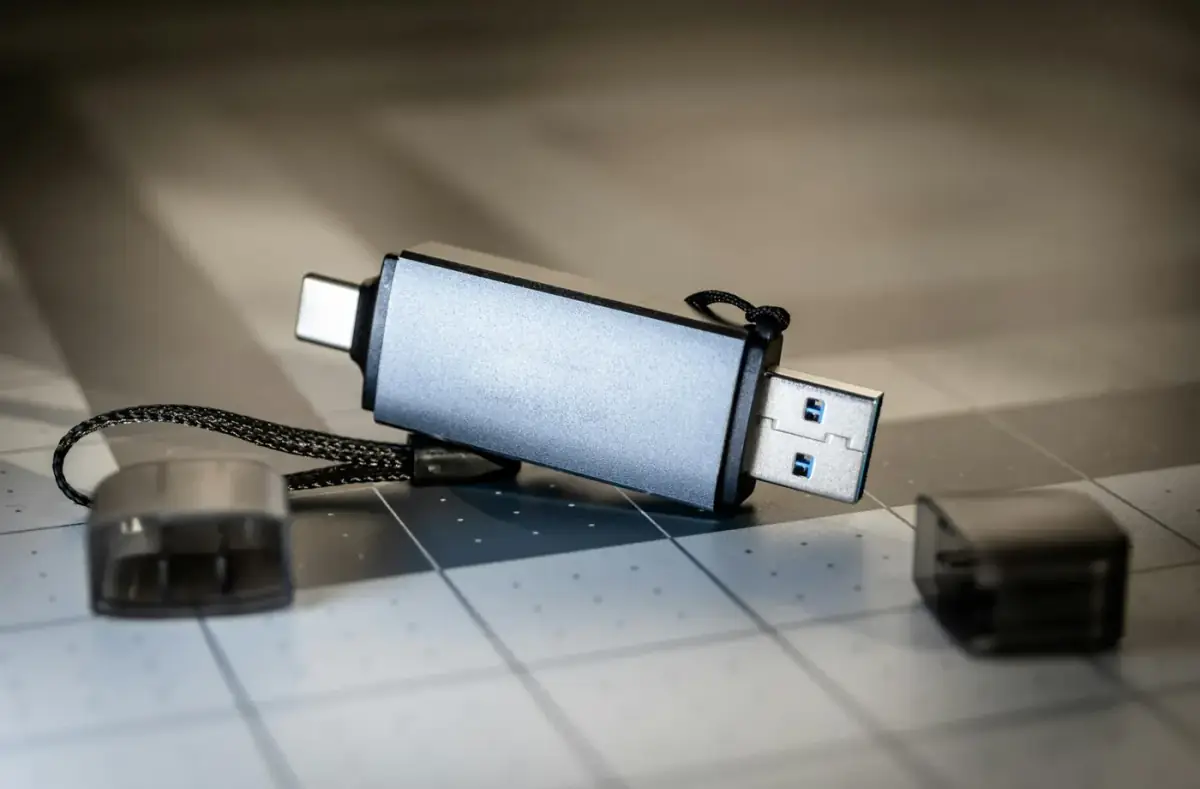
Format a USB Drive Correctly for UEFI Installers
Format Windows installer USB media for UEFI boot with the right file system, clean recreation steps, and checks for large install files.
 By NexyFix Gaming DeskGaming PC AnalystPublished Apr 26, 2026Updated Apr 30, 20267 min readBeginnerUpdated recentlyBeginner friendly
Guided repair
Format a USB drive for a UEFI Windows installer
Use this when you need USB install media that modern PCs can boot in UEFI mode. The safe goal is to erase only the USB drive, use a trusted creation method, and verify the boot menu before touching internal storage.
Time needed
15-30 minutes
Difficulty
Beginner
Risk level
Medium
Applies to
Symptoms
- USB is not listed as UEFI
- PC boots the internal drive instead
- Installer starts in legacy mode
- USB format choice is confusing
Common causes
- Wrong USB selected while formatting
- Installer files copied incorrectly
- Old legacy boot mode
- Bad USB port or drive
- File system not suitable for the creation method
Before you start
Prepare a safe repair session
- Copy files you need off the USB because formatting erases it.
- Unplug extra removable drives.
- Use a reliable USB drive.
- Do not use disk-erasing commands.
Quick path
Try the safest checks first
Step 1
Identify the USB drive before formatting
The highest risk is erasing the wrong removable drive.
Exact path to follow
- 1Open File Explorer.
- 2Check the USB label, size, and drive letter.
- 3Unplug other removable drives.
- 4Rename the USB temporarily if that helps you identify it.
Expected result
You know exactly which drive will be erased.
If it worked
Continue with a trusted installer creation path.
If it did not work
Stop until the USB identity is clear.
Are you certain this is the USB drive you can erase?
Yes
Continue.
No
Stop and unplug other drives before formatting.
Step 2
Use a trusted Windows installer creation path
A bootable installer needs more than copied files. The boot structure matters.
Exact path to follow
- 1Use the official Windows installer creation flow or a trusted local image workflow.
- 2Select the USB carefully.
- 3Wait until creation finishes.
- 4Eject the USB safely.
Expected result
The USB contains bootable Windows setup files.
If it worked
Test it in the boot menu.
If it did not work
Try another USB drive or recreate the installer.
Did the creation tool finish without errors?
Yes
Test the USB in the boot menu.
No
Recreate it on another USB drive before changing BIOS settings.
Did the quick path fix the problem?
Yes
Stop here and write down what worked.
No
Continue with the detailed steps below.
Detailed steps
Move one step at a time
Step 3
Choose the UEFI boot entry
Modern Windows installs should normally start from the UEFI entry so setup and partition style line up.
Exact path to follow
- 1Restart and open the one-time boot menu.
- 2Look for a USB entry that begins with UEFI.
- 3Choose the UEFI USB entry.
- 4Avoid legacy unless you have a specific reason.
Expected result
Windows Setup starts in UEFI mode.
If it worked
Continue setup carefully.
If it did not work
Try another USB port or recreate the installer.
Does the USB appear as a UEFI boot option?
Yes
Choose it and continue.
No
Try another port, recreate the installer, or check firmware boot settings.
Step 4
Try a direct laptop or motherboard port
Some boot menus ignore hubs, docks, front-panel ports, or low-quality adapters.
Exact path to follow
- 1Shut down.
- 2Plug the USB directly into the laptop or rear motherboard port.
- 3Avoid hubs and docks.
- 4Open the boot menu again.
Expected result
The USB appears reliably in the boot menu.
If it worked
Use that port for installation.
If it did not work
Recreate the installer or try another USB drive.
Step 5
Leave Secure Boot and TPM alone at first
A missing USB entry is usually media, port, or boot menu related. Security settings are not the first guess.
Exact path to follow
- 1Leave Secure Boot and TPM settings alone unless a trusted instruction says otherwise.
- 2Check boot menu visibility first.
- 3Recreate the installer before changing firmware security settings.
Expected result
You avoid weakening firmware settings unnecessarily.
If it worked
Continue with the installer.
If it did not work
Use the boot-menu troubleshooting guide.
Advanced checks
Use only after the safe path
Step 6
Recreate the installer on another USB drive
Some USB drives are unreliable for boot media even if they work for files.
Exact path to follow
- 1Use another known-good USB drive.
- 2Create the installer again.
- 3Test the UEFI boot menu before setup.
- 4Keep the failed USB for normal files only if it tests healthy.
Expected result
A clean USB appears in the boot menu.
If it worked
Use the new USB.
If it did not work
Check firmware boot settings or ask for model-specific help.
Stop here
Stop before internal drive changes
USB formatting is separate from internal storage. Do not touch internal partitions to fix a USB boot issue.
- Stop if you cannot identify the USB.
- Stop if setup asks to delete internal partitions before backups.
- Stop if firmware settings are unfamiliar.
Mistakes to avoid
- Do not format the wrong drive.
- Do not use destructive disk commands.
- Do not disable Secure Boot or TPM blindly.
- Do not copy ISO files manually and assume the USB is bootable.
When to ask a technician
- No USB drives appear on any port.
- Firmware menus are locked by an organization.
- The PC shuts down or overheats during boot attempts.
Guided repair FAQ
Should the USB be FAT32 or NTFS?
Use the format produced by your trusted Windows installer creation method. Manual choices can be tricky because large install files and UEFI behavior vary.
Why does the USB work on one PC but not another?
Boot menu behavior, USB ports, firmware settings, and media quality can differ between PCs.
Why avoid random repair or driver updater tools?
They make it hard to know what changed. Use built-in Windows tools, official support pages, and one reversible change at a time.
What should I write down before the next step?
Write down the exact symptom, error, device name, driver version, storage clue, or firmware setting involved. The topic-specific stop box above handles the risk limits.
Related guides
Was this helpful?
Your feedback helps NexyFix improve future repair guides and beginner explanations.
NexyFix Gaming Desk
View author profileGaming PC Analyst
A role-based NexyFix editorial profile for frame pacing, game stability, PC thermals, driver behavior, and realistic performance tuning.
Related articles
Bootable USBHow to Create a Bootable Windows USB SafelyCreate a reliable Windows USB installer while avoiding modified images, weak USB drives, and accidental data loss. Windows InstallationHow to Install Windows 11 From USB SafelyInstall Windows 11 from a USB installer with clear backup, boot menu, drive selection, and stop-point guidance.Bootable USBBootable USB Not Showing in Boot MenuTroubleshoot a missing boot USB with port, boot menu, UEFI mode, media creation, and firmware checks before changing storage settings.