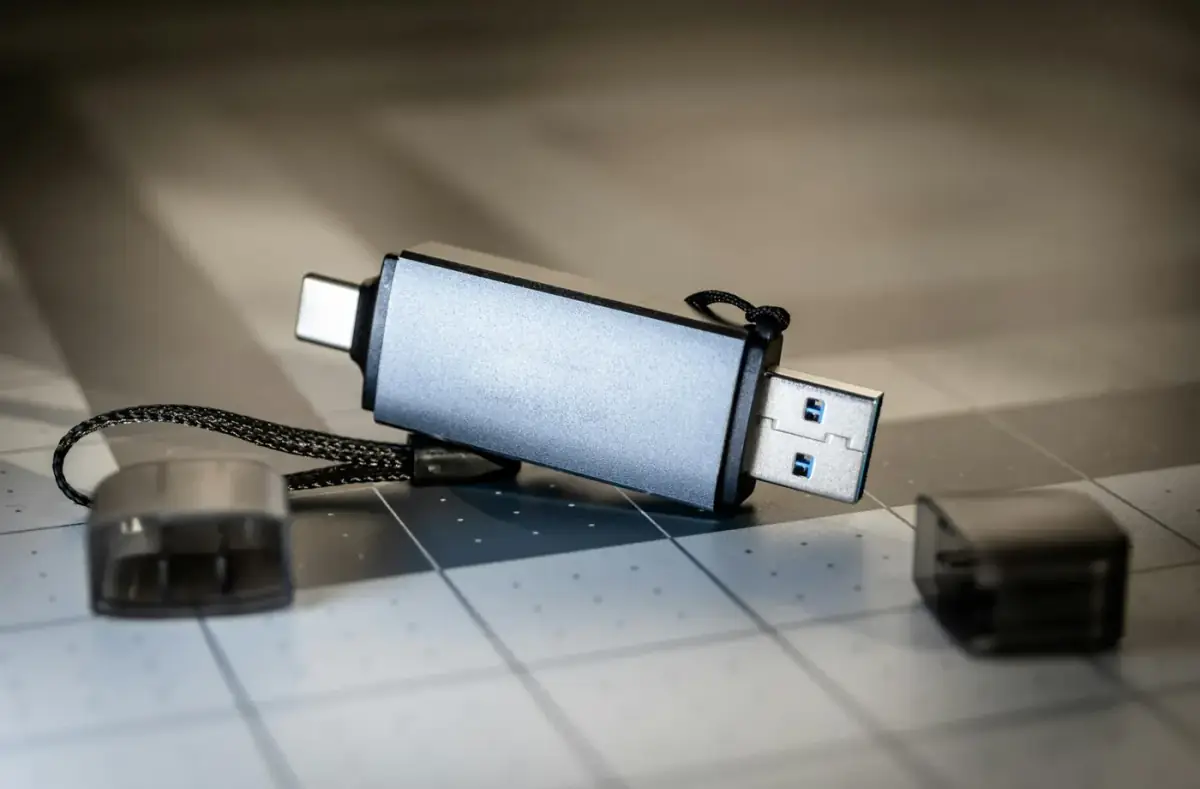
Create a Multi-Purpose PC Repair USB Kit
Build a safe repair USB kit for recovery, installers, drivers, notes, and backups without mixing unknown tools or destructive utilities.
 By NexyFix Mobile and Laptop DeskPhone and Laptop Help EditorPublished Apr 25, 2026Updated Apr 30, 20268 min readIntermediateUpdated recently
Guided repair
Create a safe multi-purpose PC repair USB kit
Use this to prepare practical USB support for Windows recovery, drivers, BIOS notes, and offline troubleshooting. Keep it organized and avoid random repair utilities or destructive scripts.
Time needed
30-60 minutes
Difficulty
Beginner
Risk level
Medium
Applies to
Symptoms
- You often fix PCs without internet
- A clean install lacks WiFi
- You want recovery media ready before problems happen
- You need one organized place for safe files
Common causes
- No recovery media
- Missing network driver after install
- Unlabeled USB folders
- Too many random utilities
- Outdated installer media
Before you start
Prepare a safe repair session
- Use a USB you can erase or dedicate to repair files.
- Keep personal files separate from repair media.
- Download drivers only from official support pages.
- Do not include destructive scripts.
Quick path
Try the safest checks first
Step 1
Separate boot media from support files
A Windows installer USB may be rebuilt later, which can erase support files.
Exact path to follow
- 1Use one USB for Windows installer media if needed.
- 2Use another USB or a clear folder for drivers and notes.
- 3Label each drive.
- 4Avoid mixing personal backups with repair tools.
Expected result
You know what each USB is for.
If it worked
Create the folder structure.
If it did not work
Use a simpler kit with one clearly labeled drive.
Can you keep installer media and support files clearly separated?
Yes
Use separate drives or labeled folders.
No
Keep the kit simple and avoid storing irreplaceable files on it.
Step 2
Add only safe essentials
A repair kit should reduce panic, not introduce unknown tools.
Exact path to follow
- 1Add official network, chipset, storage, and GPU drivers for your devices.
- 2Add a note with model numbers and support links.
- 3Add backup checklist notes.
- 4Add Windows installer or recovery media only from trusted creation paths.
Expected result
The USB has useful files without risky utilities.
If it worked
Test the kit on a working PC.
If it did not work
Remove unknown tools and rebuild the folder list.
Did the quick path fix the problem?
Yes
Stop here and write down what worked.
No
Continue with the detailed steps below.
Detailed steps
Move one step at a time
Step 3
Build a simple folder structure
During a repair, clear folders save time and reduce wrong-driver mistakes.
Exact path to follow
- 1Create folders named Drivers, Windows-Install, Recovery-Notes, Device-Info, and Backup-Checklist.
- 2Put drivers inside device-specific subfolders.
- 3Add a README text file explaining each folder.
Expected result
The repair USB is easy to understand under stress.
If it worked
Add device-specific files.
If it did not work
Start with only Drivers and Notes.
Step 4
Store model-specific drivers safely
Network and storage drivers are the most useful offline files after a clean install.
Exact path to follow
- 1Download official drivers for the exact laptop, motherboard, GPU, or WiFi adapter.
- 2Keep original file names when possible.
- 3Add the download date in notes.
- 4Avoid outdated duplicates.
Expected result
You can restore network or storage detection without random tools.
If it worked
Test that files open or extract on a working PC.
If it did not work
Recheck the exact model and support page.
Step 5
Test the kit before you need it
A repair USB that is unreadable during a real failure is not a backup plan.
Exact path to follow
- 1Plug the USB into a working PC.
- 2Confirm folders open.
- 3Confirm the Windows installer boots if it is a boot USB.
- 4Keep the USB in a known place.
Expected result
The kit works before an emergency.
If it worked
Label it and update it every few months.
If it did not work
Try another USB drive and recreate the kit.
Does the kit open and boot where expected?
Yes
Label it and keep it ready.
No
Recreate it before relying on it.
Advanced checks
Use only after the safe path
Step 6
Keep risky tools out of the default kit
Advanced utilities can erase disks or change boot records. They should not sit beside beginner notes.
Exact path to follow
- 1Do not include disk-wipe tools.
- 2Do not include registry scripts.
- 3Do not include overclocking profiles.
- 4Keep any advanced vendor tools separate and documented.
Expected result
The kit stays safe for beginner use.
If it worked
Use the kit for safe checks first.
If it did not work
Remove tools you cannot explain.
Stop here
Stop before adding dangerous utilities
A repair kit is strongest when it is boring, organized, and safe.
- Stop if a tool can erase disks and you do not understand it.
- Stop if a driver source is not official.
- Stop if the kit contains personal files with no backup.
Mistakes to avoid
- Do not use fake driver updater, repair, optimizer, or registry-cleaner tools.
- Do not store your only backup on the repair USB.
- Do not include destructive commands or scripts.
- Do not rely on a USB you have never tested.
When to ask a technician
- The PC cannot read any USB ports.
- Storage is clicking or disappearing.
- A work or school device has managed security policies.
Guided repair FAQ
Should I put driver updater software on the USB?
No. Store official drivers for exact devices instead of using automatic driver updater bundles.
Can one USB be both installer and repair kit?
Sometimes, but installer tools may reformat the USB. A separate support USB is safer for notes and drivers.
Why avoid random repair or driver updater tools?
They make it hard to know what changed. Use built-in Windows tools, official support pages, and one reversible change at a time.
What should I write down before the next step?
Write down the exact symptom, error, device name, driver version, storage clue, or firmware setting involved. The topic-specific stop box above handles the risk limits.
Related guides
Was this helpful?
Your feedback helps NexyFix improve future repair guides and beginner explanations.

NexyFix Mobile and Laptop Desk
View author profilePhone and Laptop Help Editor
A role-based NexyFix editorial profile for beginner-friendly phone, charging, Bluetooth, storage, and laptop maintenance explanations with safety notes first.
Related articles
Bootable USBHow to Create a Bootable Windows USB SafelyCreate a reliable Windows USB installer while avoiding modified images, weak USB drives, and accidental data loss. Windows InstallationHow to Install Windows 11 From USB SafelyInstall Windows 11 from a USB installer with clear backup, boot menu, drive selection, and stop-point guidance.Bootable USBBootable USB Not Showing in Boot MenuTroubleshoot a missing boot USB with port, boot menu, UEFI mode, media creation, and firmware checks before changing storage settings.