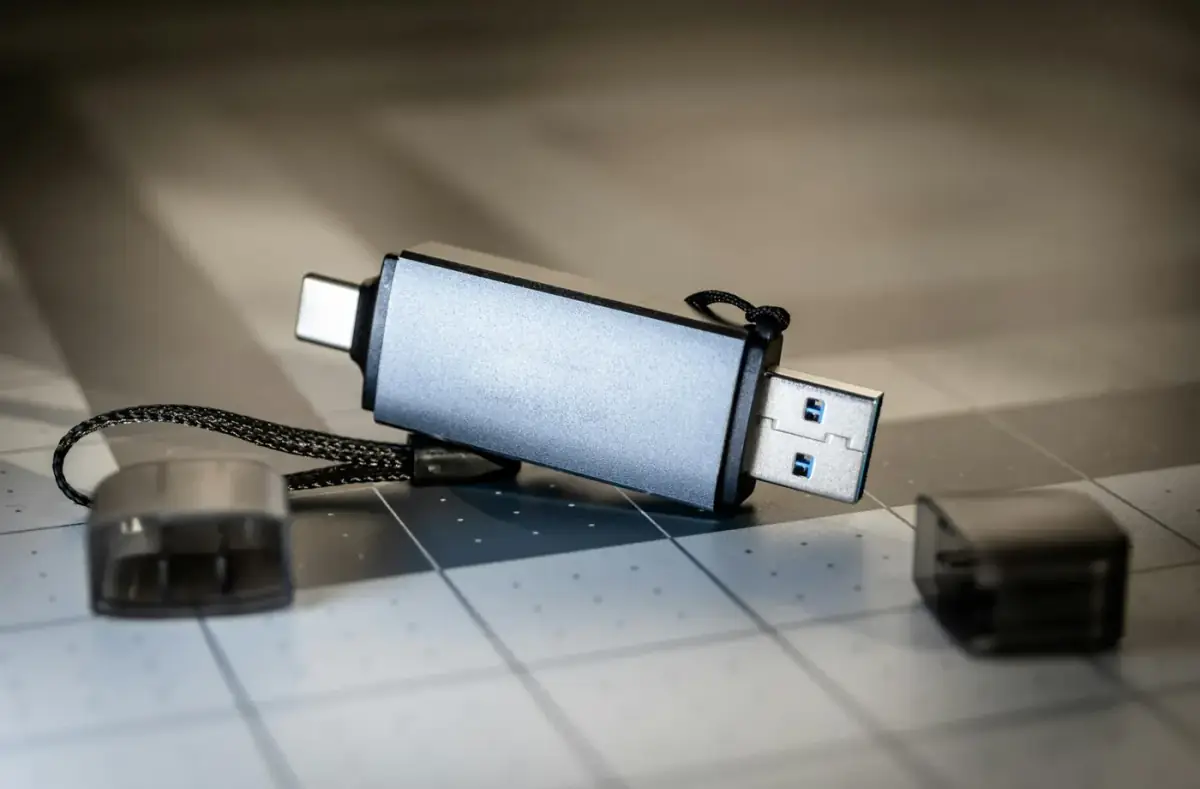
USB Drive Requirements for Installing Windows: Safe Installer Checklist
Choose and prepare a Windows installer USB safely by checking capacity, erase risk, boot mode, USB ports, reliability, and recovery planning.
 By NexyFix Windows DeskWindows Repair EditorPublished Feb 26, 2026Updated Mar 1, 202610 min readIntermediate
Section 1
Who this guide is for
Use this before creating Windows install media or when a USB installer behaves inconsistently.
- You need a USB drive you can erase.
- Setup fails, loops, or does not appear in the boot menu.
- You are preparing for a reinstall or new SSD setup.
- You want a practical checklist, not a product recommendation.
Section 2
USB requirements that matter
Reliability matters more than speed claims.
- Use a USB drive with enough capacity for the installer and no important files on it.
- Avoid old drives that disconnect, overheat, or show file-copy errors.
- Use a direct USB port on the target PC while testing.
- Label the installer so it is not confused with backups or personal storage.
Section 3
Safe creation checklist
The installer creation process erases the drive, so prepare first.
- Move personal files off the USB drive.
- Use a trusted Windows creation path.
- Wait for the creation tool to finish completely.
- Safely eject the drive before moving it to another PC.
- Test the one-time boot menu before changing firmware settings.
Section 4
Yes/no decisions
Use the result to choose the next safe step.
- Does the USB appear in the boot menu? Yes: choose it. No: try another port, recreate the installer, or test another known-good USB.
- Does setup start but fail copying files? Recreate the USB before changing BIOS settings.
- Does the PC boot the old Windows instead? Use the one-time boot menu or check boot order carefully.
Section 5
When to stop
A USB problem should not become a data-loss problem.
- Stop before erasing a drive that contains personal files.
- Stop before deleting internal-drive partitions while trying to fix a USB boot issue.
- Stop if firmware prompts are unclear or the internal drive disappears.
FAQ
Can I keep files on the same USB installer?
Avoid it. The creation process usually erases the drive, and mixing personal files with boot media makes recovery more confusing.
Does a faster USB always make Windows install better?
No. A reliable, cleanly created installer matters more than headline speed. A flaky drive can cause setup errors even if it is fast.
What should I try if the USB does not boot?
Try a direct USB port, recreate the installer, test another USB drive, and use the one-time boot menu before changing firmware settings.
Was this helpful?
Your feedback helps NexyFix improve future repair guides and beginner explanations.

NexyFix Windows Desk
View author profileWindows Repair Editor
A role-based NexyFix editorial profile for practical Windows repair and install guides with a focus on safe, reversible troubleshooting.
Related articles
Bootable USBHow to Create a Bootable Windows USB SafelyCreate a reliable Windows USB installer while avoiding modified images, weak USB drives, and accidental data loss.Bootable USBBootable USB Not Showing in Boot MenuTroubleshoot a missing boot USB with port, boot menu, UEFI mode, media creation, and firmware checks before changing storage settings. Windows InstallationHow to Install Windows 11 From USB SafelyInstall Windows 11 from a USB installer with clear backup, boot menu, drive selection, and stop-point guidance.