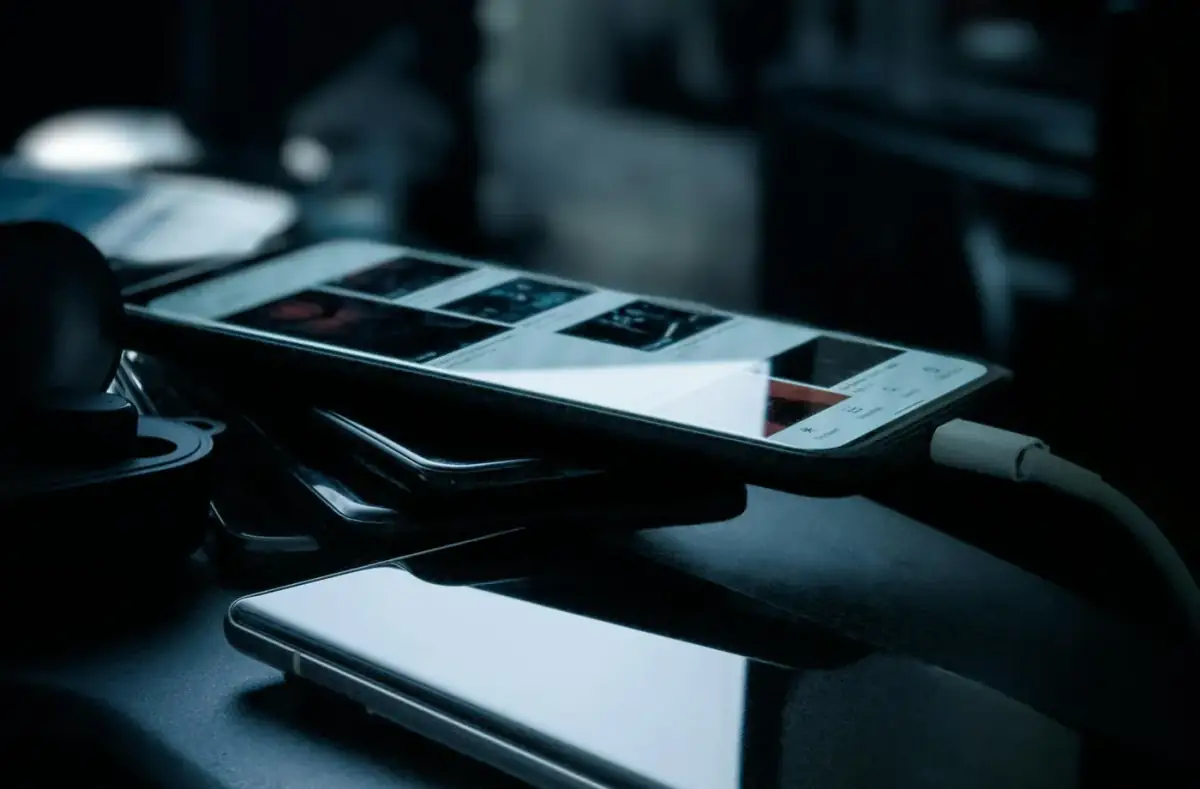
Magnetic Phone Case Compatibility Checklist
Check magnetic case fit, charging alignment, heat, button pressure, wallet attachments, and accessory interference before daily use.
 By NexyFix Gaming DeskGaming PC AnalystPublished Mar 17, 2026Updated Mar 21, 20265 min readIntermediate
Guided repair
Magnetic phone case compatibility checklist
Use this when a magnetic case, wallet, mount, or ring affects charging, buttons, camera, heat, NFC, or grip. Test fit and function before trusting it daily.
Time needed
10-25 minutes
Difficulty
Beginner
Risk level
Low
Applies to
Symptoms
- Wireless charging is unstable
- Buttons are stiff
- Camera edge is blocked
- Phone gets warm in the case
- Wallet attachment slides or blocks charging
Common causes
- Magnet misalignment
- Thick case
- Metal plate placement
- Poor button molding
- Blocked port
- Accessory stack too thick
Before you start
Prepare a safe repair session
- Remove cards and metal plates for charging tests.
- Use known-good charger and cable.
- Do not force the case onto the phone.
- Stop for swollen battery, heat, burning smell, liquid damage, melted plastic, damaged cable, or a loose charging port.
Quick path
Try the safest checks first
Step 1
Test the phone with the case off first
A baseline test tells you whether the phone or case is causing the symptom.
Exact path to follow
- 1Remove the case.
- 2Test charging, buttons, camera, and port access.
- 3Note what works.
- 4Install the case and repeat.
Expected result
The case effect is clear.
If it worked
Keep the case only if behavior stays normal.
If it did not work
Check alignment and fit.
Step 2
Check magnet alignment and port clearance
Small fit problems can create heat, charging pauses, or port stress.
Exact path to follow
- 1Place the phone on the magnetic charger or mount.
- 2Check whether it centers naturally.
- 3Check connector seating.
- 4Remove wallets or metal plates for the test.
Expected result
Alignment and clearance are confirmed.
If it worked
Use the stable setup.
If it did not work
Stop if heat or force appears.
Does the case cause heat, poor fit, or charging pauses?
Yes
Stop using that accessory for charging.
No
Continue using it if all functions test normally.
Did the quick path fix the problem?
Yes
Stop here and write down what worked.
No
Continue with the detailed steps below.
Detailed steps
Move one step at a time
Step 3
Check buttons and camera cutouts
Bad case fit can press buttons or interfere with photos.
Exact path to follow
- 1Press each button normally.
- 2Check whether the power button sticks.
- 3Open the camera.
- 4Check wide and flash areas if relevant.
Expected result
Controls and camera are not blocked.
If it worked
Keep the case.
If it did not work
Use a better-fitting case.
Step 4
Avoid stacking accessories
Wallets, rings, plates, and mounts can add distance and heat.
Exact path to follow
- 1Remove stacked accessories.
- 2Charge with the case only.
- 3Then test one add-on at a time.
- 4Stop if heat or slipping appears.
Expected result
The accessory stack causing the issue is identified.
If it worked
Use fewer stacked accessories.
If it did not work
Choose a different setup.
Step 5
Check everyday pocket and travel fit
A case that slips, snags, or presses buttons can create daily problems.
Exact path to follow
- 1Put the phone in a pocket or bag gently.
- 2Check whether buttons press accidentally.
- 3Check whether wallet attachments stay secure.
- 4Remove the accessory if it shifts easily.
Expected result
The case is safe for normal carry.
If it worked
Use it if stable.
If it did not work
Replace it if fit is unreliable.
Advanced checks
Use only after the safe path
Step 6
Retire the case when it creates charging heat or pressure
Accessory problems are cheaper to solve than port, button, or battery damage.
Exact path to follow
- 1Stop using cases that heat during charging.
- 2Stop using cases that press buttons.
- 3Avoid cases that block the connector.
- 4Choose protection that fits without force.
Expected result
Unsafe or poor-fit accessory is removed.
If it worked
Use a better fit.
If it did not work
Use device service if the phone now has port or button damage.
Stop here
Stop for poor case fit or heat
A case should protect the phone without creating charging or button problems.
- Stop if the phone gets hot.
- Stop if buttons stick.
- Stop if the connector must be forced.
Mistakes to avoid
- Do not charge through heat.
- Do not force a tight case.
- Do not stack metal plates over wireless charging areas.
- Do not ignore stuck buttons.
When to ask a technician
- Button remains stuck after removing case.
- Phone heats with no case.
- Port is damaged.
- Battery swelling appears.
Guided repair FAQ
Can a magnetic case affect wireless charging?
Yes. Alignment, thickness, metal plates, and accessory stacking can slow, pause, or heat charging.
Can a case cause button problems?
Yes. Poor fit can keep a button partly pressed or make it feel stuck.
Should I use a random tool to fix magnetic phone cases?
No. Start with built-in settings, official support paths, reversible checks, and known-good cables or accessories. Unknown repair tools often add risk without proving the cause.
What is the safest way to test?
Change one thing, test the same symptom, and stop when the problem is fixed. Avoid stacking several changes because you will not know what helped.
Related guides
Was this helpful?
Your feedback helps NexyFix improve future repair guides and beginner explanations.

NexyFix Gaming Desk
View author profileGaming PC Analyst
A role-based NexyFix editorial profile for frame pacing, game stability, PC thermals, driver behavior, and realistic performance tuning.
Related articles
 Phone ChargingHow to Fix iPhone Charger Port Not Working: Safe Checks FirstiPhone charger port not working? Try safe checks for lint, cable problems, adapter issues, moisture warnings, loose charging, and when to get repair help.Phone ChargingiPhone Charger Cable Not Working: Safe Charging ChecksIf your iPhone charger cable is not working, check the cable, adapter, outlet, charging port, temperature, and backup options before replacing parts.