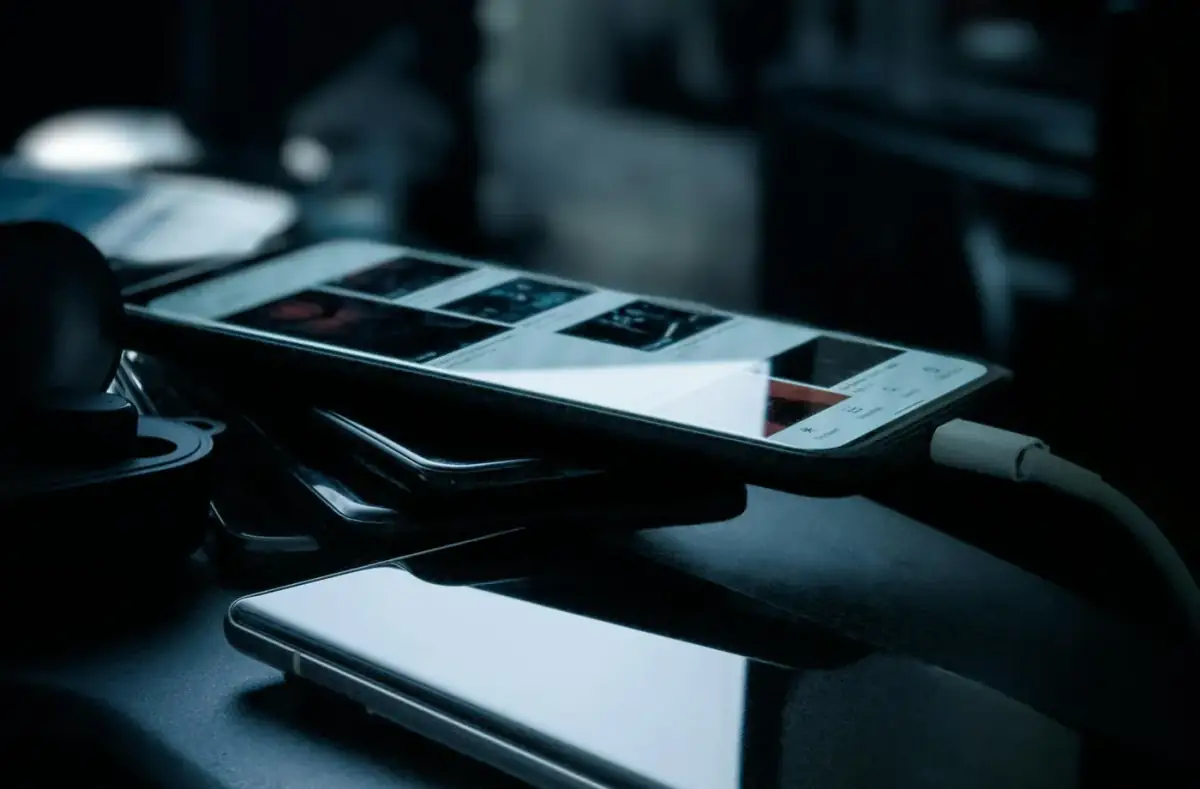
Fix Loose Phone Case Buttons and Poor Fit
Check whether a phone case blocks buttons, traps heat, pushes screen protectors, or interferes with charging before replacing accessories.
 By NexyFix Mobile and Laptop DeskPhone and Laptop Help EditorPublished Mar 16, 2026Updated Mar 21, 20266 min readIntermediate
Guided repair
Fix loose phone case buttons and poor fit
Use this when a case feels loose, buttons stick, ports are blocked, screen edges lift, or charging cables do not seat cleanly. The safe fix is usually fit, cleaning, or replacing the case, not modifying the phone.
Time needed
10-20 minutes
Difficulty
Beginner
Risk level
Low
Applies to
Symptoms
- Buttons feel mushy or stuck
- Case pops off corners
- Cable does not seat fully
- Screen protector lifts
- Camera edge is covered
Common causes
- Wrong phone model case
- Warped case
- Dust trapped under case
- Thick screen protector
- Poorly molded buttons
- Accessory stack interference
Before you start
Prepare a safe repair session
- Remove the phone from the case gently.
- Do not bend the phone.
- Do not cut near the device.
- Stop if the phone itself looks swollen or bent.
Quick path
Try the safest checks first
Step 1
Confirm the exact phone model fit
Cases for similar-looking phones can block buttons, cameras, or ports.
Exact path to follow
- 1Check the phone model in settings or on the box.
- 2Check the case model label.
- 3Compare camera, button, and port layout.
- 4Do not force a near-fit case.
Expected result
You know whether the case matches the phone.
If it worked
Use only the correct case.
If it did not work
Remove the case until the right fit is available.
Is the case made for the exact phone model?
Yes
Continue fit checks.
No
Stop using it and get the correct fit.
Step 2
Clean debris and reseat the case
Dust or grit under a case can make buttons bind or corners lift.
Exact path to follow
- 1Remove the case.
- 2Wipe the phone and case with a dry soft cloth.
- 3Check corners and button covers.
- 4Reinstall from one edge without forcing.
Expected result
The case seats evenly.
If it worked
Stop if buttons and ports work.
If it did not work
Check whether the case is warped or too tight.
Did the quick path fix the problem?
Yes
Stop here and write down what worked.
No
Continue with the detailed steps below.
Detailed steps
Move one step at a time
Step 3
Check buttons one by one
A stuck power or volume button can cause restart loops, screenshots, or no response.
Exact path to follow
- 1Press power, volume, and action buttons.
- 2Remove the case and test again.
- 3Compare button feel with and without the case.
- 4Stop using the case if it keeps a button pressed.
Expected result
Button behavior is clearly tied to the case or phone.
If it worked
Replace the case if it is the cause.
If it did not work
Use service if the phone button itself is stuck.
Step 4
Check charging and port clearance
A case can stop the cable from seating fully and create intermittent charging.
Exact path to follow
- 1Plug in a known-good cable with the case on.
- 2Do not force it.
- 3Remove the case and test again.
- 4Check whether the case lip blocks the connector.
Expected result
Port access is confirmed.
If it worked
Use the case only if cable seats fully.
If it did not work
Use a better-fitting case.
Step 5
Check screen protector and case conflict
Some case edges push screen protectors up and trap dust.
Exact path to follow
- 1Look for lifted screen protector edges.
- 2Remove the case and see whether the protector relaxes.
- 3Use a thinner case or compatible protector.
- 4Do not press hard on cracked glass.
Expected result
Case and protector compatibility is known.
If it worked
Use the compatible combination.
If it did not work
Replace the poor-fitting accessory.
Advanced checks
Use only after the safe path
Step 6
Retire warped, cracked, or unsafe cases
A cheap case is not worth damaging buttons, ports, or glass.
Exact path to follow
- 1Check for warped corners.
- 2Check cracks around button covers.
- 3Check loose magnets or metal parts.
- 4Replace the case if fit is unreliable.
Expected result
Poor-fit protection is removed before it causes phone damage.
If it worked
Use a safer case.
If it did not work
Get phone service if damage remains without the case.
Stop here
Stop if the phone itself looks damaged
Case fit problems should stay outside the phone.
- Stop if the battery area bulges.
- Stop if buttons stick without the case.
- Stop if the port or frame is damaged.
Mistakes to avoid
- Do not force a case made for a different model.
- Do not cut or heat a case while on the phone.
- Do not force charging cables.
- Do not ignore stuck buttons.
When to ask a technician
- Button remains stuck with case removed.
- Phone frame is bent.
- Battery swelling lifts the case or screen.
- Charging port is damaged.
Guided repair FAQ
Can a loose case damage a phone?
It can reduce drop protection and may let dust or grit rub against the phone. A poor fit can also block ports or press buttons.
Should I modify the case?
Usually no. If the case blocks buttons or ports, replacing it is safer than cutting, heating, or forcing it.
Should I use a random tool to fix phone case fit?
No. Start with built-in settings, official support paths, reversible checks, and known-good cables or accessories. Unknown repair tools often add risk without proving the cause.
What is the safest way to test?
Change one thing, test the same symptom, and stop when the problem is fixed. Avoid stacking several changes because you will not know what helped.
Related guides
Was this helpful?
Your feedback helps NexyFix improve future repair guides and beginner explanations.

NexyFix Mobile and Laptop Desk
View author profilePhone and Laptop Help Editor
A role-based NexyFix editorial profile for beginner-friendly phone, charging, Bluetooth, storage, and laptop maintenance explanations with safety notes first.
Related articles
 Phone ChargingHow to Fix iPhone Charger Port Not Working: Safe Checks FirstiPhone charger port not working? Try safe checks for lint, cable problems, adapter issues, moisture warnings, loose charging, and when to get repair help.Phone ChargingiPhone Charger Cable Not Working: Safe Charging ChecksIf your iPhone charger cable is not working, check the cable, adapter, outlet, charging port, temperature, and backup options before replacing parts.