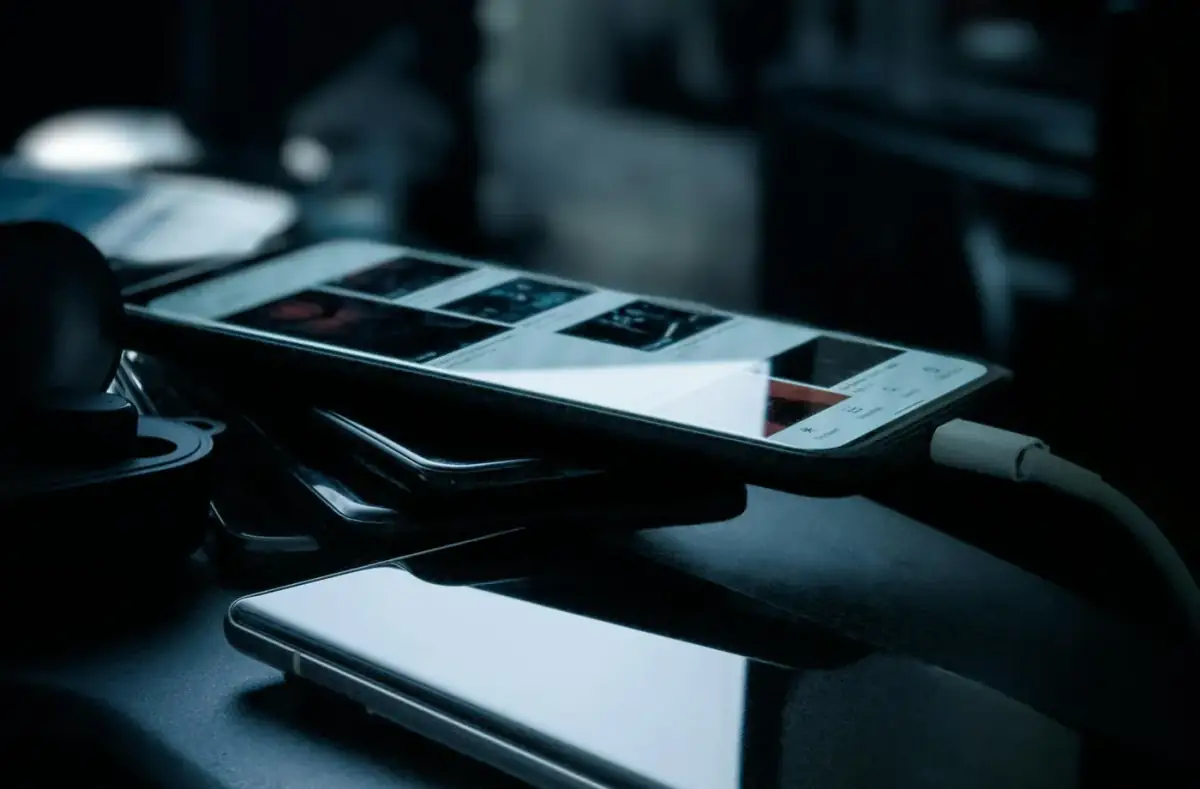
Fix Android Battery Drain After an Update
Check Android battery drain after an update with app activity, signal quality, heat, storage, background sync, and safe reset warnings.
 By NexyFix Gaming DeskGaming PC AnalystPublished Mar 5, 2026Updated Mar 9, 202610 min readIntermediate
Guided repair
Fix Android battery drain after an update
Use this when battery life drops after a system update, app update, or phone setup. Start with update settling, battery usage, app behavior, signal, and charging safety before reset decisions.
Time needed
20-60 minutes plus observation
Difficulty
Beginner
Risk level
Low
Applies to
Symptoms
- Battery drops faster than before
- Phone is warm at idle
- One app is high in Battery settings
- Drain is worse on mobile data
- Charging feels slower than normal
Common causes
- Post-update indexing
- Apps updating in background
- Weak signal
- Stuck sync
- High screen brightness
- Location or Bluetooth activity
- Aging battery
Before you start
Prepare a safe repair session
- Let the phone finish updates on WiFi.
- Use safe charging gear.
- Do not install battery saver or cleaner apps.
- Stop for swollen battery, heat, burning smell, liquid damage, melted plastic, damaged cable, or a loose charging port.
Quick path
Try the safest checks first
Step 1
Give the update time to settle
Phones often run extra tasks after updates, including app optimization, sync, and indexing.
Exact path to follow
- 1Charge safely.
- 2Use WiFi if available.
- 3Restart once after updates finish.
- 4Watch battery over the next normal day.
Expected result
Temporary update drain has time to settle.
If it worked
Stop if battery returns to normal.
If it did not work
Check battery usage by app.
Did battery life improve after a day of normal use?
Yes
Stop and avoid extra changes.
No
Check battery usage and signal next.
Step 2
Check Battery settings for the top drain
Battery settings usually show whether the problem is one app, screen, signal, or system activity.
Exact path to follow
- 1Open Settings.
- 2Open Battery.
- 3Review battery usage by app or system item.
- 4Note the top drain before changing anything.
Expected result
You know where the drain is concentrated.
If it worked
Fix the top cause.
If it did not work
Continue with app and signal checks.
Did the quick path fix the problem?
Yes
Stop here and write down what worked.
No
Continue with the detailed steps below.
Detailed steps
Move one step at a time
Step 3
Update or restrict the problem app
A single app can get stuck syncing or using location after an update.
Exact path to follow
- 1Update the app from Play Store.
- 2Force close it once.
- 3Check its battery setting.
- 4Restrict background use only if the app does not need instant alerts.
Expected result
The app stops draining battery without breaking important notifications.
If it worked
Stop if drain improves.
If it did not work
Check signal and radios.
Step 4
Check weak signal, Bluetooth, and location
Phones use more power when searching for signal or maintaining active radios.
Exact path to follow
- 1Compare drain on WiFi vs mobile data.
- 2Turn off Bluetooth for one test if not needed.
- 3Check Location use by apps.
- 4Move to a stronger signal area if possible.
Expected result
Radio or location drain is identified.
If it worked
Adjust the app or connection causing drain.
If it did not work
Continue to heat and battery health clues.
Step 5
Check heat and charging behavior
Heat can both drain battery and trigger charging protection.
Exact path to follow
- 1Remove the case for a cool-down test.
- 2Stop heavy games or navigation while charging.
- 3Try a known-good cable and adapter.
- 4Stop for heat, swelling, or port damage.
Expected result
Unsafe charging or heat symptoms are ruled out.
If it worked
Use safer charging habits.
If it did not work
Ask support if heat persists at idle.
Advanced checks
Use only after the safe path
Step 6
Reset only after backup and app isolation
Factory reset can help stubborn software issues, but it is a data-loss step.
Exact path to follow
- 1Back up photos, messages, authenticator apps, and files.
- 2Remove or update the problem app first.
- 3Try safe mode if your phone supports it.
- 4Reset only when the pattern is clear and backup is verified.
Expected result
Reset is avoided or done with a safe plan.
If it worked
Restore carefully and test before installing every app.
If it did not work
Use manufacturer or carrier support if drain persists after a clean setup.
Stop here
Stop for battery safety signs
Battery drain is usually software or signal related, but heat and swelling are hardware safety signs.
- Stop if the phone is swollen.
- Stop if charging creates heat or smell.
- Stop before factory reset without backup.
Mistakes to avoid
- Do not install cleaner or battery booster apps.
- Do not judge battery during the first hour after an update.
- Do not ignore weak signal drain.
- Do not keep charging a hot or swollen phone.
When to ask a technician
- Battery swelling.
- Burning smell or extreme heat.
- Phone shuts down at high percentage.
- Drain remains severe after clean setup and safe checks.
Guided repair FAQ
Is battery drain normal after an update?
Some extra drain can be normal while apps optimize and sync. It should improve after the phone settles.
Should I use a battery saver app?
No. Use built-in Battery settings, app updates, signal checks, and safe charging checks first.
Should I use a random tool to fix Android battery drain?
No. Start with built-in settings, official support paths, reversible checks, and known-good cables or accessories. Unknown repair tools often add risk without proving the cause.
What is the safest way to test?
Change one thing, test the same symptom, and stop when the problem is fixed. Avoid stacking several changes because you will not know what helped.
Related guides
Was this helpful?
Your feedback helps NexyFix improve future repair guides and beginner explanations.

NexyFix Gaming Desk
View author profileGaming PC Analyst
A role-based NexyFix editorial profile for frame pacing, game stability, PC thermals, driver behavior, and realistic performance tuning.
Related articles
 Phone ChargingHow to Fix iPhone Charger Port Not Working: Safe Checks FirstiPhone charger port not working? Try safe checks for lint, cable problems, adapter issues, moisture warnings, loose charging, and when to get repair help.Phone ChargingiPhone Charger Cable Not Working: Safe Charging ChecksIf your iPhone charger cable is not working, check the cable, adapter, outlet, charging port, temperature, and backup options before replacing parts.