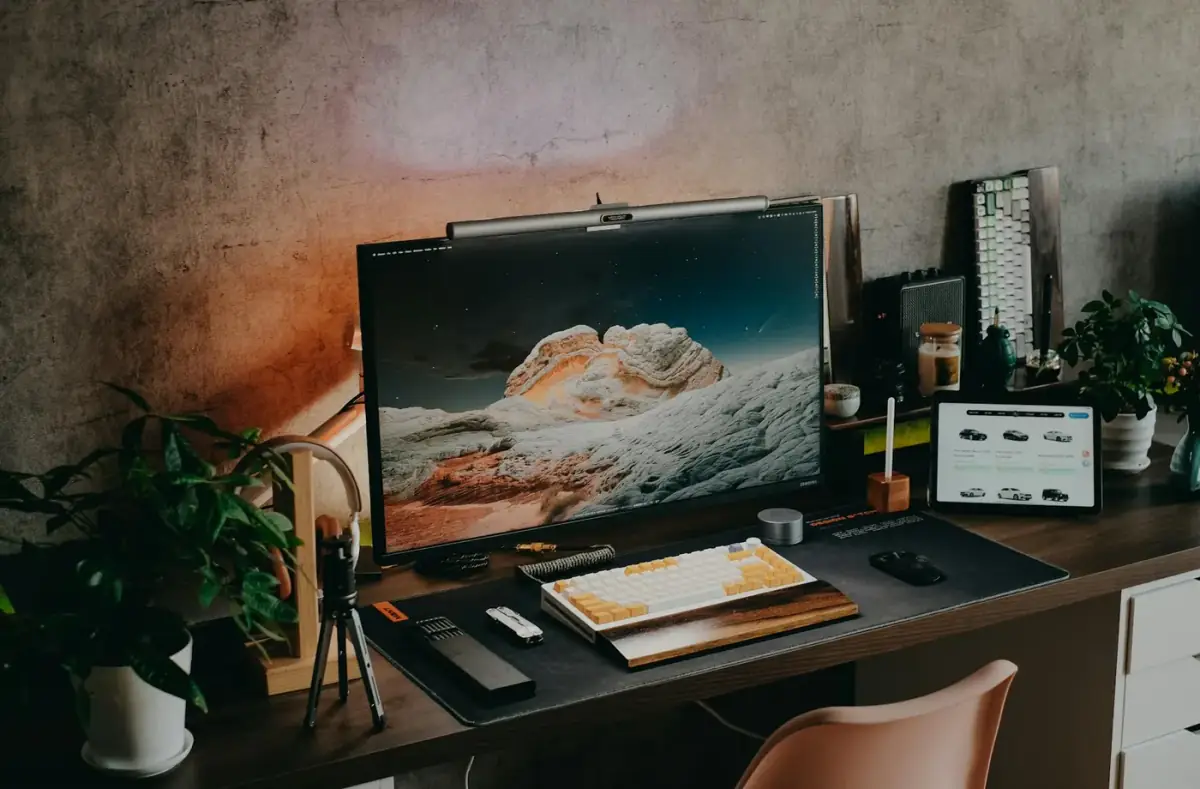
Windows Settings for Smoother Gaming Performance
Tune Windows gaming settings with Game Mode, startup apps, display refresh rate, power mode, and update checks without risky shortcuts.
 By NexyFix Gaming DeskGaming PC AnalystPublished Apr 6, 2026Updated May 5, 20268 min readBeginnerUpdated recentlyBeginner friendly
Guided repair
Use Windows settings for smoother gaming performance
Use this to check Windows gaming-related settings that are safe and reversible. The goal is smoother frame pacing, correct display behavior, and lower background load without registry edits.
Time needed
15-30 minutes
Difficulty
Beginner
Risk level
Low
Applies to
Symptoms
- Game feels choppy despite decent FPS
- Monitor stuck at 60 Hz
- Background apps start with Windows
- Performance changes after updates
- Input feels inconsistent
Common causes
- Wrong refresh rate
- Unneeded startup apps
- Game Mode off
- Overlays
- Display scaling mismatch
- GPU driver issue
Before you start
Prepare a safe repair session
- Write down current display resolution and refresh rate.
- Use one game for testing.
- Do not use registry tweak packs, service-disabling scripts, or FPS booster tools.
- Change one thing at a time, then test before moving to the next step.
Quick path
Try the safest checks first
Step 1
Check Game Mode
Game Mode helps Windows prioritize games in a normal supported way.
Exact path to follow
- 1Open Game Mode settings.
- 2Turn Game Mode on if it is off.
- 3Restart the game.
- 4Test the same scene.
Expected result
Windows uses its supported gaming behavior.
If it worked
Stop if smoothness improves.
If it did not work
Check display refresh rate next.
Did Game Mode improve frame pacing or reduce stutter?
Yes
Stop and keep it on.
No
Continue with display and startup checks.
Step 2
Set the correct refresh rate
A high refresh monitor feels like a 60 Hz display if Windows is set to 60 Hz.
Exact path to follow
- 1Open Display settings.
- 2Open Advanced display if needed.
- 3Choose the monitor.
- 4Set the expected refresh rate.
- 5Test the game again.
Expected result
The monitor runs at the expected refresh rate.
If it worked
Stop if motion feels correct.
If it did not work
Check cable, monitor mode, GPU driver, and game settings.
Was Windows using the wrong refresh rate?
Yes
Set the correct rate and retest.
No
Continue with startup and overlay checks.
Did the quick path fix the problem?
Yes
Stop here and write down what worked.
No
Continue with the detailed steps below.
Detailed steps
Move one step at a time
Step 3
Trim startup apps
Background launchers and updaters can hurt consistency even if average FPS looks fine.
Exact path to follow
- 1Open Startup Apps.
- 2Disable nonessential apps.
- 3Restart.
- 4Test the game before changing more settings.
Expected result
Fewer background tasks compete with the game.
If it worked
Keep startup lean.
If it did not work
Disable overlays for one test.
Step 4
Disable overlays only for testing
Overlays can affect frame pacing, capture, input, and crashes, but you may need some of them.
Exact path to follow
- 1Disable one overlay at a time in launchers or capture apps.
- 2Retest the same scene.
- 3Re-enable needed overlays if they are not the cause.
- 4Keep notes.
Expected result
You know whether an overlay affects smoothness.
If it worked
Leave the problem overlay off.
If it did not work
Check GPU driver and game-specific settings.
Step 5
Avoid service and registry tweaks
Disabling random services can break updates, audio, networking, anti-cheat, or security.
Exact path to follow
- 1Use Windows settings instead of registry packs.
- 2Use in-game graphics settings for performance.
- 3Use official drivers.
- 4Undo any old tweak pack if performance became unstable.
Expected result
Optimization stays reversible and supportable.
If it worked
Keep the clean setup.
If it did not work
Use the bottleneck guide.
Advanced checks
Use only after the safe path
Step 6
Match GPU driver choice to the symptom
A newer driver is not always better for every game. Rollback can be right if the problem started after an update.
Exact path to follow
- 1If the issue started after a GPU driver update, consider rollback.
- 2If the driver is very old, update from the official GPU or laptop maker source.
- 3Test one driver change at a time.
Expected result
Driver state is intentional.
If it worked
Stop.
If it did not work
Look for CPU, GPU, RAM, storage, or thermal bottlenecks.
Stop here
Stop before unsupported Windows tweaks
Smooth gaming should come from supported settings, stable drivers, and measured game changes.
- Stop before registry imports.
- Stop before disabling services.
- Stop if heat or shutdowns appear.
Mistakes to avoid
- Do not use registry performance packs.
- Do not disable random services.
- Do not use fake driver updater, repair, optimizer, or registry-cleaner tools.
- Do not judge changes without repeating the same test scene.
When to ask a technician
- The PC shuts down during games.
- Monitor or GPU loses signal.
- Fans fail or temperatures spike.
- Performance dropped after hardware installation.
Guided repair FAQ
Should Game Mode be on?
For most Windows gaming setups, yes. It is a supported setting and safer than tweak packs.
Why does my 144 Hz monitor feel like 60 Hz?
Windows, the monitor, the cable, or the game may be set to a lower refresh rate. Check Windows Display settings first.
Why avoid random repair or driver updater tools?
They make it hard to know what changed. Use built-in Windows tools, official support pages, and one reversible change at a time.
What should I write down before the next step?
Write down the exact symptom, error, device name, driver version, storage clue, or firmware setting involved. The topic-specific stop box above handles the risk limits.
Related guides
Was this helpful?
Your feedback helps NexyFix improve future repair guides and beginner explanations.
NexyFix Gaming Desk
View author profileGaming PC Analyst
A role-based NexyFix editorial profile for frame pacing, game stability, PC thermals, driver behavior, and realistic performance tuning.
Related articles
 Fps BoostHow to Boost FPS on a Low-End PC SafelyImprove FPS on a low-end PC with reversible graphics, startup, driver, storage, and heat checks instead of risky registry tricks.Fps BoostImprove FPS in Competitive Games Without BlurRaise competitive-game FPS while preserving clarity by testing resolution scale, motion blur, anti-aliasing, VSync, and refresh-rate settings.
 Gaming PC OptimizationFix High CPU Usage While GamingFind CPU load causes in games by checking shaders, launchers, overlays, background tasks, thermals, and settings one change at a time.