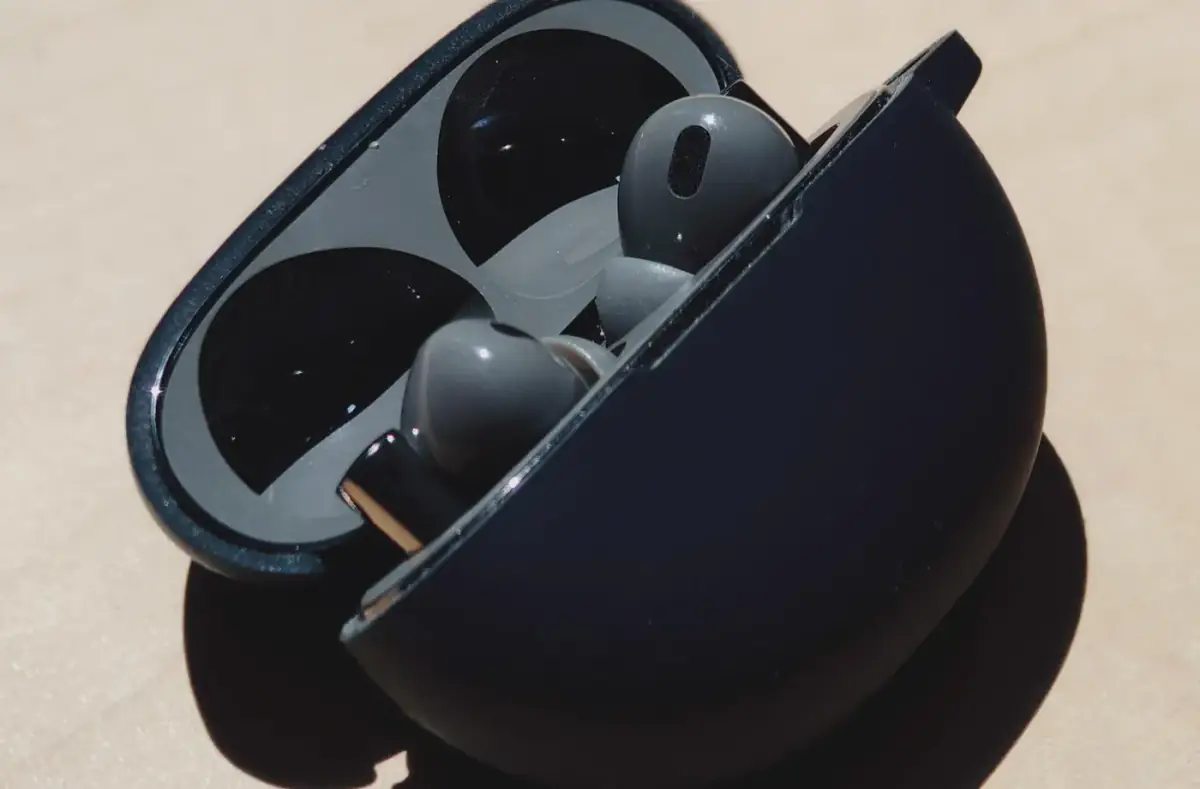
Smartwatch Connection and Notification Basics
Fix smartwatch pairing and notification basics by checking Bluetooth, companion apps, permissions, focus modes, and battery restrictions.
 By NexyFix Hardware and Boot DeskBoot and Hardware Education EditorPublished Mar 7, 2026Updated Mar 13, 20268 min readIntermediate
Guided repair
Smartwatch connection and notification basics
Use this when a smartwatch pairs but sync, notifications, calls, or app data feel unreliable. Start with phone compatibility, official app setup, Bluetooth range, permissions, and battery restrictions.
Time needed
15-40 minutes
Difficulty
Beginner
Risk level
Low
Applies to
Symptoms
- Watch disconnects
- Notifications arrive late
- Calls do not show
- Health data stops syncing
- Companion app says disconnected
Common causes
- Official app not allowed in background
- Bluetooth stale pairing
- Phone compatibility limit
- Do Not Disturb or Focus mode
- Battery saver
- Watch or phone update pending
Before you start
Prepare a safe repair session
- Charge the phone and watch.
- Keep them close together.
- Use only the official companion app.
- Do not reset both devices at the same time.
Quick path
Try the safest checks first
Step 1
Confirm phone compatibility and official app setup
A watch may pair over Bluetooth but still need the right phone OS and companion app for notifications and sync.
Exact path to follow
- 1Check the watch maker compatibility notes.
- 2Install the official companion app.
- 3Sign in if required.
- 4Keep the app open during first setup.
Expected result
The watch is using the supported setup path.
If it worked
Continue notification tests.
If it did not work
Stop if the phone is not supported.
Is the watch supported by this phone and app?
Yes
Continue setup.
No
Do not force unsupported pairing; use a compatible phone or watch.
Step 2
Check Bluetooth range and basic reconnect
Weak range or stale connection can look like app failure.
Exact path to follow
- 1Keep phone and watch within a few feet.
- 2Toggle Bluetooth off and on.
- 3Restart the watch.
- 4Restart the phone.
- 5Test sync again.
Expected result
Basic connection state refreshes.
If it worked
Stop if stable.
If it did not work
Check permissions and battery restrictions.
Did the quick path fix the problem?
Yes
Stop here and write down what worked.
No
Continue with the detailed steps below.
Detailed steps
Move one step at a time
Step 3
Allow notifications and background activity
The watch app needs permission to read notifications and stay connected.
Exact path to follow
- 1Open phone notification settings.
- 2Allow the companion app notifications.
- 3Open app battery settings.
- 4Allow background activity if needed.
Expected result
The app can forward notifications reliably.
If it worked
Stop if alerts work.
If it did not work
Check Focus, Do Not Disturb, or app-specific filters.
Step 4
Refresh pairing through the official app
Pairing through phone Bluetooth alone can miss setup steps.
Exact path to follow
- 1Open the companion app.
- 2Disconnect or remove the watch from inside the app if offered.
- 3Forget Bluetooth pairing only when the app says to.
- 4Pair again through the app.
Expected result
A clean watch connection is built.
If it worked
Stop if sync returns.
If it did not work
Update watch and phone software.
Step 5
Update watch, app, and phone software
New watches often need early firmware and app updates.
Exact path to follow
- 1Update the companion app from the official store.
- 2Check watch software update.
- 3Install normal phone updates.
- 4Keep both devices charged during updates.
Expected result
Known sync bugs are reduced.
If it worked
Stop.
If it did not work
Use watch support if still unstable.
Advanced checks
Use only after the safe path
Step 6
Reset only the watch after backup notes
A watch reset is safer than resetting the phone, but it can remove watch faces, cards, or health sync state.
Exact path to follow
- 1Write down watch settings you care about.
- 2Confirm health data sync if available.
- 3Reset only the watch.
- 4Pair again through the official app.
Expected result
The watch starts clean without disturbing phone data.
If it worked
Configure notifications gradually.
If it did not work
Use support if pairing still fails.
Stop here
Stop before repeated watch resets
Most watch setup problems are app, permission, background, or compatibility issues.
- Stop before resetting the phone.
- Stop if the watch heats or swells.
- Stop before using unofficial apps.
Mistakes to avoid
- Do not install unofficial companion apps.
- Do not reset phone and watch together.
- Do not ignore background battery restrictions.
- Do not pair only through Bluetooth if the maker app is required.
When to ask a technician
- Watch overheats.
- Battery swells.
- Charging contacts are damaged.
- The watch will not power on or hold charge.
Guided repair FAQ
Why does my watch pair but not show notifications?
Bluetooth pairing can work while notification access, background app permission, or Focus modes still block alerts.
Should I pair from Bluetooth settings or the watch app?
Use the official companion app when the watch maker provides one. It usually handles permissions and sync setup better.
Should I use a random tool to fix smartwatch sync?
No. Start with built-in settings, official support paths, reversible checks, and known-good cables or accessories. Unknown repair tools often add risk without proving the cause.
What is the safest way to test?
Change one thing, test the same symptom, and stop when the problem is fixed. Avoid stacking several changes because you will not know what helped.
Related guides
Was this helpful?
Your feedback helps NexyFix improve future repair guides and beginner explanations.

NexyFix Hardware and Boot Desk
View author profileBoot and Hardware Education Editor
A role-based NexyFix editorial profile for storage compatibility, boot behavior, error codes, and when hardware symptoms need professional help.
Related articles
 Phone ChargingHow to Fix iPhone Charger Port Not Working: Safe Checks FirstiPhone charger port not working? Try safe checks for lint, cable problems, adapter issues, moisture warnings, loose charging, and when to get repair help.Phone ChargingiPhone Charger Cable Not Working: Safe Charging ChecksIf your iPhone charger cable is not working, check the cable, adapter, outlet, charging port, temperature, and backup options before replacing parts.