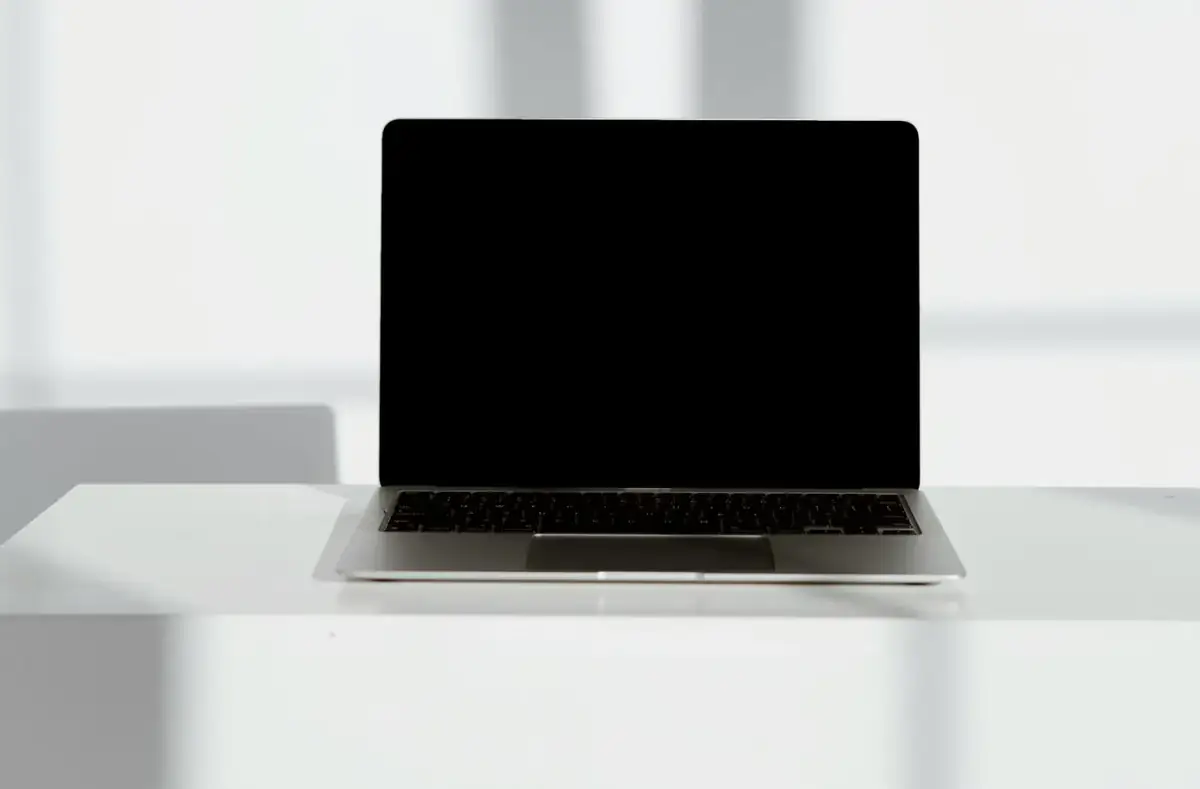
Laptop Screen Problems: Safe Checklist
Check brightness, external display behavior, flicker, hinge clues, driver timing, and panel damage before replacing parts.
 By NexyFix Mobile and Laptop DeskPhone and Laptop Help EditorPublished May 6, 2026Updated May 6, 20269 min readBeginnerUpdated recentlyBeginner friendly
Guided repair
Laptop screen problems
Use this for laptop flicker, dim screen, black screen with power, lines, external display differences, or screen issues after sleep. Start with software and display-mode checks, then stop for hinge or panel damage clues.
Time needed
15-45 minutes
Difficulty
Beginner
Risk level
Medium
Applies to
Symptoms
- Screen flickers
- External monitor works but panel does not
- Lines appear
- Screen changes when hinge moves
- Problem began after driver update
Common causes
- Brightness or display mode
- Sleep/wake issue
- Display driver
- Refresh rate
- Loose or damaged display cable
- Panel damage
- Hinge damage
Before you start
Prepare a safe repair session
- Save work if the display is unstable.
- Do not press on the panel.
- Do not open the hinge area casually.
- Stop for cracks, liquid, smell, or heat.
Quick path
Try the safest checks first
Step 1
Check brightness and display mode
A dim screen or external-only mode can look like a hardware fault.
Exact path to follow
- 1Raise brightness with keyboard keys and Settings.
- 2Press the display switch key if your laptop has one.
- 3Disconnect external displays for one test.
- 4Restart once.
Expected result
Simple display-mode causes are ruled in or out.
If it worked
Stop and keep normal display settings.
If it did not work
Test external monitor behavior.
Did brightness or display mode bring the laptop screen back?
Yes
Stop and check why the setting changed.
No
Use external display and timing clues.
Step 2
Compare with an external monitor
External display behavior helps separate GPU/Windows issues from the laptop panel or cable.
Exact path to follow
- 1Connect a known-working external monitor or TV.
- 2Select duplicate display mode if possible.
- 3Check whether the external screen is stable.
- 4Note whether the laptop panel stays broken.
Expected result
The issue is narrowed to system graphics or laptop display hardware.
If it worked
If external works, treat panel/cable/hinge as possible.
If it did not work
Check graphics driver and Windows startup behavior.
Did the quick path fix the problem?
Yes
Stop here and write down what worked.
No
Continue with the detailed steps below.
Detailed steps
Move one step at a time
Step 3
Check whether the problem appears before Windows
A screen problem in BIOS or at the logo is less likely to be a Windows setting.
Exact path to follow
- 1Restart the laptop.
- 2Watch the maker logo.
- 3Enter BIOS only if you know the key.
- 4Do not change settings; just observe.
Expected result
You know whether the screen issue exists before Windows loads.
If it worked
Use hardware stop clues if it appears before Windows.
If it did not work
Check display driver or Windows settings.
Step 4
Treat hinge-sensitive flicker as hardware
Display changes when moving the lid can point to cable, hinge, or panel damage.
Exact path to follow
- 1Move the lid gently only enough to observe.
- 2Do not flex the hinge repeatedly.
- 3Stop if picture changes with hinge movement.
- 4Use service before the cable or hinge worsens.
Expected result
Hinge/cable symptoms are not treated as software fixes.
If it worked
Stop and get service.
If it did not work
Use driver rollback or update timing checks.
Advanced checks
Use only after the safe path
Step 5
Use display driver changes only when timing fits
Driver rollback can help after a recent update, but physical symptoms need service.
Exact path to follow
- 1If the issue began after a graphics update, use Device Manager rollback if available.
- 2Install official laptop maker or GPU driver only if needed.
- 3Restart and test.
- 4Avoid driver updater tools.
Expected result
A software display change is tested safely.
If it worked
Keep the stable driver.
If it did not work
Use model-specific service support.
Stop here
Stop before hinge or panel damage gets worse
Laptop displays are fragile and often need model-specific service.
- Burning smell, sparks, swollen battery, liquid damage, clicking storage, or repeated shutdowns.
- A step requires opening hardware you are not comfortable opening.
- Important data is not backed up before storage, reset, or reinstall work.
Mistakes to avoid
- Do not press a flickering panel.
- Do not ignore hinge cracks.
- Do not use random driver tools.
- Do not replace the screen before testing external monitor behavior.
When to ask a technician
- Hinge movement changes the picture.
- Cracked panel or liquid damage.
- External monitor works but panel stays black.
- Screen is black before Windows loads.
Guided repair FAQ
What if the external monitor works?
The laptop is likely running. The issue may be brightness, panel, display cable, hinge, or laptop display driver.
Can Windows cause flicker?
Yes, especially after driver changes, but flicker tied to hinge movement is more hardware-like.
Should I use a one-click repair tool for laptop screen problems?
No. Start with built-in settings, official support paths, careful observation, and reversible changes. Unknown repair tools can add new problems.
What is the safest way to test the fix?
Change one thing, test the same symptom, and stop when the problem is fixed. If the next step risks data, firmware, battery, power, or storage, pause first.
Related guides
Was this helpful?
Your feedback helps NexyFix improve future repair guides and beginner explanations.

NexyFix Mobile and Laptop Desk
View author profilePhone and Laptop Help Editor
A role-based NexyFix editorial profile for beginner-friendly phone, charging, Bluetooth, storage, and laptop maintenance explanations with safety notes first.
Related articles
 Laptop ProblemsKeyboard and Touchpad Not Working After SleepRestore laptop input after sleep with restart, external keyboard, driver, power, and accessibility checks before assuming hardware failure.
 Laptop ProblemsLaptop Not Charging When Plugged In: Safe FixesFix a laptop not charging when plugged in with outlet, charger, USB-C, battery, HP/Dell/Lenovo clues, and safety checks.