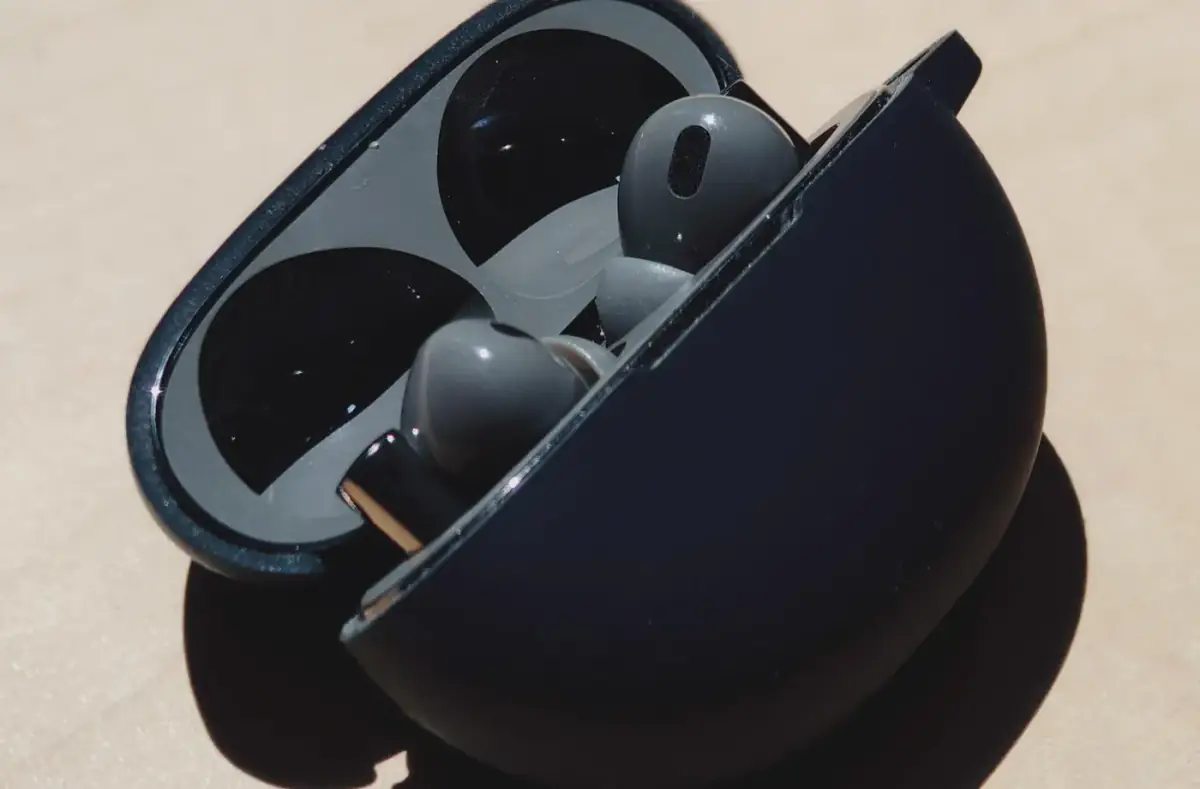
How to Fix Bluetooth Earbuds Connection Problems
Fix Bluetooth earbud pairing, one-side audio, dropouts, and device switching with safe reconnect and settings checks.
 By NexyFix Windows DeskWindows Repair EditorPublished Mar 22, 2026Updated May 5, 20268 min readBeginnerUpdated recentlyBeginner friendly
Guided repair
Bluetooth earbuds will not connect, keep disconnecting, or have audio problems
Use this when earbuds pair poorly with a phone or PC, disconnect, play through one side, or connect with no sound. Start with charge, range, stale pairing, and device-specific checks.
Time needed
10-30 minutes
Difficulty
Beginner
Risk level
Low
Applies to
Symptoms
- Earbuds will not pair
- One earbud connects
- Audio cuts out
- Earbuds connect to the wrong device
- Microphone or sound quality is poor
Common causes
- Low battery
- Stale pairing
- Multipoint conflict
- Distance or interference
- Dirty charging contacts
- App permission issue
Before you start
Prepare a safe repair session
- Charge earbuds and case.
- Keep earbuds close to the device.
- Disconnect from other phones or PCs.
- Do not use metal tools on tiny contacts.
Quick path
Try the safest checks first
Step 1
Charge and reset the connection state
Low case or earbud battery can cause partial pairing, one-sided audio, or repeated disconnects.
Exact path to follow
- 1Place both earbuds in the case.
- 2Charge the case.
- 3Restart the phone or PC.
- 4Try pairing again nearby.
Expected result
Both earbuds appear and stay connected.
If it worked
Stop here.
If it did not work
Remove stale pairing.
Step 2
Forget and re-pair
Pairing records can become stale after updates or switching between devices.
Exact path to follow
- 1Open Bluetooth settings.
- 2Forget or remove the earbuds.
- 3Put earbuds in pairing mode using their manual.
- 4Pair again from the phone or PC.
Expected result
Fresh pairing works.
If it worked
Stop.
If it did not work
Check other connected devices and accessory app settings.
Did the quick path fix the problem?
Yes
Stop here and write down what worked.
No
Continue with the detailed steps below.
Detailed steps
Move one step at a time
Step 3
Check multipoint and wrong-device connection
Earbuds may stay connected to a laptop, tablet, or previous phone instead of the device you are using.
Exact path to follow
- 1Turn Bluetooth off on nearby devices temporarily.
- 2Pair with only one device for the test.
- 3Check the earbud companion app if it has multipoint settings.
- 4Retest audio.
Expected result
The earbuds stay connected to the intended device.
If it worked
Re-enable other devices slowly.
If it did not work
Check contacts and fit.
Step 4
Inspect charging contacts and case seating
If one earbud does not charge, it may drop out or never enter pairing mode.
Exact path to follow
- 1Look for debris on earbud and case contacts.
- 2Wipe gently with a dry soft cloth.
- 3Confirm each earbud seats in the case.
- 4Avoid liquids unless the maker specifically says otherwise.
Expected result
Both earbuds charge and power on.
If it worked
Pair again.
If it did not work
Check device-specific reset instructions from the manufacturer.
Step 5
Test another device
Testing another phone or PC separates earbud failure from device settings.
Exact path to follow
- 1Pair earbuds to another phone or PC.
- 2Play audio for a few minutes.
- 3Test microphone if needed.
- 4Note whether the issue follows the earbuds.
Expected result
You know whether the earbuds or original device are the issue.
If it worked
Fix the original device's Bluetooth settings.
If it did not work
The earbuds or case may need service.
Advanced checks
Use only after the safe path
Step 6
Use manufacturer reset instructions
Earbud reset steps vary widely, so guessing can fail or trigger the wrong mode.
Exact path to follow
- 1Find the official manual for the exact model.
- 2Follow the reset steps exactly.
- 3Forget old pairing on the phone or PC.
- 4Pair again.
Expected result
The earbuds rebuild pairing state.
If it worked
Stop.
If it did not work
Consider service or replacement after backup of settings if applicable.
Stop here
Stop for battery or charging-case warning signs
Small batteries should not be used when swollen, hot, wet, or damaged.
- Stop if the case overheats.
- Stop if an earbud is swollen.
- Stop if liquid entered the case.
Mistakes to avoid
- Do not scrape charging contacts.
- Do not assume Windows, Android, or iPhone is the cause before testing another device.
- Do not keep pairing while earbuds are low battery.
When to ask a technician
- One earbud never charges.
- The case is swollen, hot, or smells unusual.
- The earbuds fail on every device after official reset.
Guided repair FAQ
Why does one earbud connect but not the other?
Often one earbud did not charge, the pair state is stale, or the model needs its official reset sequence.
Why do earbuds connect to the wrong device?
Multipoint or automatic reconnection can pull them to a nearby laptop, tablet, or previous phone.
Why does NexyFix avoid one-click repair tools here?
They usually hide what changed. This guide keeps each repair step visible, reversible, and tied to the symptom you actually see.
What note should I keep while testing?
Write down the exact error, device name, setting, cable, update, or hardware clue that changed the symptom. That note helps choose the next narrow guide.
Related guides
Was this helpful?
Your feedback helps NexyFix improve future repair guides and beginner explanations.

NexyFix Windows Desk
View author profileWindows Repair Editor
A role-based NexyFix editorial profile for practical Windows repair and install guides with a focus on safe, reversible troubleshooting.
Related articles
 Phone ChargingHow to Fix iPhone Charger Port Not Working: Safe Checks FirstiPhone charger port not working? Try safe checks for lint, cable problems, adapter issues, moisture warnings, loose charging, and when to get repair help.Phone ChargingiPhone Charger Cable Not Working: Safe Charging ChecksIf your iPhone charger cable is not working, check the cable, adapter, outlet, charging port, temperature, and backup options before replacing parts.